Function
Map360 includes the ability to import points, figures, raw measurement data, images, and scans from a Leica DBX database.
Procedure
Unit Settings
Note that all Leica DBX data is stored in meters and radians, and on import the data will be transformed into the current drawing's unit settings. Therefore, it is important to ensure that your drawing's unit settings are configured properly in the Job Defaults screen, prior to importing the DBX job.
DBX Import Dialog
When you start this command, you will see the DBX Import dialog.
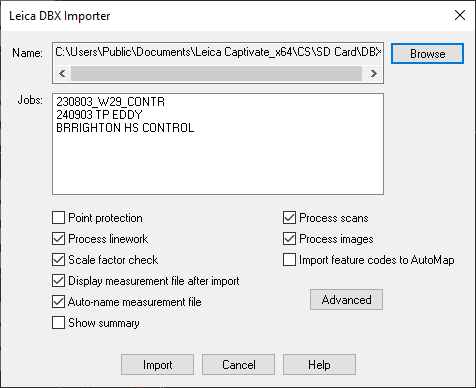
Press the Browse button to select the folder containing the desired DBX database for import. The selected folder will be displayed in the Name field, and the name of all jobs in the selected database will be displayed in the Jobs box - all jobs listed here will be imported.
Select any desired options:
Process linework: If selected, any linework in the DBX database will be processed and drawn.
Scale factor check: If selected, the scale factor read from the DBX database will be compared against the drawing's scale factor settings, and if there is any discrepancy then the Advanced Scale Factor Settings dialog will be displayed so you can set them as desired.
Display measurement file after import: If selected, the Active Traverse Editor will automatically open to display the imported data.
Auto-name measurement file: If selected, the measurement file will be automatically named using the job name. If not, you will be prompted to enter the name.
Show summary: If selected, a summary dialog will appear on completion of the import showing various information about the data that was imported.
Advanced Options Dialog
Press Advanced to access additional options:
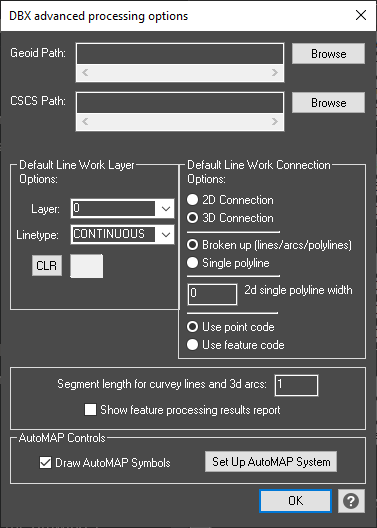
Geoid Path: Press the Browse button to locate the folder containing your Leica geoid (*.geo) models.
CSCS Path: Press the Browse button to locate the folder containing your Leica country specific coordinate system (*.csc) files.
Default Linework Layer and Connection Options: Specify the default linework processing options, which will be used if there is not a matching AutoMAP entry for the figure being drawn. Whenever there is a matching AutoMAP entry, it will override the defaults specified here. You can also choose whether to use the description of the figure, or the description of the first point on the figure to control the AutoMAP drawing codes.
AutoMAP Controls: Specify whether to process AutoMAP symbols, and which AutoMAP library to use.