Function
This command allows you to download and attach imagery from the Bing Maps™ mapping service into your drawing as a raster image.
Procedure
The Attach Geographic Imagery window lets you specify options that will be used for downloading the desired imagery and attaching it into your drawing.
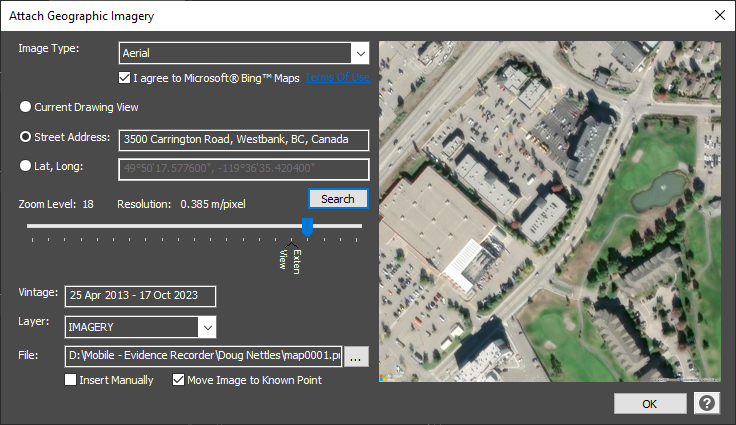
Image Source
Select the desired source mapping service (currently Bing Maps is the only available source) and type of imagery that you would like to insert.
The options shown in the second list will vary depending on which mapping service has been selected in the first list.
Bing Maps:
Aerial: Aerial imagery
Aerial With Labels: Aerial imagery with a road overlay
Road: Roads without additional imagery
Prior to downloading any imagery, you must agree to the selected mapping service's terms of use.
Image Position
Specify the desired method for choosing the image location.
Center Image on Current View - The x,y coordinate at the center of your current view will be transformed to a WGS84 latitude/longitude position that will be used to specify the center of the imagery. The view cannot be on an assumed or local coordinate system.
Center Image on Point ID - The x,y coordinate of the specified point ID will be transformed to a WGS84 latitude/longitude position that will be used to specify the center of the imagery. The point cannot be on an assumed or local coordinate system. The Select button will let you choose a point from your drawing.
Center Image on Lat/Long - The specified WGS84 latitude/longitude position will be used to specify the center of the imagery. The Select button will let you choose a position in your drawing, and it's x,y coordinate will be transformed to lat/long.
Center Image on Address - The specified address (like "3500 Carrington Road, West Kelowna, BC, Canada") will be used to determine the center of the imagery. Your IP address may be used to help improve the accuracy of the search results.
Zoom Level
Two markers are shown on the sliding scale bar, corresponding to the zoom levels at which the imagery will cover the current view or the drawing extents. By default it will be set at the "View" position, but can be adjusted as needed.
Sliding the marker left (towards "Min") will request imagery that covers a larger ground area but at a lower resolution.
Sliding the marker right (towards "Max") will request imagery that covers a smaller ground area but at a higher resolution.
Note, some geographical areas may not have imagery available at all zoom levels. The highest zoom levels may only be available in major urban centers but not in rural areas.
Map Vintage
The date (or range of dates) of the imagery's acquisition will be displayed. This will be updated when you press the "Preview" button.
Insertion Layer
Specify which layer the raster image should be inserted onto. By default, it will be set to the IMAGERY layer in the drawing.
URL
This field displays the URL for the imagery that will be requested based on the specified parameters. It is provided for reference only, and can generally be ignored.
The Preview button allows you to view the imagery for your specified parameters on the dialog, without inserting anything into your drawing. This is useful to verify that your specified source, position and zoom level are as desired.
File
This field displays the path and filename that the image will be downloaded and saved to. By default, the path will match your current drawing's project folder, and the filename will automatically increment based on any previously downloaded imagery in that folder. Press Browse button to specify another location.
Insert Manually for Local Coordinate System
If checked, you will be prompted for an insertion point, rotation angle, and scale factor, so that you can position it manually onto a local or assumed coordinate system.
If unchecked (default), the image will be automatically inserted into the appropriate position and orientation in your drawing based on the drawing's coordinate system.
Set Image Draworder to Back
If checked (default), the attached image will be moved to the Back of the drawing behind all other objects, preventing it from obscuring other objects in the drawing.
If unchecked, the attached image will be placed on the Front of the drawing and may obscure other objects in the drawing.
Move Image to Known Point
If checked (default/recommended), you will be prompted to select a corresponding feature in the image and in the drawing, in order to do a one-point localization of the image.
The horizontal positional accuracy of the Bing Maps imagery (as specified by their satellite imagery provider) is within 5m, 90% of the time. Because of the image's positional accuracy limitations, this imagery should not be used for precision design work.
OK / Cancel
Press OK to finish the routine and insert the image into the project. It will be attached as a standard raster image object, on the layer specified. The OK button will be disabled until you have agreed to the selected mapping service's terms of use.
Press Cancel to abort the routine, without downloading or inserting anything.
Google®, Google Maps™, and Google Earth™ are trademarks of Google Inc.
Microsoft®, Bing™, and Bing Maps are trademarks of Microsoft Corporation.