Function
The SyncWizard is Map360’s solution to the smooth import and processing of data files. This option is designed for Evidence Recorder files only. This step by step process will simplify your work.
Procedure
You have to either open an existing drawing, or create a new drawing prior to importing your Evidence Recorder Project. Once you have done this, you can start the SyncWizard command to import your project and when you do so you will see the following dialog:
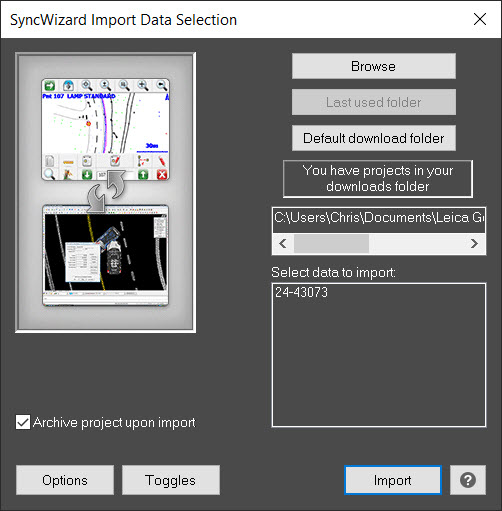
This is the list of all field data sets that are in the 'current' directory. Choose which one to import, then press Import.
Use the ‘Browse', 'Last Used Folder' or 'Default download folder’ buttons to change the current directory.
Browse
Use this to browse to a new directory that contains your field data.
Last Used Folder
Use this to set the current directory to the last one that you browsed to.
Default Download Folder
Use this to set the current directory to the SyncWizard\Downloads directory
Options
The SyncWizard Options dialog is used to configure how Map360 will process the Evidence Recorder project during import.
Toggles
This dialog box is a quick reminder of how your Toggles are currently set. You can also change their setting prior to reading the data in.
We have also setup a reminder to help you with the AutoMAP settings. The button that says "Set Up AutoMAP System" allows you to load one of the pre-saved AutoMAP Libraries. This means that as you read the data in the descriptions will be checked with the library to see what has to be done. Layer separation, colors, symbols, etc. will all be setup according to the library and the system toggles. For further information on how to use AutoMAP, see AutoMAP System.
Import
Map360 will compare the units that were used in Evidence Recorder and compare them to the units set for the Map360 project. If they differ, you will see a warning message allowing you to change the current project's unit setting. Usually your units will match, but if they don't we suggest you press the Yes button.
The points and linework will be imported and appear in your drawing.
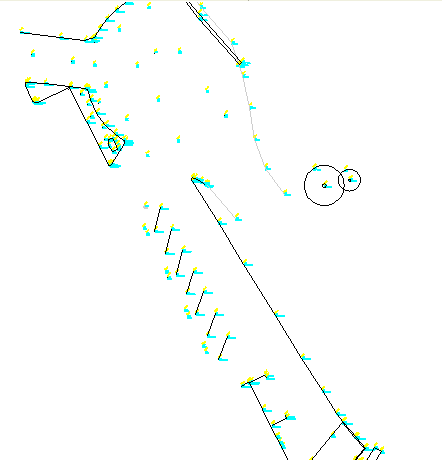
If the point labels are drawn in too big or too small, simply run the Resize Point Labels command to specify an appropriate size.