Function
Use this command to verify and edit your raw traverse data in an interactive spreadsheet-like editor. This database allows you to not only work with your raw data at any point in the file quickly, but it also allows customization of the views available and opens multiple data sets simultaneously. You can "Drag and Drop" your raw records within the editor. If you have accidentally entered shot data under the wrong setup, you can simply select the records you want to move and drag them to the correct location in the file, and your traverse file is automatically updated to reflect the changes.
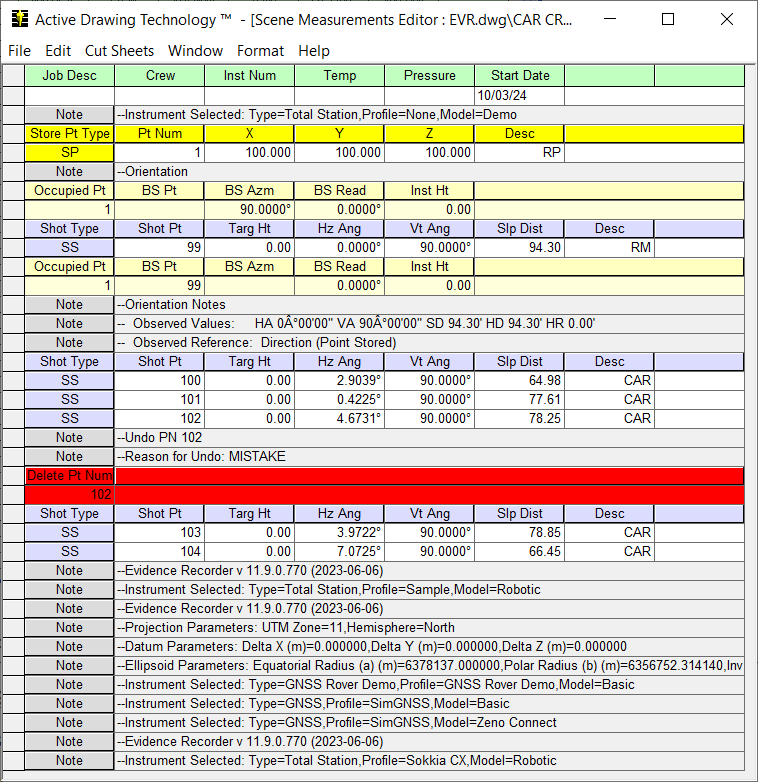
Procedure
File Menu
Save
Saves your traverse data file with any changes made in the editor.
New
Use this to create a new traverse file.
Open
Use this to open a different traverse file than the one you have opened. They have an extension of .TRV.
Save As…
Use this to save your current traverse file that is open in the editor as a different name. When you do this you will a dialog which shows you the file that is currently opened. From here enter the name of the file that you would like to create.
After you press OK your new file will be current and a note will be added to the top of your file indicating that it is a copy.

Save As Scaled…
This will do the same thing as the Save As… command but will ask you to enter a scale factor. The scale factor will be applied to all the distances found in the raw file.
This will only apply a scale factor to your distances that were measured. Target and instrument heights are not affected by this routine in any way. Use this routine to help you convert you ground measured distances into a grid system.
Save As Normalized…
This will do the same thing as the Save As… command but will normalize all of your face 2 total station measurements to face 1. Nothing else is affected by this routine in any way.
Use this to print your current measurement file in a spreadsheet format. The print out will reflect any setting you may have specified in the page setup and header/footer settings.
Print Preview
This will display a print preview of what will be printed if you use the Print command.
Print Setup
This allows you to setup your printer.
Page Setup
This allows you to format the page that will be printed.
Header / Footer
This will allow you specify a header or footer that will appear at the top or bottom of your printouts, such as your company name.
Exit
Closes the current measurement file.
Edit Menu
Undo
Undo an edit operation. If you have mistakenly included or excluded information from your file.
Redo
Redo a previously undone command.
Copy
Copies the current selection to the clipboard.
Paste
Pastes the contents of the clipboard into the document.
Delete
Deletes the currently selected set of traverse records from the file.
Find
To search the document for a specific string, use the Find dialog. Enter the text you are searching for in the find what: field and click on the Find Next button. The Active Editor will scroll the row into view where the first match is found.
Insert After
A toggle you can set to determine whether new traverse records are inserted before or after the current row
Note: the current row is the one displaying the black arrow head in the row header column.
Add Traverse Setup
Inserts a new Station Setup record into the file before or after the current row, according to the Insert After toggle.
Add Occupied Point Setup
Inserts a new Occupied Point Setup record into the file before or after the current row, according to the Insert After toggle.
Add Shot
Inserts a new Shot record into the file before or after the current row, according to the Insert After toggle.
Add Note
Inserts a new Note record into the measurement file at the current row.
Add Invert
Inserts a new invert record and allows you to manually input the information.
Add Resection Start
This will create the first line needed to complete a resection. In this step you will enter the instrument height.
Add Resection Shot
You can define your measurement to the know points using this record type. You need to have existing points in the database and know the target height, circle reading, vertical angle and measured slope distance. You can enter as many observation as needed and it supports shots in the reverse and direct faces.
Add Resection Finish
This is where you specify what point number that should be created when the resection solution is computed. The solution is computed when you re-coordinate your file.
Show and Zoom Shots
Use this to highlight and zoom to your selected shots in the drawing. Your sideshots will be shown with a green line, and shots to the backsight will have a red line. You can select multiple shots at the same time. ClosedExample.
Re-Coordinate Traverse
Saves the current measurementfile and runs the re-coordinate traverse program using the currently selected traverse file.
Cut Sheets Menu
Points
You can use this to create cut sheets from your Evidence Recorder or TDS raw data. If you imported data that has stakeout records you can create a cut sheet records. For example, if you generate a point cut sheet you will see a Closedreport similar to the following.
You can double click the column headings to sort the report records. For example if you double click the Delta Northing column, it will sort the records so the largest number is list at the top. This is a great way to spot large errors.
Format Menu
Refresh
Use this to refresh your measurement file. This is sometimes needed after you've done some editing such as deleting lines.
Show Offsets
Use this toggle to turn on/off the display of the Parallel and Perpendicular Offset columns in the Active Editor.
Show Coordinates
Use this toggle to turn on/off the display of the coordinate columns in the editor. Note that these values are obtained from the coordinate database based on the point number of the Traverse Station or Shot.
Show HzDist/VtDist
By default, the active editor will display slope distances and vertical angles for data imported from a total station or data collector. You can use this toggle to change the display so it displays horizontal and vertical distances based on the measured vertical angle and slope distance.
Show EvR/TDS Records
By default, this is turned off. EvR and TDS raw files contain a lot of information relating to what was done in the field. Some of this data isn't necessary to see at all times so we "hide" this data from displaying.
For example, when an angle offset is measured we hide the shots that were measured and simply display the resulting sideshot.

EvR/TDS Notes turned off

EvR/TDS Notes turned on
Note that you can now see the two offset measurements that were measured, and the final sideshot which is made up of the two OF records.
It is important to remember that these records are read only and not editable in any way. They are provided for information purposes only.
Show EvR/TDS Records Options
Map360 includes a Closedfilter utility that can help you choose what items you want to display in the active measurement editor. Items that you highlight will be hidden from the spreadsheet view.
Once you've decided on which records you want to filter, you need to turn on the Show EvR / TDS Records toggle in the Format Menu.