Function
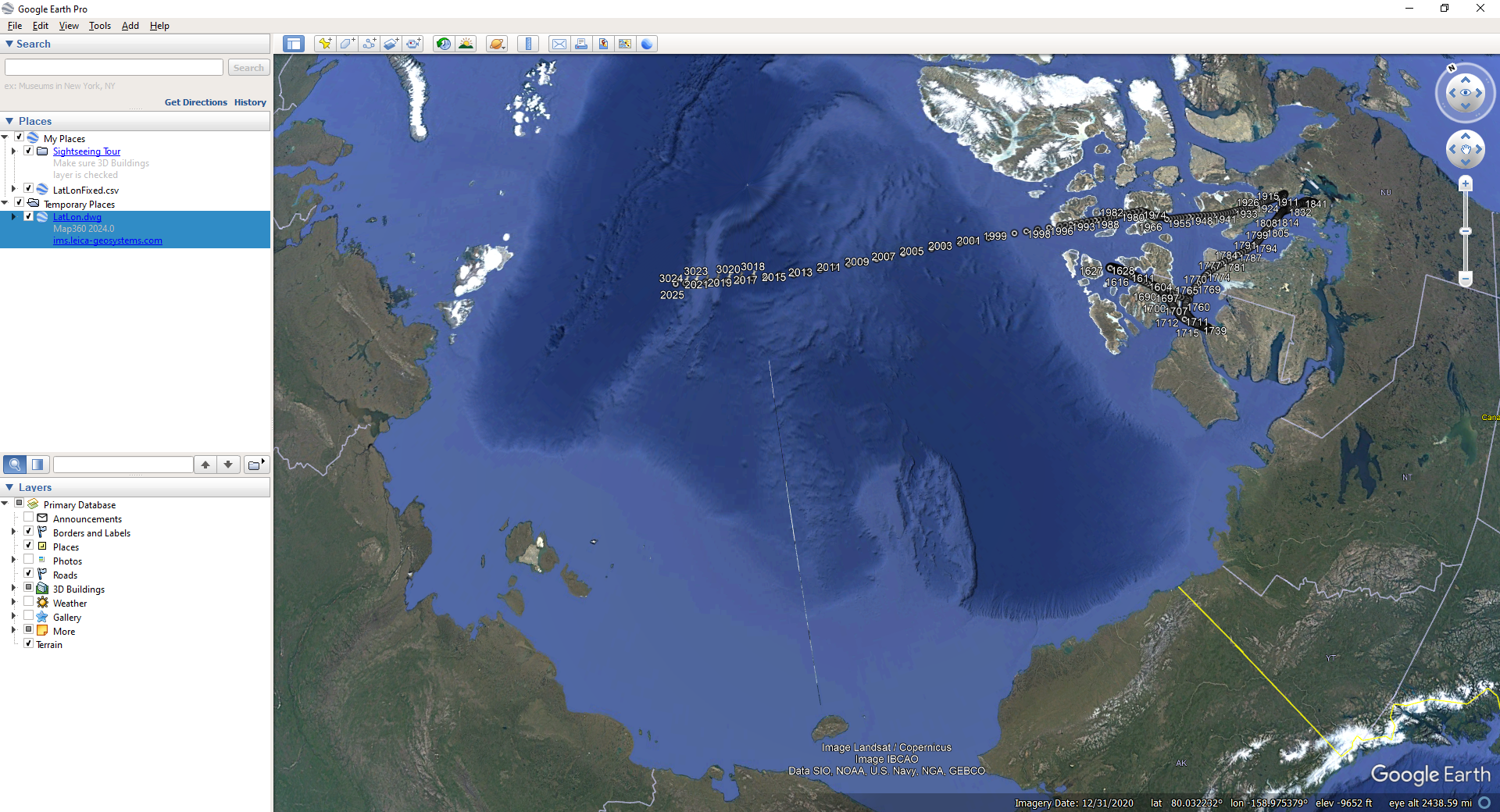
This command allows you to export a .kml or .kmz file which can be used with the Google Earth™ mapping service.
Google Earth and Google Earth Pro are available for download from http://www.google.com/earth
Procedure
The following dialog will appear when you start this command, with various export options.
Place Name: will appear in the Places sidebar when you open the file in Google Earth. By default it will be set to the name of your current drawing file, but you can change it to anything.
File name: will be the name of the kml or kmz file you export. By default it will be set to the name of your current drawing file, with either a .kml or .kmz extension (whichever format was used last.) The Browse button will let you select the export folder, filename, and format - .kml is an uncompressed text format and .kmz is a compressed binary format.
Export Points: will export all of the points from your coordinate database.
Export Lines & Arcs: will export all of the lines and arcs from your survey database. Note that Google Earth currently doesn't currently support true arcs, so a multi-segment polyline is drawn to approximate any arcs, and will contain the number of segments defined by your SPLINESEGS system variable (default=8).
Organize by Layer: will cause folders to be created within your Place in the Places sidebar, corresponding to the layer names in the drawing which contain your points and lines. This makes it easier to quickly toggle the display of all entities from particular layers by checking or unchecking the folders. All points and lines/arcs will be colored by layer.
Select Coordinate System: will let you choose the appropriate cartesian coordinate system for your current drawing. You must select the appropriate coordinate system because all coordinates must be converted to geodetic positions (latitude/longitude). Local assumed coordinates cannot be exported.
Altitude: controls how the elevation data will be handled by Google Earth.
Clamp to ground: will drape your elevations to the Google Earth ground surface model.
Relative to ground: will use your elevations relative to the Google Earth ground surface model. For example, a point with elevation 0 will lay directly on the surface, and a point with elevation 10 will lay 10 meters/feet above the surface.
Absolute: will use your elevation values directly. Note that any points or lines that fall beneath the Google Earth ground surface will be obscured by it and will not be visible.
Extend Paths to Ground: will cause a vertical line to be extended from your points to the ground surface model, and a vertical plane to be extended from your lines and arcs to the ground surface model.
Automatically open file after export: will cause your exported file to be opened by whatever default program is associated with the .kml or .kmz filetype. This will usually be Google Earth, but may vary based on specific applications installed on your system.
Google®, Google Maps™ and Google Earth™ are trademarks of Google Inc.