Function
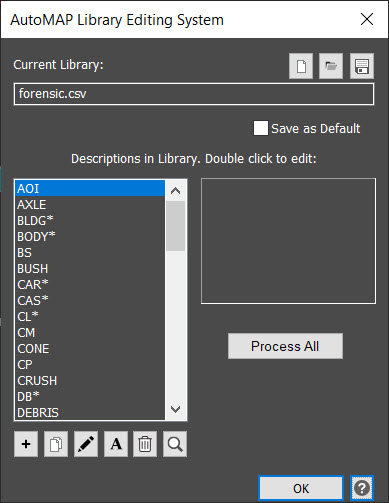
This menu displays the active library, allows you to edit the contents of the library, create new libraries and process the results.
Procedure
Current Library
This shows the current library that is open and available for viewing/editing. The file has an extension of .csv, which stands for "comma separated values". The FORENSIC.csv file is the default but a user can browse to a custom template and use the checkbox to save as the new default.
WARNING: Editing the file in Microsoft Excel must be done with great care. Occasionally Excel will remove commas from the ends of the lines in the file, damaging the AutoMAP Library. You can look for the missing commas by loading the file in Notepad.
Library Commands (Buttons)
The default locations for your AutoMAP library files are:
Windows 2000 & XP:
C:\Documents and Settings\All Users\Application Data\Leica Geosystems\Map360\2024.0\forensic\
Windows Vista:
C:\ProgramData\Leica Geosystems\Map360\2024.0\forensic\
New Library
This command will clear the current list of descriptions and allow you to start with a clean slate to build up a new library of descriptions.
Open Library
This option allows you to open any previously saved library file. We ship a default library file called FORENSIC.csv.
If a library is already loaded and has not been cleared by picking the New Library button, then the library you are opening will be appended to the library already open.
Save Library
This option allows you to save your customized AutoMAP library filter file. You can save it anywhere you wish with any name you wish but the extension will be .csv. This allows you to setup many different library filter files to be used in different types of jobs or for different types of work being done for different clients.
Description List
This is a list of all the descriptions in the current library. You can use the buttons, either to add to the list, rename descriptions, delete wrong descriptions or simply edit the features set for each description. Standard Windows selection methods can be used.
Note: Commas cannot be used in AutoMAP descriptions.
You can use spaces in descriptions to your advantage as all characters after the will be ignored if there is no set up for that description. For example: Set up an AutoMAP library entry for TREE and points with the codes TREE or TREE 40FIR will be treated as if they were the same. TREE40FIR however is unique because there is no space.
You can also use an asterisk as a wildcard at the end of your description, to match any description starting with that description. For example: Set up an AutoMAP library entry for TREE* and points with the codes TREE, TREE 40FIR, and TREE40FIR will all be treated as if they were the same.
Symbol Preview of Selected Description
This shows you the currently selected symbol to be placed on each point. If no symbol is shown then none will be inserted into the drawing, either because no symbol is specified or the specified symbol can not be located.
Description Commands (Buttons)
New
You can enter a new description via this dialog box.
Note: Commas cannot be used in AutoMAP descriptions.
You can use spaces in descriptions to your advantage as all characters after the will be ignored if there is no set up for that description. For example: Set up an AutoMAP library entry for TREE and points with the codes TREE or TREE 40FIR will be treated as if they were the same. TREE40FIR however is unique because there is no space.
You can also use an asterisk as a wildcard at the end of your description, to match any description starting with that description. For example: Set up an AutoMAP library entry for TREE* and points with the codes TREE, TREE 40FIR, and TREE40FIR will all be treated as if they were the same.
Copy
Use this to copy the properties of an existing AutoMAP code. Using this feature saves you from having to re-enter properties for new codes that you create.
Example: You have an existing AutoMAP description named PIN. You want to create a new description named POST and have it use the same settings as your existing PIN description. When you press the copy button you will see the Enter Copy Name dialog. Enter the new name for the description, in example that would be POST. When you press OK a new description will be created and automatically added to the current AutoMAP library.
Edit
You can edit a description selected from the list on the left by clicking this button to open the AutoMAP Editor.
Rename
You can rename a selected description via this dialog box.
Note: Commas cannot be used in AutoMAP descriptions.
You can use spaces in descriptions to your advantage as all characters after the will be ignored if there is no set up for that description. For example: Set up an AutoMAP library entry for TREE and points with the codes TREE or TREE 40FIR will be treated as if they were the same. TREE40FIR however is unique because there is no space.
You can also use an asterisk as a wildcard at the end of your description, to match any description starting with that description. For example: Set up an AutoMAP library entry for TREE* and points with the codes TREE, TREE 40FIR, and TREE40FIR will all be treated as if they were the same.
Delete
You can delete the highlighted description(s) by answering yes to confirmation prompt. The descriptions to be deleted can be selected using the standard windows selection methods.
Scan Database
This option will very quickly scan the entire current job and list every description in use in this job. If the list is empty then you will see only the description in use in this job. If there is a library open already then the current list of descriptions will be appended to that list. This way you can build your master list over time as you complete new jobs.
Process All Connections
This option uses the AutoMAP library currently loaded in AutoMAP and will join the linework, place the symbols, and set layering and colors all based upon the descriptions used in your drawing and the library definitions.