Function
The scene you create in Map360 can be exported as a COE (Cyclone Object Exchange) file so you can import your scene in Cyclone then publish to TruView.
Procedure
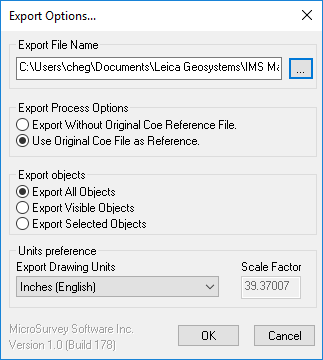
This command loads the Export Options dialog, which is used to set parameters for exporting COE files from Map360 into Cyclone.
Export File Name
Select the button with the three dots to browse to the location you would like your file to be saved and type a name.
Export Process Options
Export Without Original COE Reference File - Select this option if you are creating a new COE file and do not want any reference or connection made to the original COE file you brought into Map360.
Use Original COE File as Reference - Select this option if you want to integrate data with the original COE file brought into Map360. When this new COE file is created, references are made to the original COE file imported into Map360, enabling COE to maintain as much original object information/data as possible when the object is brought back into Cyclone.
Export Objects
All Objects - Select this option to export all objects on all layers contained within the current drawing.
Visible Objects - Select this option to export only the objects that are visible in the current view. Objects on layers that are turned off or frozen will not be exported.
Selected Objects - Select this option to export selected objects. The dialog will close and the user will select the objects in the drawing to be exported.
Units Preference
Select the units of measurement being used in the current drawing. As the export proceeds, all present units will be converted to meters and radians. If "User defined" is selected, the Multiplier field is activated. All measurements, including coordinates, will be divided by the number entered in this field.
OK
Click OK to begin exporting as a COE file.