Function
The scene you create in Cyclone can be easily imported into Map360 as a COE (Cyclone Object Exchange) file.
Procedure
This command loads the Import Options dialog, which is used to set parameters for importing COE files from Cyclone into Map360.
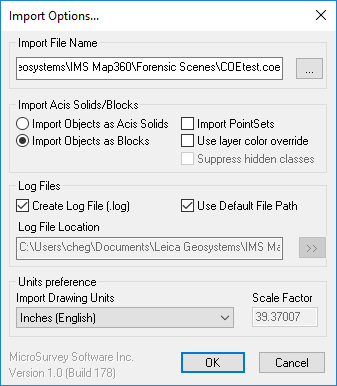
Import File Name
Select the button with the three dots to browse to the location of the COE file to be imported.
Import Acis Solids/Blocks
Acis Solids - Select this option to bring in modeled objects as 3D ACIS solids.
Block - Select this option to bring in modeled objects as 3D blocks.
Import Point Sets - Check this option if point clouds are contained int he COE file.
Use Layer Color Override - Check this option if you want to use the original color layers to override the current color layers.
Suppress Hidden Classes - Check this option to suppress the hidden object classes such as points, point clouds, etc. as defined in Hide Selected Clouds, Hide Unselected Clouds, Hide Point Clouds, etc.
Log Files
Check this option to generate a log file. You can easily save the log file with the drawing file by selecting "Use Default File Path. Otherwise, deselect this option and browse a destination for the log file.
Units Preference
Select the units used in the current drawing from the pull-down list, or select “User defined” and enter a user-defined multiplier in the Scale Factor field to multiply all measurements, including coordinates, by this number.
Note: By default, all COE objects are brought into Map360 from Cyclone using meters and radians to define size and position. You need to define the units to which COEIN will convert for your drawing by selecting the current drawing units from the pull-down list.
OK
Click OK to begin importing the COE file.