
Feature Overview
This feature allows users to manually apply a level condition to Setups that were imported without it, enhancing registration control and consistency across datasets, especially when working with datasets from scanners that don’t automatically include level data.
Note: The feature is not available for BLK mobile and MMS data.
The level condition can be applied either to:
-
A single Setup
-
Multiple Setups simultaneously
Error Metrics
Applying a level condition affects:
-
Cloud-to-Cloud errors
-
Target errors
These changes reflect the new orientation constraints introduced by leveling.
Locking Behaviour
The upright orientation of the Setup is securely locked, consistent with the behaviour of P-series scanners. This configuration enhances stability during registration, particularly when Setups are considered reliable.
Workflow of Applying Level Condition
-
Select Setup/Setups without a level condition.
Tip: Use the Shift key to select multiple Setups.
-
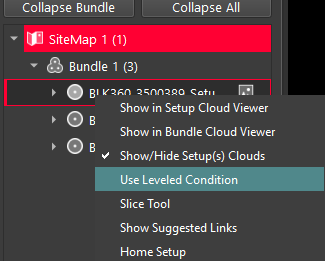
Right-click the selected Setup/Setups and click Use Leveled Condition from the context menu.
-
Once applied:
-
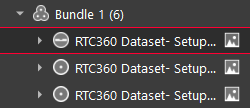
The Setup icon will change to indicate a level condition.
-
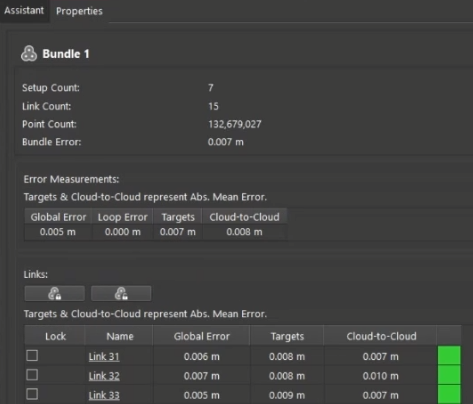
You may notice changes in Cloud-to-Cloud and Target errors, as the system now treats the Setup as leveled.
-
The upright orientation of the Setup is locked.
-