

August 12th, 2026
What’s New
This minor release of Cyclone REGISTER 360 PLUS includes bug fixes that enhance support for RTC series scanners, ensuring stability, reliability, and workflow continuity when working with RTC 300/500/700 datasets. The release also removes support for the BLK2GO driver.
BLK2GO Driver Installation Removed
The BLK2GO driver installation has been discontinued. It is no longer supported during the installation or initial launch of Cyclone REGISTER 360 PLUS or Cyclone REGISTER 360 PLUS (BLK Edition).
Users can connect BLK mobile scanners, including BLK2GO, BLK ARC, and BLK2FLY, and import data using the standard USB import workflow.
Bug Fixes
-
Fixed an issue where datasets from RTC 300/500/700 scanners couldn’t be imported into Cyclone REGISTER 360 PLUS if they contained target scans.
-
Fixed an issue where only detailed scans were displayed in Visual Alignment or Split View after importing a dataset containing both full dome and detailed scans from RTC 300/500/700 scanners.
-
Fixed an issue where black-and-white targets were not created when importing BLK360 FAFx data with the Auto B&W Target option enabled.
-
Fixed an issue where panoramic images became pixelated when importing low-resolution scans from RTC 300/500/700 scanners. Now, panoramic images are displayed with the expected image quality after import.
-
Fixed an issue where applying control to an unlocked Bundle caused the Bundle-to-control error to decrease to zero or nearly zero. Now, the error remains realistic and is spread across the Bundle and control.
-
Fixed an issue affecting RTC series scanners where tilted scans imported through the FIELD 360 (FAFx) workflow could cause panoramic images to be misaligned with the point cloud. Panoramic images and point clouds are now imported with consistent orientation, ensuring proper alignment for tilted scans.
-
Fixed an issue with the identical ordering of quaternion coefficients in the CSV and TXT panorama location files. The expected quaternion coefficient ordering between CSV and TXT panorama exports has been restored, maintaining compatibility with workflows that rely on the established export formats.
-
Fixed an issue that prevented the renaming of multiple Setups with WayPoints. The option to rename selected Setups is now available in the context menu for Setups that contain WayPoints.
-
Fixed an issue where gridded panoramic images appeared after importing data from RTC series scanners, despite the option to import panoramic images being disabled.
-
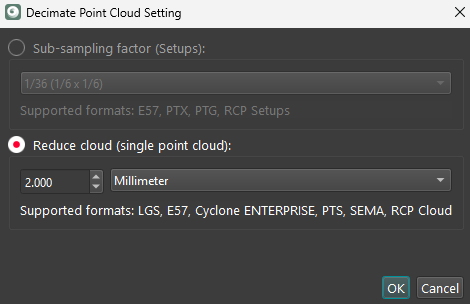
Fixed an issue where exporting a project to LGSx with decimation below 1 cm caused Cyclone REGISTER 360 PLUS to stop responding. Now, LGSx export completes successfully and generates a valid output file. Starting with version 2026.1.1, 2 mm is the minimum selectable decimation value.
Known Issues
Screen Resolution Issues
-
Cyclone REGISTER 360 PLUS does not support display resolutions beyond 4K.
Graphics Card Issues
-
Cyclone REGISTER 360 PLUS may not detect the dedicated graphics card on computers with multiple graphics cards. Users must manually set the dedicated card for use with Cyclone REGISTER 360 PLUS. It can be done in Windows Settings.
-
Some graphics card anomalies can be caused by power management software. Please turn it off by setting the power management profile to High Performance.
Data Handling and Memory Issues
-
Cyclone REGISTER 360 PLUS projects located on Network Attached Storage (NAS) drives are NOT supported.
-
Cyclone REGISTER 360 PLUS can experience data corruption, project loading failures, or unexpected data loss if projects are created, stored, or relocated to cloud-synced drives (for example, OneDrive, Google Drive, Dropbox), NAS, network drives, or shared folders. To ensure data integrity and optimal performance, projects should be stored on a local, internal drive.
If the user chooses to share, relocate, or back up Cyclone Register 360 PLUS project data to a network drive, NAS, or cloud-synced drive, the following workflow is recommended:
a. Using the Export option in the Project & Storage interface, export the project as a RAF file to a local drive.
b. Manually copy the exported RAF file to the desired network or cloud location.
-
If memory issues arise, check that the virtual memory size is set to the same size as RAM. For more information, refer to the dedicated Troubleshooting page.
-
Using Export to Separate Setups does not use the same level of temp space. Temp space is not generally a problem when exporting separate Setups.
-
Files written to the temp folder at C:\Users\(user name)\AppData\Local\Temp\Register360, will be deleted after the program closes. These files will NOT be deleted if the program freezes or crashes.
-
When Setups are moved between SiteMaps, some of them may not appear in the Explorer panel. As a result, the number of Setups shown in the Project Explorer thumbnail may exceed those displayed in the Explorer panel. For a workaround, refer to the dedicated Troubleshooting page.
Compatibility Issues
-
Some customers have reported that Cyclone REGISTER 360 PLUS stops running when using AMD Ryzen 7 processors.
Import Issues
-
The Import Images option might not work as expected if it is deselected before adding data to the import area, resulting in panoramic images still being imported into the project. The recommended workaround is to deselect the Import Images check box only after the data has been added to the import area.
-
In Cyclone REGISTER 360 PLUS 2026.1.1, the Auto B&W Target option does not work when importing FAFx data.
Export Issues
-
To publish a unified point cloud, ensure that the Create a point cloud during finalized registration option is selected to avoid incompatibility.
-
In rare cases, exporting structured data to RCP Setups with sub-sampling may result in some Setups being omitted from the final output. This occurs due to cloud editing where sub-sampling can reduce the points below the 500 x 500 minimum required by ReCap. Alternatively, it could be due to another limitation which can be worked around by either not using the sub-sampling, or separating the Setups onto multiple SiteMaps and exporting those SiteMaps separately. Make sure the data has Control applied for consistent coordinates between separate Finalized Registrations.
-
When exporting panoramic images of Setups using the Pano images option from Publish Options on the Report tab, the generated CSV and TXT files both contain the same position and orientation information, instead of providing Setup poses in the CSV file and pano image poses in the TXT file as expected.
RTC300/500/700 Issues
-
Importing RTC700 data via FAFx (LWPO or full data) workflow is not yet fully supported in Cyclone REGISTER 360 PLUS 2026.1.1. The following issues may occur:
-
Panorama misalignment
-
Import failures
-
Missing GeoTag categories
-
Recommendation: For best results in Cyclone REGISTER 360 PLUS 2026.1.1, import RTC700 data via the USB dongle workflow.
RTC360 Issues
-
Importing RTC360 data into Cyclone REGISTER 360 PLUS cannot be completed successfully if RTC360 data contains non-ASCII characters.
BLK360 Issues
-
When importing BLK360 data that includes GNSS information directly from the scanner into Cyclone REGISTER 360 PLUS, it fails to load a satellite map and does not zoom in on the approximate location indicated by the GPS information from the scanner.
-
When importing BLK360 data that includes GNSS information directly from the scanner into Cyclone REGISTER 360 PLUS, the Select Coordinate System import option on the Properties panel is disabled. To activate the option, in the import area, either click a specific job or select or deselect any previously selected job.
BLK ARC Issues
-
As of version 2024.0.1, importing BLK ARC data, which includes static scans and Cyclone FIELD 360 links, directly into Cyclone REGISTER 360 PLUS is not fully supported. This is because the image assets and static scans may not be fully imported. The recommended method for full data import is using BLK Data Manager 2025.0.1.
BLK2FLY Issues
-
The Advanced Colorizer import option does not work for B2G files captured with BLK2FLY. When selected, the import behaves the same as if the option were not selected. Therefore, using this option for such datasets is not recommended.
Visual Anomalies
-
After importing colourless scans with the enabled Auto B&W target option, thumbnails for the black-and-white targets appear invalid and display as blank or white after being extracted manually.
-
When a level condition is applied to Unified and LGSx Setups, the level condition icon does not update to reflect this change. To verify the level condition, use the Setup’s context menu.
Unexpected Closures and Failures
-
30 GB of temp space is needed for every billion points exported to a single RCP cloud. Otherwise, Cyclone REGISTER 360 PLUS may become unresponsive or close unexpectedly.
-
When attempting to assign an asset to a GeoTag, the operation silently fails if the asset is already attached to another GeoTag and the TXT file is empty.
Other Issues
-
When using the point cloud cleaning tools in Cyclone REGISTER 360 PLUS, artifacts may appear in the form of box-shaped, reduced-density point cloud anomalies. In some cases, the entire point cloud of one or more Setups may disappear from the view after cleaning.
As a workaround, right-click the affected Setup and select Restore Deleted Points to restore the missing data.
Deprecated Features
Leica Geosystems strives to provide support for the widest array of operating systems and file formats possible as is reasonable given current technologies and support from third-party partners.
With each release, we review our list of currently supported formats and operating systems in line with industry trends and announce product terminations.
Leica Geosystems may add or terminate support for a file format during any release. Obsolete operating systems will be supported for six months after their announced termination or the next major software release, whichever comes first. Server products will be supported in alignment with Leica’s Client License Manager (CLM) supported servers to guard users against incompatibility.
Cyclone REGISTER 360 PLUS 2026.0.0:
-
Windows 10 is no longer supported.
Cyclone REGISTER 360 PLUS 2026.1.1:
-
The BLK2GO driver is no longer supported during the installation or initial launch of Cyclone REGISTER 360 PLUS or Cyclone REGISTER 360 PLUS (BLK Edition).
Licenses
All users with valid CCP for either Cyclone REGISTER 360 or Cyclone REGISTER 360 PLUS or Cyclone REGISTER, or with CCP valid as late as 1 May 2026, can run this new version of Cyclone REGISTER 360 PLUS with no new license required.
All users with valid CCP for Cyclone REGISTER 360 (BLK Edition) or Cyclone REGISTER 360 PLUS (BLK Edition) or with CCP valid as late as 1 May 2026 can run this new version of Cyclone REGISTER 360 PLUS (BLK Edition) with no new license required.
Users do not need to migrate to a Cyclone REGISTER 360 PLUS or Cyclone REGISTER 360 PLUS (BLK Edition) license in order to run Cyclone REGISTER 360 PLUS if their CCP or subscription is valid.