autocad pro
Command Line
-
AutoCAD: CWVMOVE
This is the command-line-only tool that allows moving a point cloud.
Using the Tool
To move a point cloud in a view, follow the steps below:
-
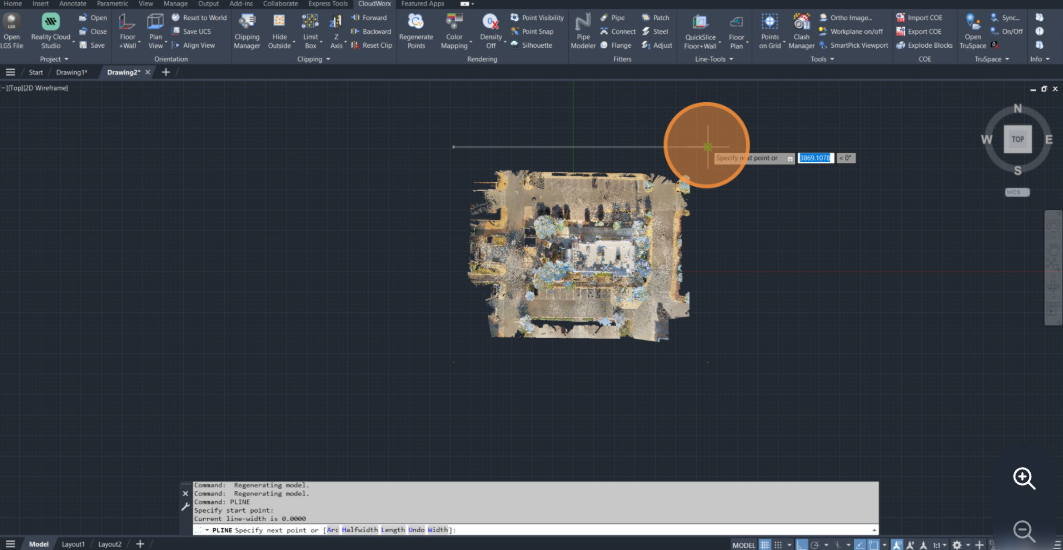
Locate the bounding box points outside the point cloud and connect them with a polyline. It will serve as a baseline.
Note: Ensure point snapping is enabled.
-
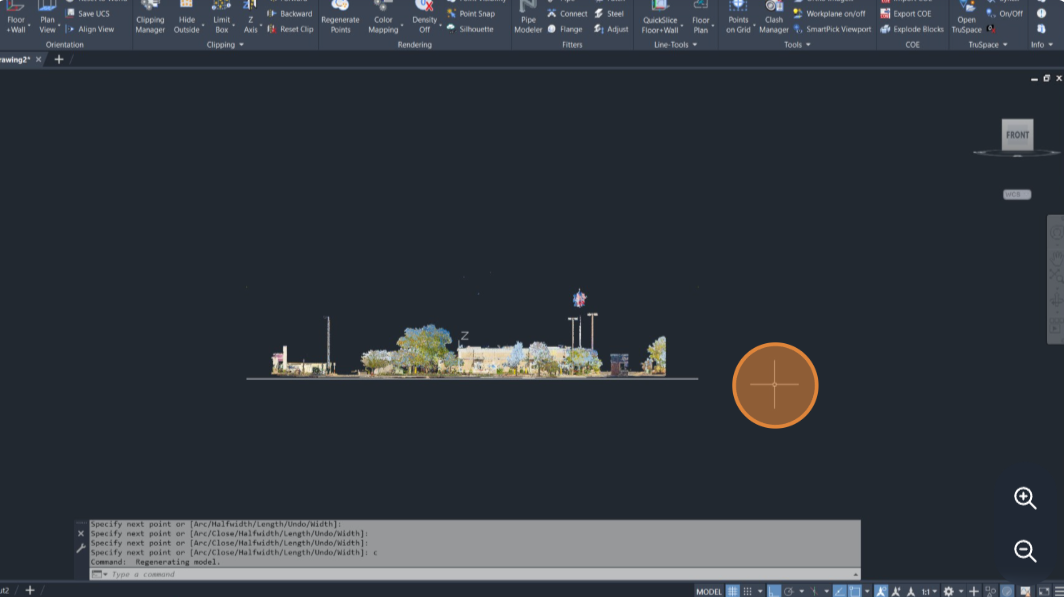
Rotate the point cloud to the desired elevation view using the ViewCube.
-
Enter the CWVMOVE command.
-
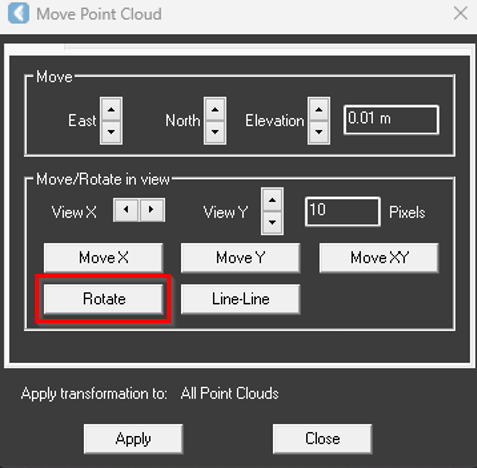
In the Move Point Cloud dialog, click Rotate.
-
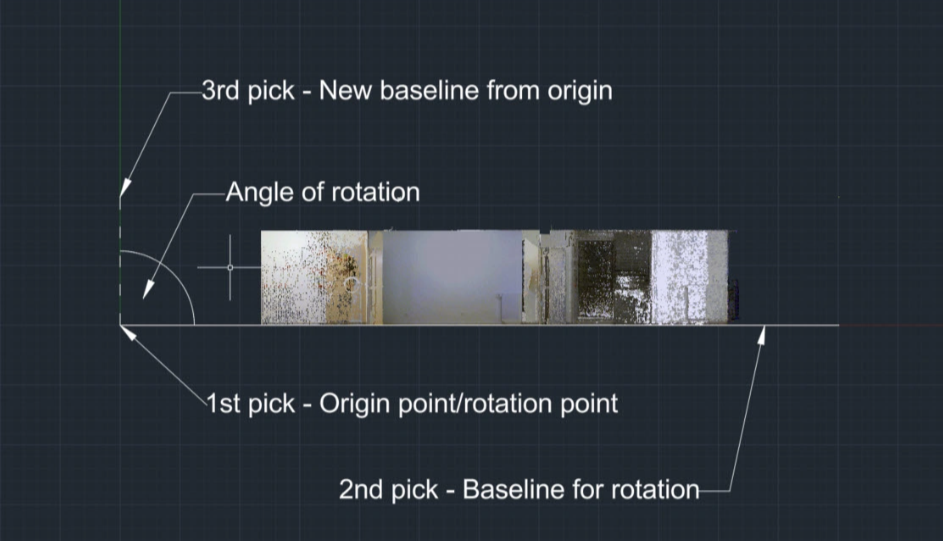
Click a point defined in Step 1 to establish a baseline for rotation. This first point will serve as the origin of the rotation.
-
Click the second point on the alignment geometry to finish establishing the baseline.
-
Click one of the bounding points at a 90-degree angle from the baseline.
-
Click Apply.
-
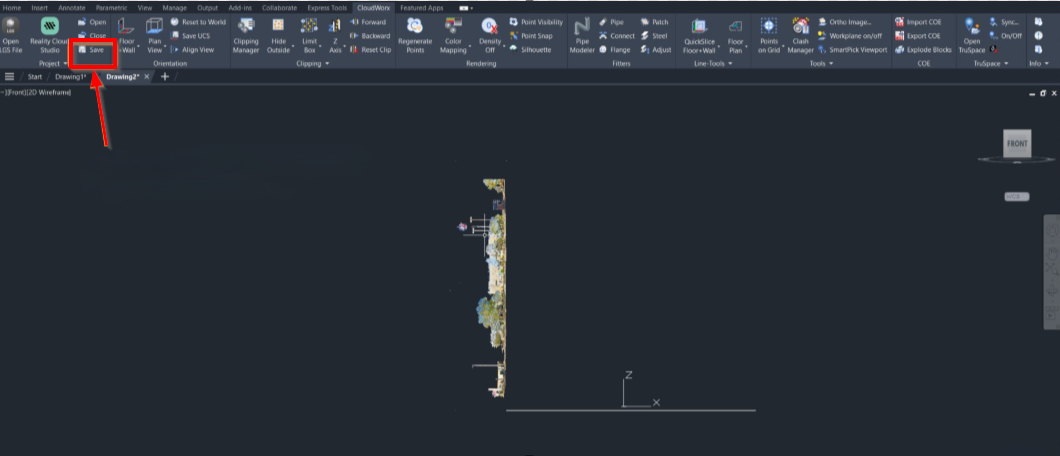
The point cloud is now re-oriented. To save the .cwprj file, containing point cloud transformations, click Save in the Project panel.
CloudWorx stores point cloud movement/transformations in the .cwprj file rather than modifying the original data source. Thus, it is crucial to save the .cwprj file because it must be loaded with the data source to view the adjustments. The data from the original source is not adjusted or changed in any way, and if loaded into different software, the data will not be moved or transformed.