
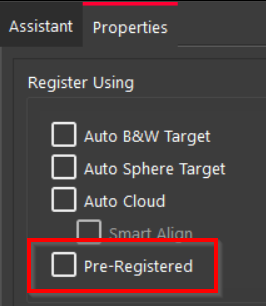
The Pre-Registered import option enables the user to keep or evaluate, and then improve, the Setup alignment and coordinate system that exists in the data files. Cyclone REGISTER 360 PLUS imports each Setup without moving or registering the data in any way. The Setup positions will not change on import using this option.
Third-party or generic file formats do not contain Link information, so Cyclone REGISTER 360 PLUS connects all Setups imported by the minimum number of links (also called a Minimum Spanning Tree) to form a Bundle. The links are only to show the user the existing error in the shortest links. Blue links indicate that there was no cloud overlap to calculate the error.
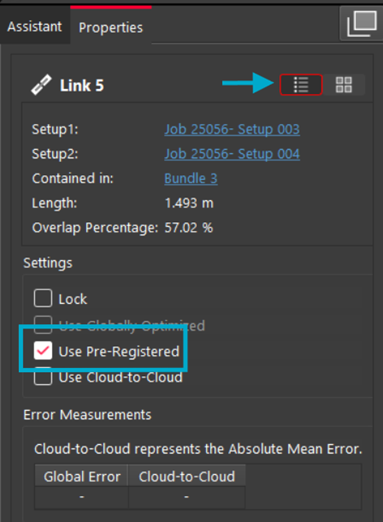
The Link’s state as Use Pre-Registered can be seen in the Advanced Mode of the Link Properties panel in the Review and Optimize area when the import is complete.
The user should perform the usual quality checks on the alignment.
The Pre-Registered import option is usually used on generic format files which have already been registered or places in a specific coordinate system. If all the Setups are in one file, then the Pre-Registered import option should still be used to maintain the position and coordinate system. For example, E57 data with multiple Setups in one file, which are in a control coordinate system, should use the Pre-Registered import option.
If Auto Cloud or Auto Target options were used instead of Pre-Registered, the coordinate system would be lost, and Cyclone REGISTER 360 PLUS would calculate a new alignment.
When the Pre-Registered import option is used with direct import (for example, Cyclone FIELD 360, BLK360) or on files in Leica scanner data formats, then the alignment and Link information from Cyclone FIELD 360 or the scanner VIS will be maintained. Cyclone REGISTER 360 PLUS will not optimize the Links.
Notes:
-
Cyclone FIELD 360 Links are not Pre-Registered. Cyclone FIELD 360 projects should be imported as described in the RTC360 and BLK360 import sections.
-
E57 projects imported into Cyclone REGISTER 360 PLUS that have been registered to control must use the Pre-Registered option to import and view the control coordinate system.
-
Scan data file formats that support multiple Setups in one file (i.e., PTX, PTG, E57) must use the Pre-Registered option to see the registration results. Choosing Auto Cloud and/or Auto Target will force the program to try and re-register the data.