
Introduction
Starting with release 2026.0.0, Cyclone REGISTER 360 PLUS supports integration with Zeno Mobile One (ZMO) and FLX100, which enables a powerful workflow enhancement for geospatial professionals. This feature enables seamless import and utilisation of geolocated survey data, GeoTags, and linework models collected in the field using a ZMO app and an FLX100 device.
What Are ZMO and FLX100?
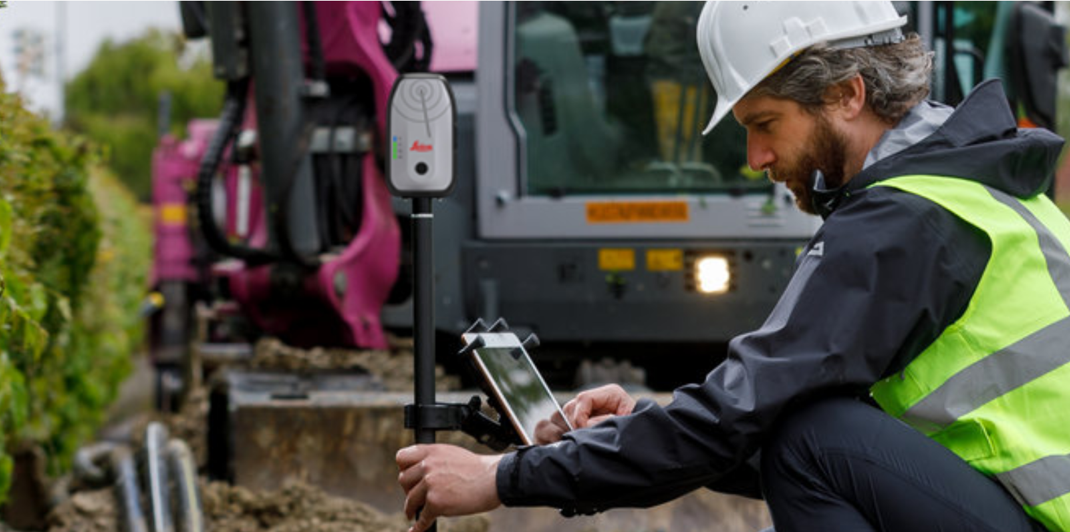
Zeno Mobile One (ZMO) is an application used for collecting geospatial features, such as points, lines, and polygons. It works together with the Zeno FLX100, a Leica GNSS data collector capable of providing positional accuracy down to 2 cm. Collected information is stored in Feature Layers, each defined by its own set of attributes and optional attachments. When exported, the data is packaged into a ZIP file that contains ESRI shapefiles, all related attachments, and the accompanying database.
This integration supports:
-
Survey Control creation from ZMO ZIP files
-
GeoTag enrichment and attachment handling
-
Hidden linework model import
Using ZMO Data in Cyclone REGISTER 360 PLUS
The following step-by-step workflow describes how to import and use ZMO data in Cyclone REGISTER 360 PLUS:
-
Collecting field data:
-
Use FLX100 and ZMO to collect control points and features.
-
Organise data into layers (for example, GCP or Control for Survey Control).
-
-
Importing data into Cyclone REGISTER 360 PLUS:
-
Add the RTC360 data and drag and drop the ZMO ZIP file into the Import area.
-
In General settings, enable the Add Target at Setup position option.
-
In the Properties panel, disable the Auto B&W Target option.
-
Cyclone REGISTER 360 PLUS automatically creates:
-
Survey Control from point geometries
-
GeoTags with attachments (images, movies, PDF documents)
-
Models from linework layers
-
-
-
Applying Survey Control:
-
Targets from scan data are matched to Survey Control points.
-
If matched successfully, a User Coordinate System with a Coordinate Reference System (CRS) is created. However, only standard coordinate systems are supported.
-
Control Tags and models become visible and are included in the deliverable (LGSx).
-
Notes:
-
Layer naming: Only layers named GCP or Control are used for Survey Control.
-
Fallback: If no such layers exist, all point geometry layers are used.
-
Target matching: Targets from scan data (for example, B&W targets) are matched to Survey Control points.
-
Transformation: A successful match transforms the project into Survey Control coordinates.
-
Handling GeoTags and attachments:
-
ZMO attachments (images, PDFs, videos) are converted to GeoTags.
-
GeoTags are linked to Survey Control and visible in Setup View if Control is applied.
-
-
Importing linework models:
-
Linework (polylines, polygons, points) is imported as hidden models.
-
Models are attached to Survey Control and included in deliverables only if Control is applied.
-
TruView Desktop Viewer Support
TruView Desktop Viewer also supports ZMO Survey Control, GeoTags, and models embedded in LGSx files. Users can view and interact with ZMO‑derived information, including the ability to inspect features, perform measurements, and export the associated data. Linework captured in the field can also be displayed in TruView.