
RTC300 / RTC500 / RTC700 scanner Jobs can be imported into Cyclone REGISTER 360 PLUS from a local disk after the data is copied from the scanner using a USB dongle.
Preparation Steps
Before starting the import process:
-
Copy the Job from the scanner to a local drive on your workstation.
-
Ensure that the copied Job folder contains all scanner data, including the
CURRENTfile.
Import Workflow
Once the data is prepared and verified, proceed with the following steps:
-
Launch Cyclone REGISTER 360 PLUS and create a new project.
-
Load the scanner Job using any of the options below:
-
Option A: Drag and drop the Job folder from the local disk directly into the Import area of Cyclone REGISTER 360 PLUS.
-
Option B: Browse for the
CURRENTfile:-
Use the Browse button and select the file named
CURRENT, which is located inside the scanner Job folder. -
Once selected, Cyclone REGISTER 360 PLUS automatically detects the Job structure and loads the available data into the import workspace.
-
-
-
Review the Job structure in the Navigation Pane.
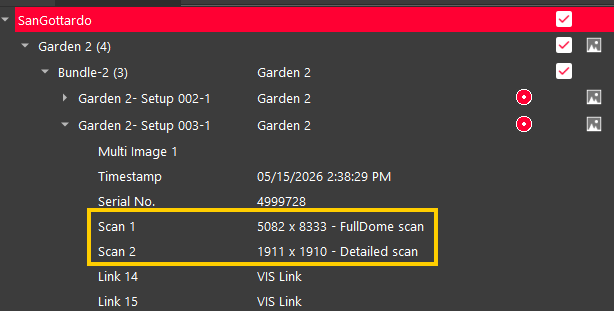
After loading the Job, the Navigation Pane displays the structure of the imported Job, including the list of available Setups.
For each Setup, you can review detailed information, such as scan acquisition time, scanner serial number, Setup contents, available scans associated with the Setup, and more.
Info: The new RTC scanner generation supports two scan data types within the same Setup:
-
FullDome Scans
FullDome scans provide complete environmental coverage around the scanner position. These scans can be captured in different resolutions depending on project requirements. Lower resolutions may be used to reduce data size, improve project performance, or accelerate data transfer and processing.
-
Detailed Scans
Detailed scans provide high-resolution point cloud data for selected areas of interest within the project.
These dense scans are intended for areas requiring greater geometric detail and are typically created during field work using Cyclone FIELD 360.
Detailed scans are stored as part of the scanner Job and are automatically recognised during import.
-
Using check boxes in the Navigation Pane, select Setups that should be imported into the project.
-
Preview Setup panorama thumbnails by hovering the mouse cursor over the preview icon of the selected Setup. This allows quick visual verification of the Setup contents before import.
-
Review the Preview Pane.
-
The central Preview Pane displays a visual representation of the Job and its preliminary spatial arrangement. This behaviour is consistent with workflows used for other supported scanner types. If available, Cyclone REGISTER 360 PLUS may automatically generate links between Setups using VIS technology.
-
-
Import the Job:
-
Click the Import button to load the selected scanner data into the project.
-
After the import is complete, the project is ready for registration and further processing workflows.