
AUTOCAD BASIC AUTOCAD PRO REVIT navisworks bricscad basic bricscad pro ULTIMATE
Project | Open LGSx File
Command Line
-
AutoCAD: CWIMPORTLGS
This command enables the direct opening of point cloud data from an LGSx file in the preferred CAD system.
If there are modelled objects saved in the file, they can also be imported with the point cloud data.
Using the Tool
To open an LGSx file with point cloud data, follow the steps below:
-
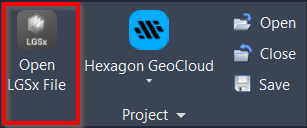
Click Open LGSx File in the Project panel or type a command line prompt specific to the preferred CAD system and press ENTER.
-
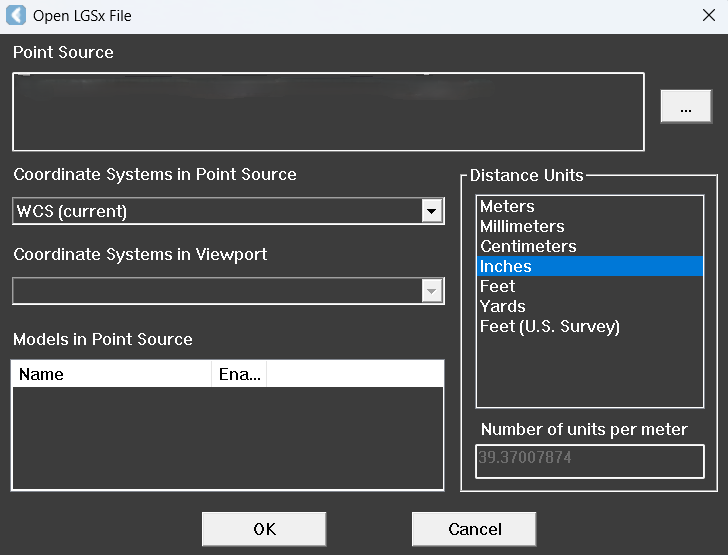
The Open LGSx File dialog will appear.
-
-
Click the browse icon (…) to the right of the Point Source field and select the necessary LGSx file.
-
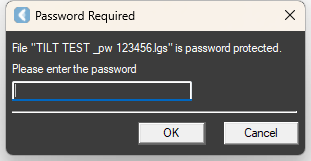
If the file is password protected, it has to be entered before the next step.
-
-
Once the file is selected, any models are added to Models in Point Source. Select the Enable check box to import the model.
-
In the Coordinate Systems in Point Source drop-down field that provides available coordinate systems in the LGSx file, select a coordinate system that will be mapped to the drawing's WCS in the preferred CAD system.
-
Specify Coordinate Systems in Viewport.
-
Select the preferred CAD drawing unit from the Distance Units field. Distance units are needed to convert the units in the LGSx file (meters) to the units in the preferred CAD system.
-
Click OK to load the point cloud and import the model, if any.
-
Click Cancel to exit the dialog without loading the point cloud.
-
Use the ZOOM | EXTENTS CAD command to view the entire scene.
Note: LGSx files are officially supported only when saved locally. Due to variations between network deployments, LGSx files may be unreliable when hosted in a network location.