
This guide provides a comprehensive overview of the level condition and describes the option to adjust the Bundle level to the applied control using the level condition.
Level Condition
One of the reliable methods to inspect the registration and ensure that the Bundle is in a good state is to use the level condition.
Certain scanners, such as the RTC360, P-Series, and C-Series, offer high-accuracy levelling. As a result, when Setups from these scanners are imported into Cyclone REGISTER 360 PLUS, the level condition is enabled by default.
The levelled Setups can be easily identified by the icon as they appear in the Explorer panel.
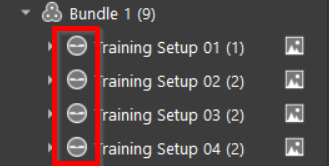
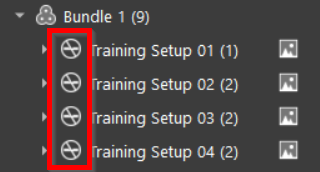
Levelled vs. Unlevelled Setups
Enabling and Disabling the Level Condition
The level condition can be enabled or disabled at any time either for specific Setups or globally for all Setups in a Bundle.
To enable the level condition for all Setups in a Bundle, follow the steps below:
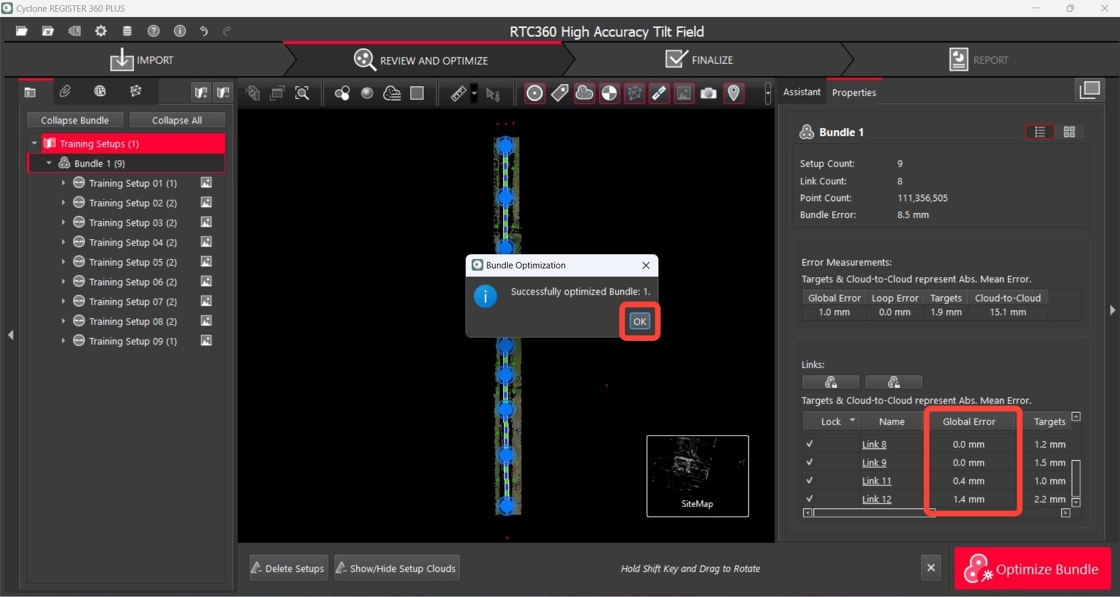
1. Select all Setups in a Bundle, right-click the selection, and then choose Apply Level Condition from the context menu.

2. Click OK to close the Bundle Optimization dialog.
Note that the Global Error appears as soon as the level condition is enabled, regardless of the absence of loops that typically trigger such errors. This occurs because the registration now includes multiple constraints: Cloud-to-Cloud, targets, and the level condition itself.
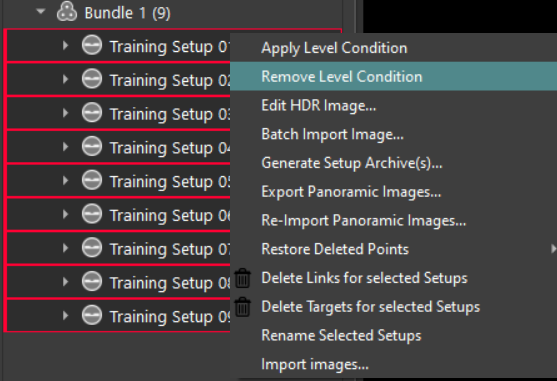
To remove the level condition globally for all Setups, right-click the selected Setups and choose Remove Level Condition from the context menu.
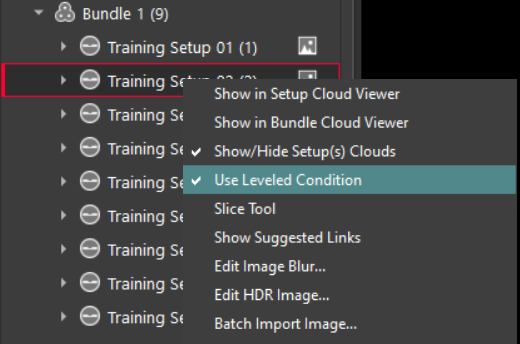
To remove the level condition for a specific Setup, simply right-click it and unmark the Use Leveled Condition option.
Using Level from DAC
The level of the Bundle can be adjusted either to best fit the applied control or preserve the level of Setups collected with Dual Axis Compensator (DAC)-levelled scanners. That’s where the Use Level from DAC when using Applied Control option is used.
Note: This option is only effective in registrations that include levelled Setups.
When the Option Is On
If preserving the level of the Bundle is a priority, especially when dealing with large-extent control networks, Cyclone REGISTER 360 PLUS will apply control to a Bundle without allowing the Z-axis to tilt.
If you want to hold the level of the Bundle, follow the steps below:
-
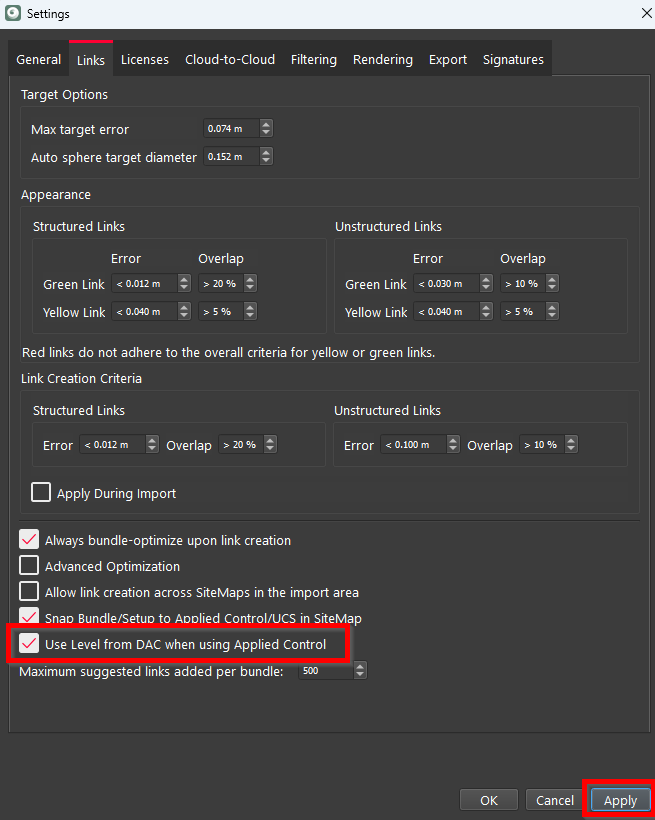
Go to Settings | Links, select the Use Level from DAC when using Applied Control check box and click Apply.
Now, the Bundle is permitted to rotate for control, but it is not allowed to tilt. The level must remain unaffected.
2. Right-click the Bundle, click Apply Control in the context menu, and then select the control to apply.

3. Click Yes to confirm target relabeling so that they match labels in control.

4. Click the AppliedControl object in the Explorer panel on the left and check if all imported controls are selected in the Properties panel on the right.

5. After all controls are selected, click the Re-Apply Control button in the lower-right part of the dialog.

Now the Bundle holds its own level and just best fits to control regardless of the Z values that come.
When the Option Is Off
If the option is disabled, the level of the Bundle is going to obey or best fit to control, and the Bundle is going to adopt the level of control.
To apply the control level to the Bundle, follow the steps below:
1. Go to Settings | Links, deselect the Use Level from DAC when using Applied Control check box and click Apply.
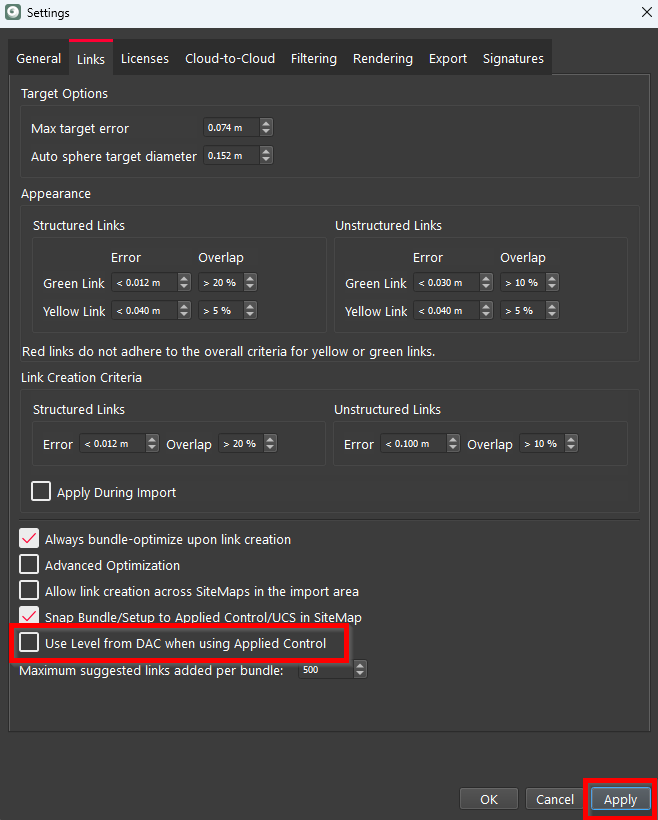
2. Repeat Steps 2-5 from the previous workflow.
Now, the Bundle has received the level of the control. It achieved the best possible fit to control, regardless of how much the Bundle had to tilt.
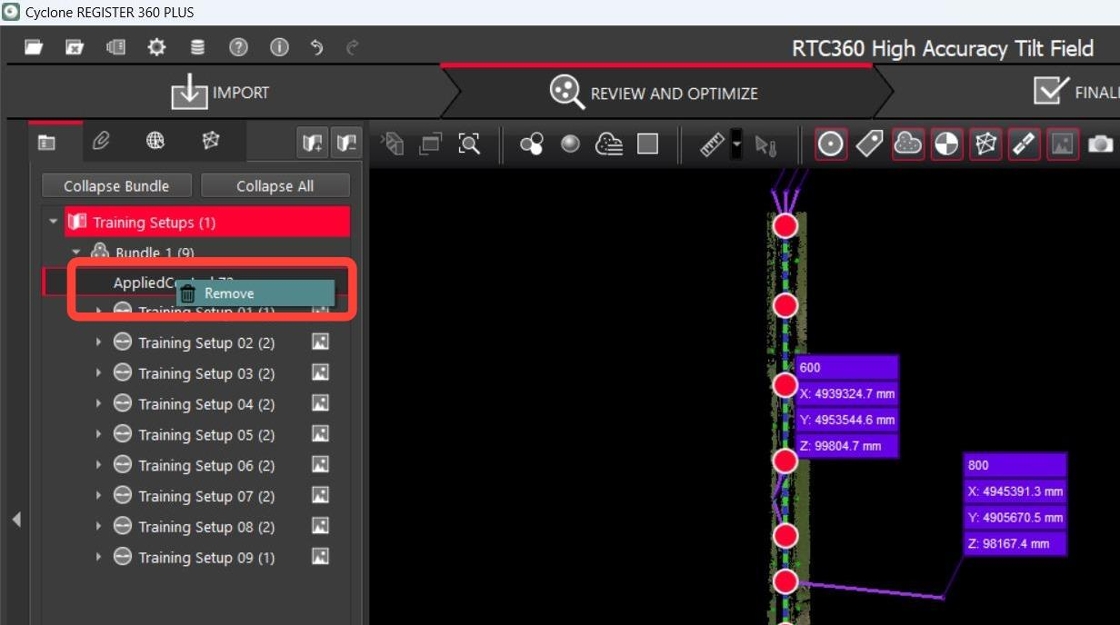
To remove the applied control, right-click the AppliedControl object in the Explorer panel and choose Remove from the context menu.
Summary
It’s recommended to use the Use Level from DAC when using Applied Control option if it’s necessary to maintain the level of Setups obtained from the DAC-levelled scanners, regardless of the accuracy of the control level. However, this option may result in higher errors since it restricts tilting in the Z axis, allowing only X and Y plane adjustments. Without this option, the Bundle may tilt more, showing greater elevation differences between its ends.