
This guide outlines best practices for using applied control and explains how registration may be influenced by whether a Bundle is locked or unlocked prior to applying control.
Note: Before following the instructions below, in Settings | Links, set the Maximum target error to 150mm.
Locking/Unlocking the Bundle
Before moving to the control mechanisms, it’s important to understand some key points about locking and unlocking a Bundle.
Locking links in a Bundle ensures that the links are fixed and cannot move during the optimization process. When a Bundle is locked, it is treated as a rigid body, meaning it can only be rotated or translated as a single entity.
To lock or unlock the Bundle globally, simply click the Lock or Unlock button in the Properties panel.
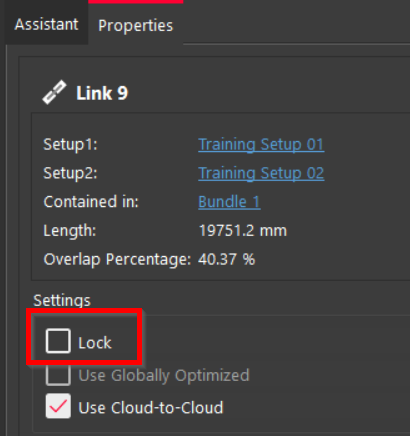
Alternatively, you can lock or unlock an individual link using the Lock check box once the link is clicked in the graphical view.
Applying Control to the Locked Bundle
When control is applied to the locked Bundle, it simply best fits the Bundle to control. The Bundle can rotate, transform, or register without changing its structure. Regardless of the error, the Setups won’t move to accommodate control, and thus, the Bundle will not deform.
To apply control when the Bundle is locked:
-
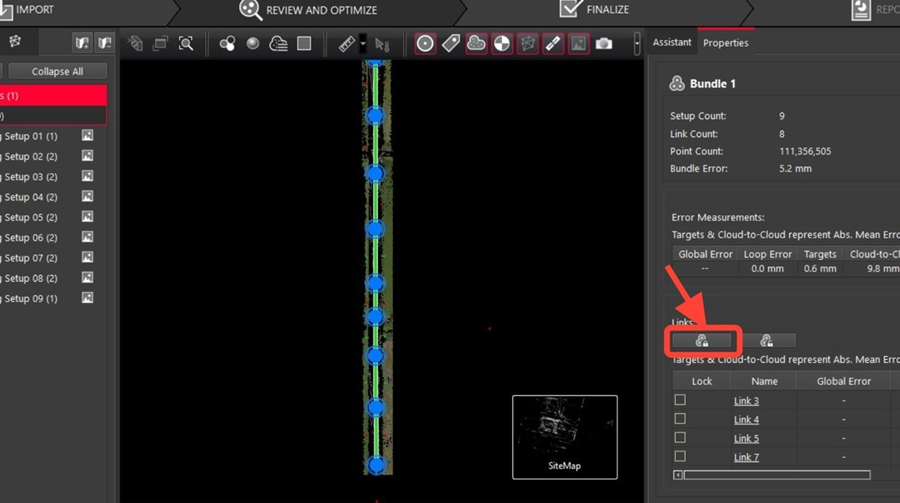
Click the Lock button to lock all the links in a Bundle.
-
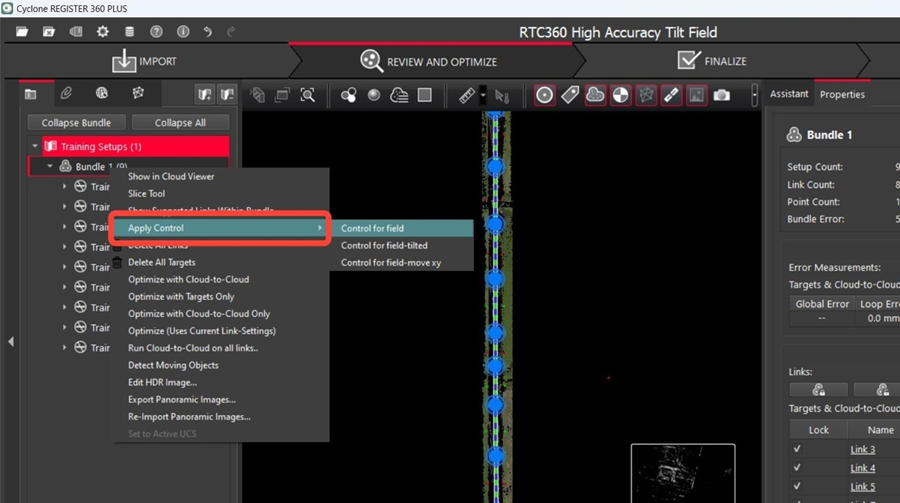
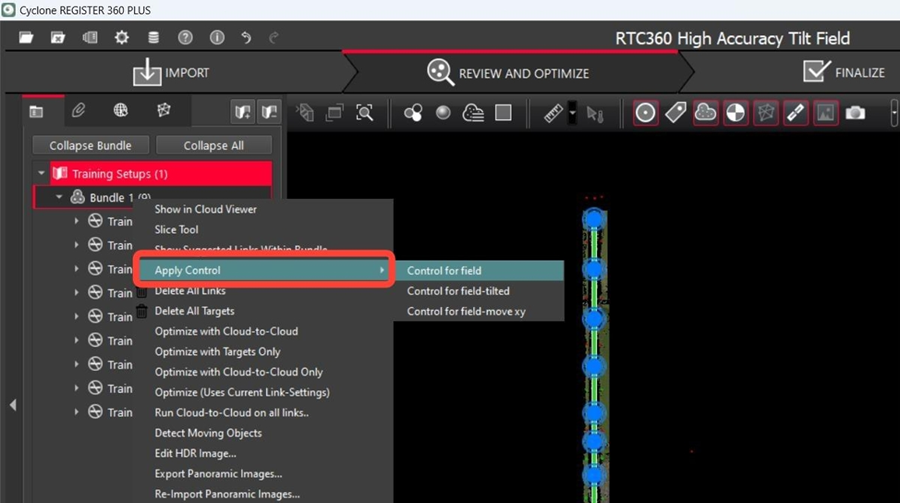
Right-click the Bundle. From its context menu, select Apply Control and then select the required control.
-
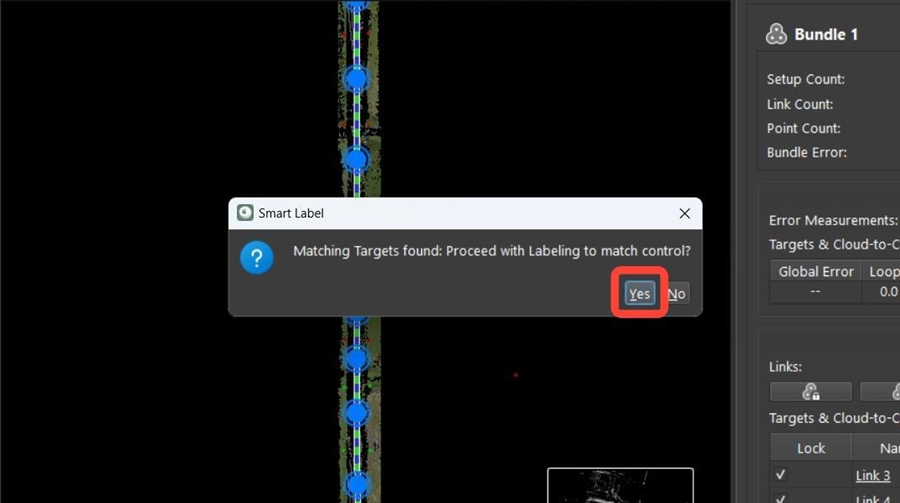
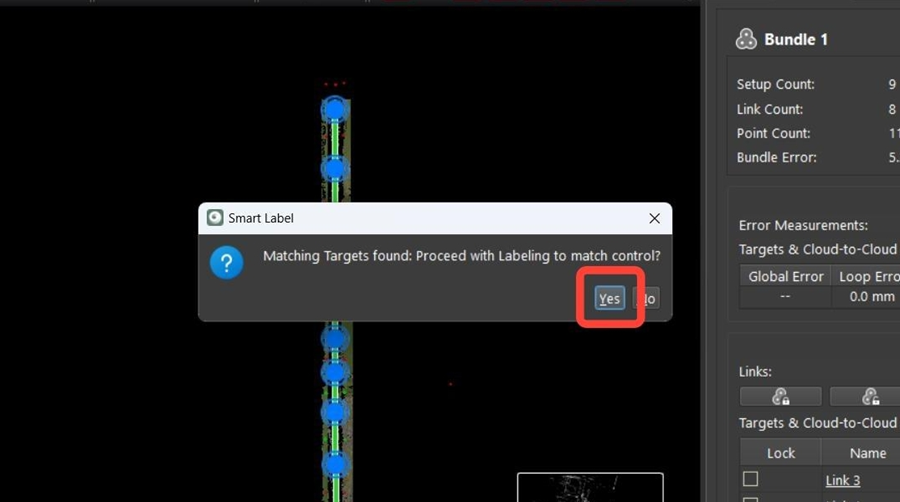
In the Smart Label dialog, click Yes to match control points.
-
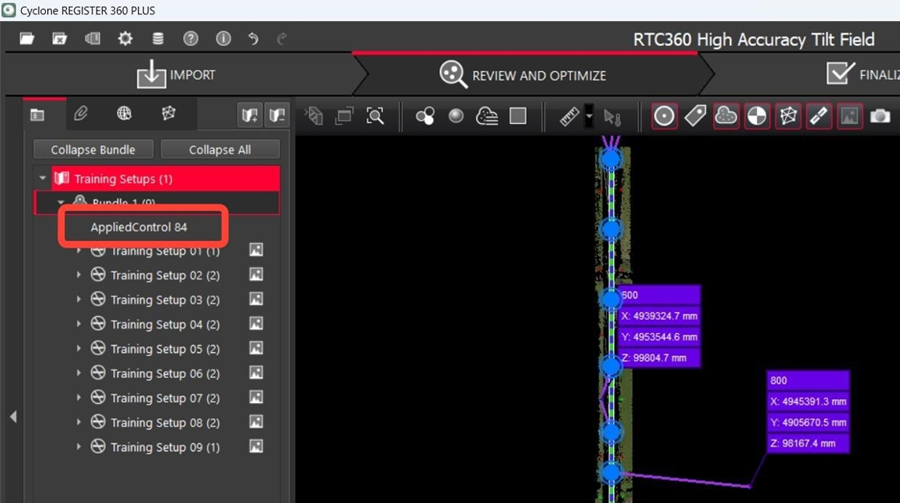
Click the AppliedControl object in the Explorer panel.
-
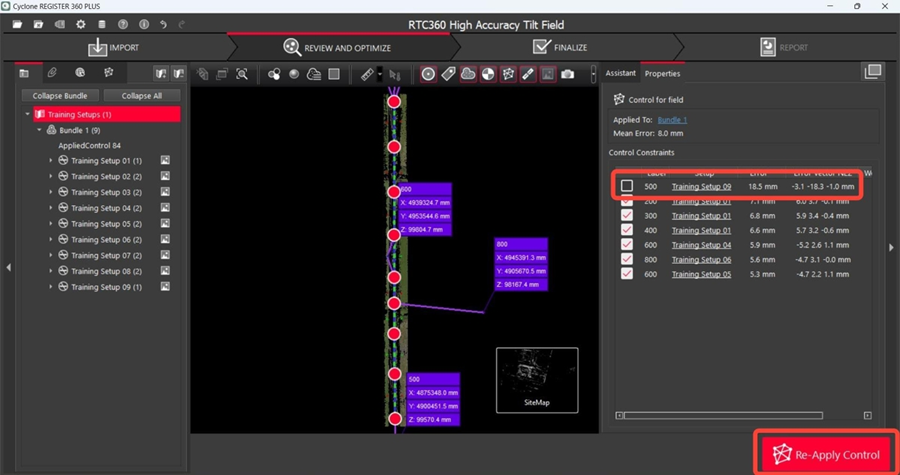
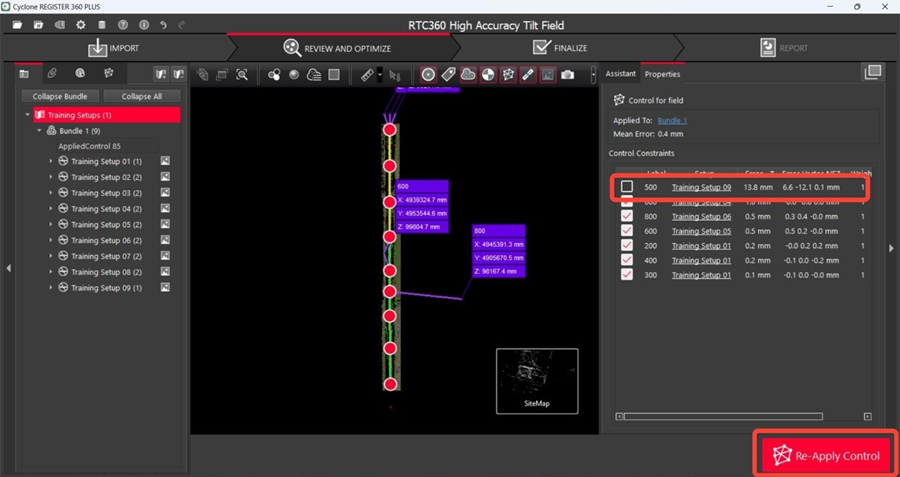
Check the control constraints. If you decide to include all of them, the error will be redistributed between all constraints. To do that, simply select the check box next to the required control and click Re-Apply Control.
-
Inspect the Bundle to ensure it’s in a proper state. Note that the applied control doesn’t influence the Cloud-to-Cloud and target constraints. The Cloud-to-Cloud and target errors for the Bundle remain the same as before since the Bundle was locked while control was applied.
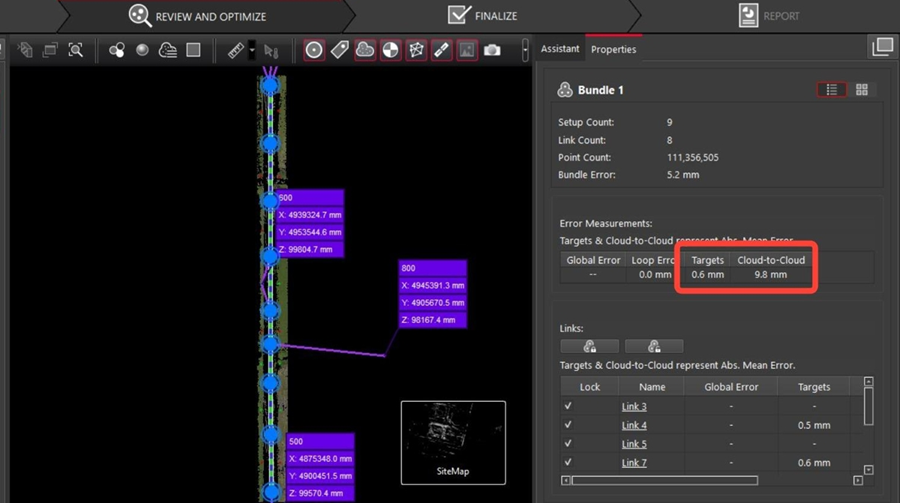
So, regardless of the errors, the Bundle will not deform. The Setups will remain fixed and will not be adjusted to accommodate control.
Applying Control to the Unlocked Bundle
If the Bundle is unlocked when applying control, it will allow individual Setups to compress or expand in relation to each other achieving an optimal fit for control. Therefore, there will be a difference in control error as the Bundle deforms to fit the control.
To apply control when the Bundle is unlocked:
-
Click the Unlock button so that the links in a Bundle are unlocked.

-
Right-click the Bundle. From its context menu, select Apply Control and then select the required control.
-
In the Smart Label dialog, click Yes to match control points.
-
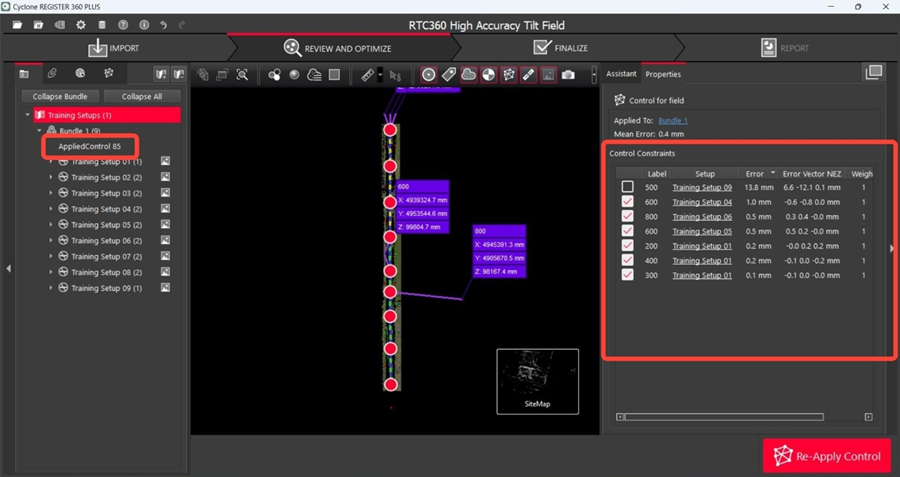
Click AppliedControl and check control constraints in the Properties panel.
You’ll see that only targets that fall within the specified range are included.
-
If you want to include or exclude any control, first, go back to the Bundle and unlock it as follows:
-
Click the Bundle object in the Explorer panel and then click the Unlock button in the Properties panel.
-
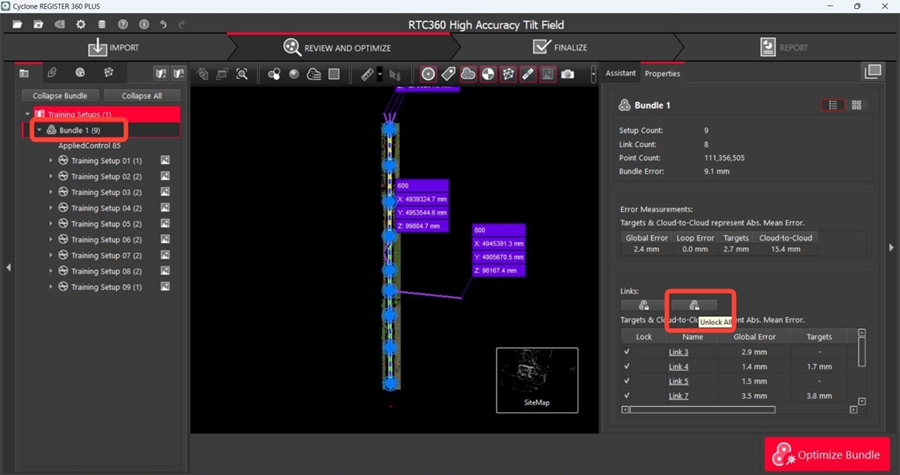
b. Select a check box next to the required control and click Re-Apply Control.
-
Inspect the Bundle to ensure the registration is good enough. You can see that the error is smaller because the Bundle is deformed to fit the control. Additionally, the errors for Cloud-to-Cloud and targets got higher.
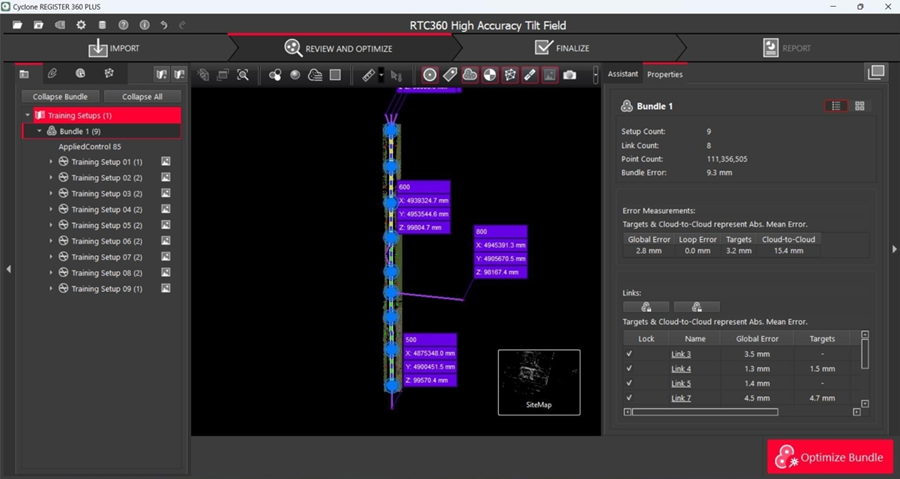
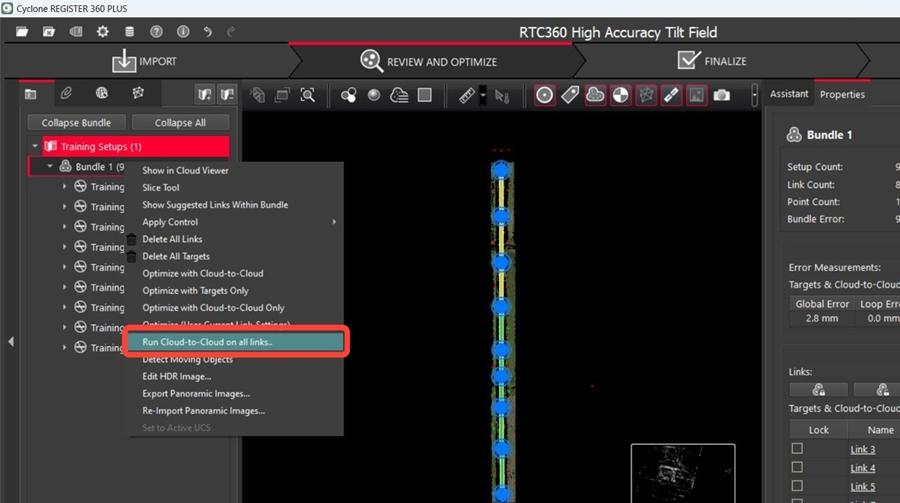
To restore the Bundle to its original state, simply running optimization will not be effective, as the Bundle has been deformed, and the Cloud-to-Cloud representation has changed. Thus, it’s necessary to run Cloud-to-Cloud again. To do that, right-click the Bundle and then click Cloud-to-Cloud on all links from the context menu.
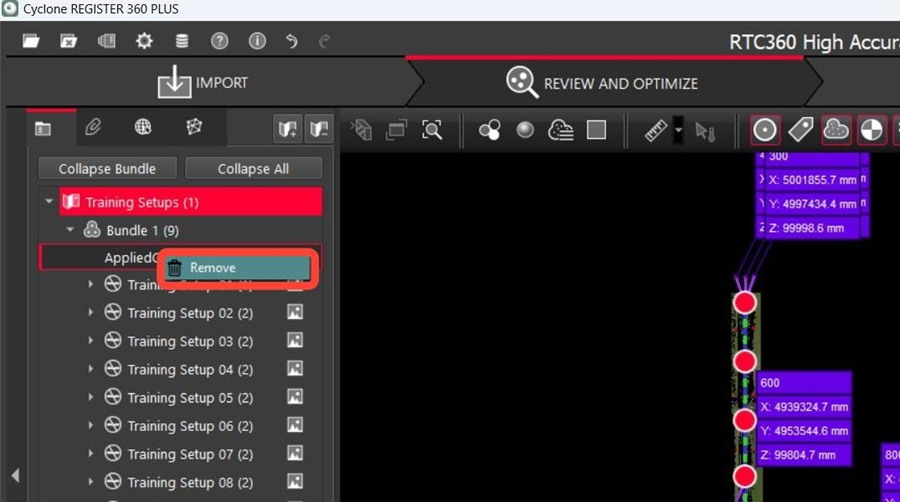
Removing Applied Control
To remove the applied control, simply right-click the AppliedControl object in the Explorer panel and select Remove from the context menu.
Summary
For optimal results, it’s recommended to lock the Bundle before rotating it under control. Locking the Bundle offers significant benefits as it prevents any deformation. With the Bundle locked, all Setups are treated as a cohesive unit that can be rotated or translated together. Thus, when control is applied, the Bundle’s structural integrity remains unchanged.
However, the choice between locking or unlocking the Bundle before applying control depends on the quality of the Bundle or control. Therefore, you can choose any scenario that best meets your needs to achieve the best results.