
Summary
Many computers have several graphics cards: an onboard graphics card and an additional high-performance graphics card, also called a dedicated graphics card.
Cyclone REGISTER 360 PLUS may not detect the dedicated graphics card on computers with multiple graphics cards.
Workaround
Most graphics card manufacturers provide software to manage the use of the graphics card for specific apps. See below how to set the dedicated NVIDIA graphics card to be used with Cyclone REGISTER 360 PLUS:
-
Navigate to the Windows Start menu > NVIDIA Control Panel.
-
In the NVIDIA Control Panel dialog, in the Select a Task panel, click Manage 3D settings.
-
Navigate to the Program Settings tab.
-
Click the Add button, browse to the Leica Geosystem’s program folder, and select the desired program for the graphics card configuration.
-
Select the preferred graphics card.
-
Click Apply.
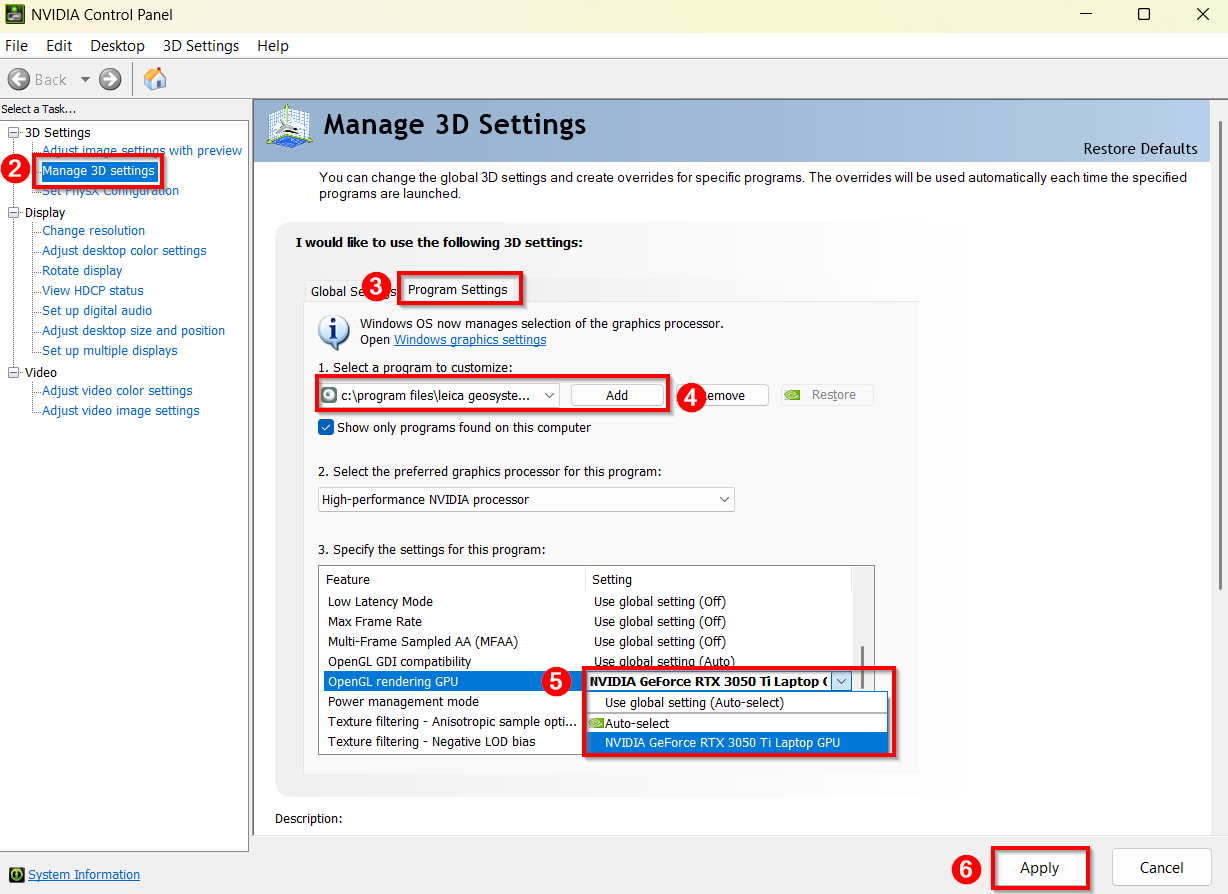
Note: Different graphics cards feature various settings managers, which can lead to variations in the user interface for configuring the necessary settings.