
Summary
When importing BLK ARC scans, containing georeferenced data, the global coordinates may not be read upon the first import of the raw data into Cyclone REGISTER 360 PLUS.
Workaround
The recommended workaround is to import scans twice using specific import settings mentioned in the workflow below:
-
Download the job from BLK ARC using Data Manager.
-
Navigate to Settings | General and define Import settings in Cyclone REGISTER 360 PLUS. Ensure SLAM recalculation upon import is enabled by choosing one of the settings below:
a. BLK: Re-Run SLAM
b. BLK: Use Re-Observation
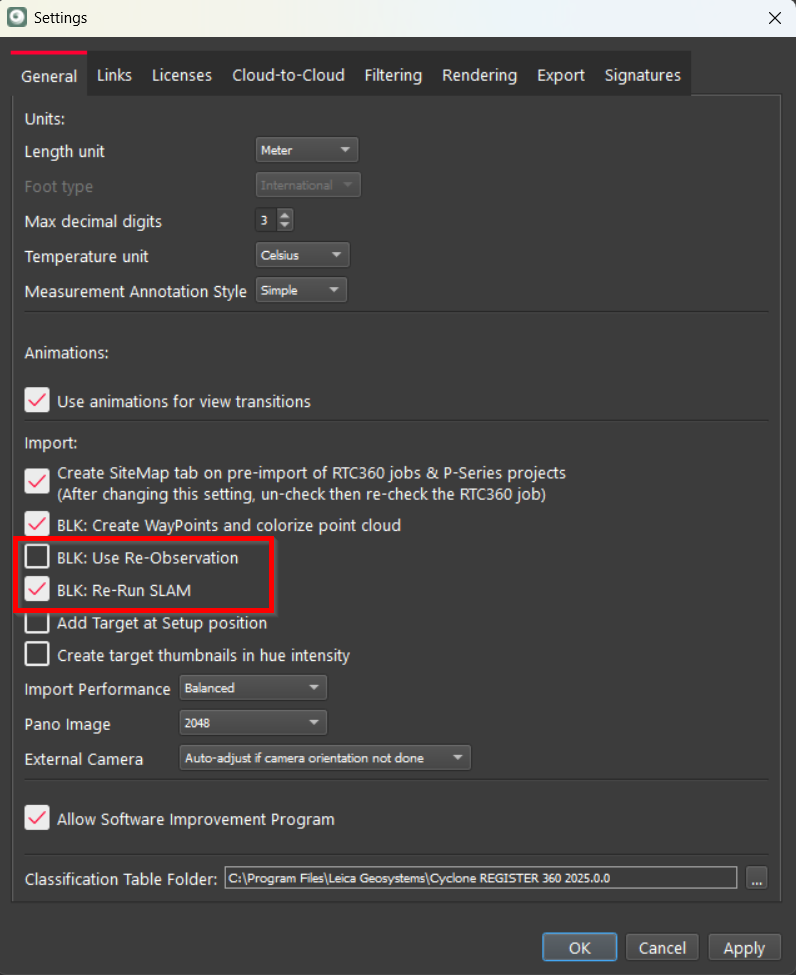
-
Drag and drop the job folder into Cyclone REGISTER 360 PLUS and import the data.
-
Remove the imported scan from the project or delete the project altogether.
-
Import the same B2G file again:
-
Drag and drop the B2G file into Cyclone REGISTER 360 PLUS.
-
-
(Optional) Use the map to visualise the scans on a satellite map:
-
Click Show Geo Image Bar to visualise the satellite view.
-
Locate precisely the environment and click Get Image.
-
Click Place by Geo Coordinates to automatically place the scan according to the global coordinates.
-
Double-click the SiteMap to centre the view.
-
-
Select the Coordinate System in the Import options and define other Import and Registration settings.
-
Select Auto Cloud in Import settings to automatically align multiple scans.
-
Note: SLAM recalculation is not mandatory this time to retrieve the GNSS data.
-
Import the data.