
revit
Fitters | Workplane
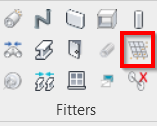
This tool best fits a workplane from a selected pick point or the box, polygon, or circle fence on the point cloud.
Using the Tool
To fit a workplane by selecting a cloud point:
-
Click the Workplane icon in the Fitters panel.
-
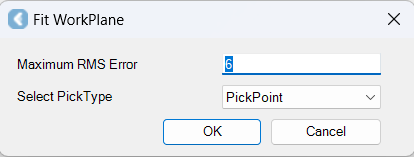
The Fit WorkPlane dialog will appear.
-
-
In the Maximum RMS Error field, specify the maximum allowable error.
-
The Maximum RMS Error field displays the sampling error of the original point cloud. If the fit quality does not meet this number, the fit is rejected.
-
-
In the Select PickType field, select PickPoint from the down-down menu and click OK.
-
Pick a point on the cloud.
-
The points in the region that best define a planar surface are used to fit the patch, and the results are displayed.
-
To fit a workplane via a fence:
-
Click the Workplane icon in the Fitters panel.
-
In the Fit WorkPlane dialog, adjust the settings as follows:
-
In the Maximum RMS Error field, specify the maximum allowable error.
-
In the Select PickType field, select Box, Polygon, or Circle fence from the down-down menu and click OK.
-
If a polygon fence is selected, you can end it by clicking near the starting point.
-
Minimum rectangle produces a rectangle with the minimum surface area that surrounds the fit points.
-
-
-
Once the fence is completed, the patch is fitted using the points in the region that best define a planar surface, and the results are displayed.
Note: If the fit quality does not meet the Maximum RMS Error value, the fit is rejected.