Function
The scene analysis dialog has many valuable calculations available. We've included common formulas used in the forensic mapping / accident reconstruction fields. The user needs to be familiar with these formulas and know when they should be used and applied.

Procedure
The scene analysis dialog has 9 groups of formulas available, plus a vehicle database browser. The formula groups are explained below, but the vehicle database section has it's own topic.
Formula Groups
The scene analysis dialog has 9 different formula groups available to the user: Speed, Deceleration Factor, Energy, Momentum, Conversions, Trigonometry, Kinematics, Blood Stain Pattern, and Airborne.
Each group has similar options available that can be set by the user and we'll explain them now.
Formula Type
Each group will list different formulas that pertain to the group type. For example, in the Speed group, you will see that there are 5 different formula types available. The first thing you need to do then, is select the formula that you want to use.
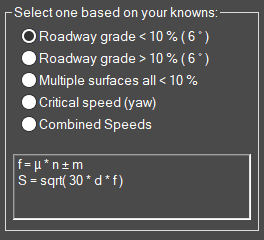
Once you've done this, the formula that will be used will be displayed, like:
Units
You need to specify what units you want to computer in, either feet or meters.
Input Values
Once you've specified what formula and units you want to use, you can now start entering your values that will be used according to the formula to compute an answer.
Calculate
Once you've entered your values for the formula, you need to press the Calculate button. When you do this a step by step reduction is computed and listed in the Results area of the dialog as show below.
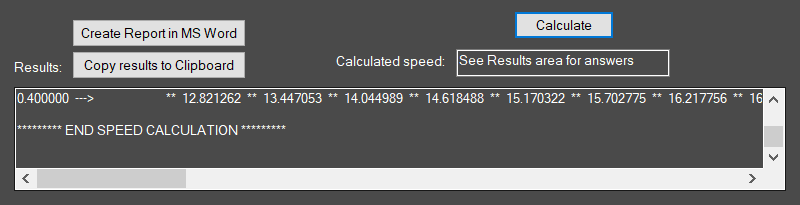
You should be able to follow along with your own calculator to confirm that the answer computed is correct.
Reports
After you calculate an answer you can copy the results to your Windows clipboard so you can paste it into other applications.
Alternatively, you can create a report in a Microsoft Word document format by pressing the "Create Report in MS Word". You need to have a copy of Microsoft Word installed for this to work.