Open the file BestFitOnRef.3dr (download).
Show only the inspected mesh Compare Theoritical Dam (good CS) / Aligned Dam 1 located in the Compare Inspect Group and make a Zoom All.
Create measures
Launch the command Pick Analysis.
Then select the option Point on Selection in the toolbar and click some points on the inspected mesh. Click, for example, areas with different colors (red, light blue, dark blue, green, yellow…).
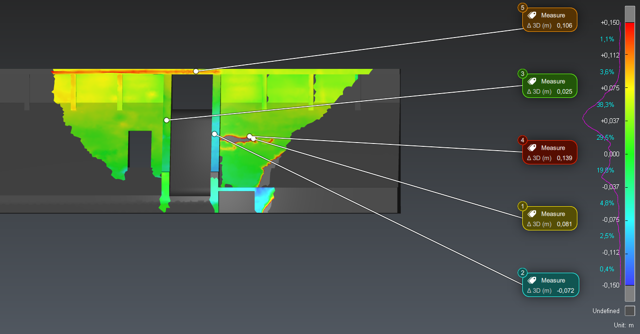
Measures created from the 3D inspection
Edit measures
By default, the measures will only show the 3D deviation. To display more information, select one measure and launch Edit Measures. Try the different options to see how they affect the measures in the scene. Then click the Advanced options menu and click Reset to default. After that you should have all General options checked and only Title, Unit and ∆3D. Also select Tolerance, ∆X, ∆Y and ∆Z and click OK to validate the measures.
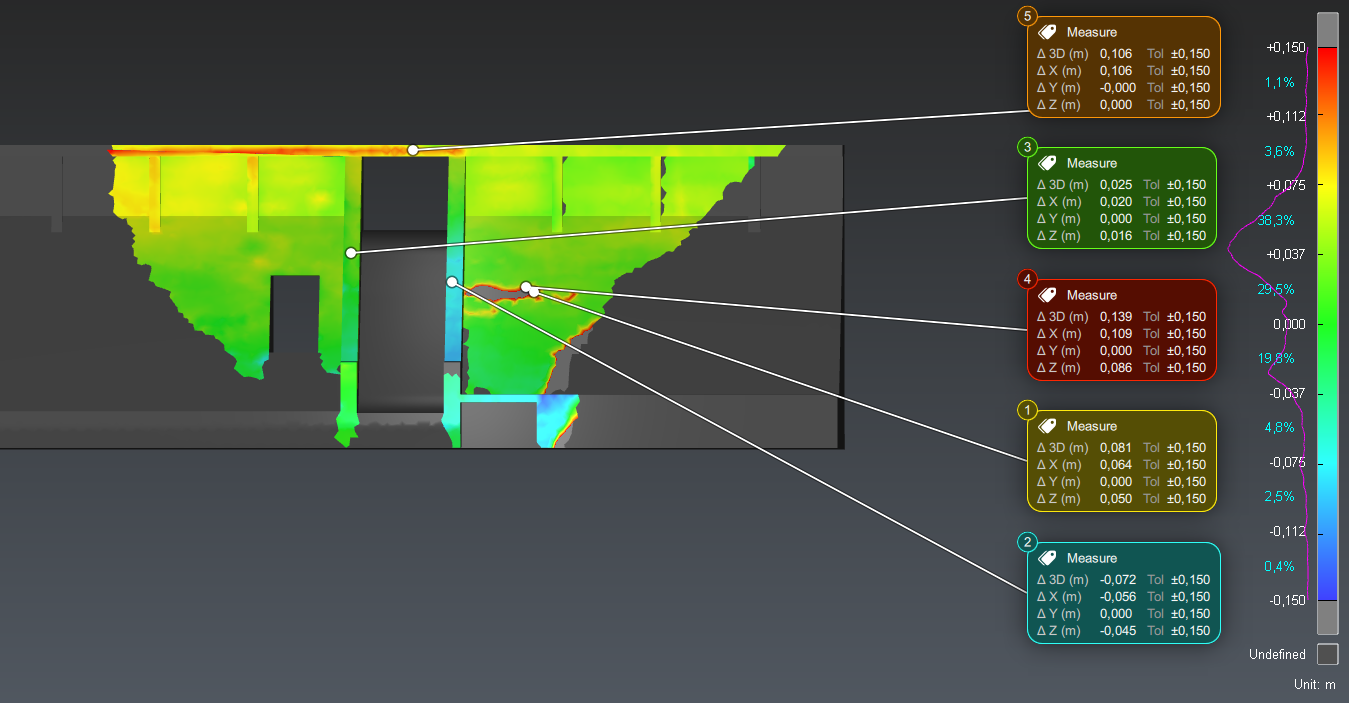
Create View Sets
If you want to add some views in the report, you have to create some view sets.
Show only the inspected mesh and one measure, then go to View Set.
Now show all the measures, change the view and create a new view set.
Select the first view set you created in the tree (in the Other Objects folder). Do a right-click and select Show. It will restore this view and you should see only one measure. Now do the same with the second view set. All measures are visible now.
Customize and export a report
Once you have created measures and/or view sets, you can edit a report. Note the measures have been created into Compare Inspect folder, next to the corresponding inspected object.
Launch Report Editor or launch the editor thanks to the magnifying glass corresponding to the report data. The chapter Compare Inspect has been automatically generated with the Template Library Settings.
First, define the layout properties using the Layout Panel (paper format, margins, orientation, header, footer and number of decimals). For this exercise, remove the cover chapter. You can add or remove unnecessary cells (refer to Template View). Note that while inserting an item into a cell, the report editor will make you some suggestions. Otherwise, you can select this data from the Data Panel or write it by yourself. When you insert a picture, the image size and ratio are always respected. Consequently, if you want to reduce the image size, you have to reduce the cell width.
select the scene and set the mode on 3D to insert a 3D PDF in your report,
if the measures take too much space, select the Measures option ID Only.
select the table and filter the columns: show only id, Meas X, Meas Y, Meas Z, Ref X, Ref Y, Ref Z, Dev 3D, Tol- 3D and Tol+ 3D. Align the table to center thanks to the Options Panel,
optionally, insert another cell to display another scene (in 2D mode) using a view set previously defined
click the “To PDF" button to create and display a report in .pdf format. Then, you can print the document as usual.
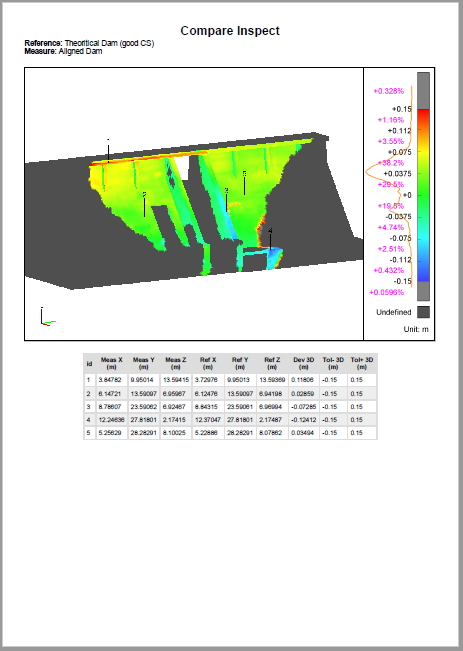
3D Inspection report with 3D PDF image