Import the data
Create a new document and import the IFC file site.ifc (download).
Type "Wall" in the Filter field, unfold the found folders, do a right click on the "Wall" node and choose Load selection.
Finally, validate the edition: you have selected sub-elements of the BIM project. Note the BIM project still contains all the source file data.
The BIM model can be edited later through the contextual menu (Edit).
Then import the scan site_aligned.e57 (download) in meter (check only the cloud with all its attributes, do not reduce it but group all scans).
As the name implies, this scan is already aligned with the BIM model, so no further action is required.
Inspect
Select the cloud and the BIM and perform an inspection between a cloud and a BIM (Cloud vs).
Apply colors on reference (site), set the Resolution to 25 cm, check Max distance and set it to 10 cm and check Consider surface orientation. Click Preview to run the analysis.
Click Edit color and choose the Presets Tolerance. Define the tolerances (3 cm and -3 cm) and validate.
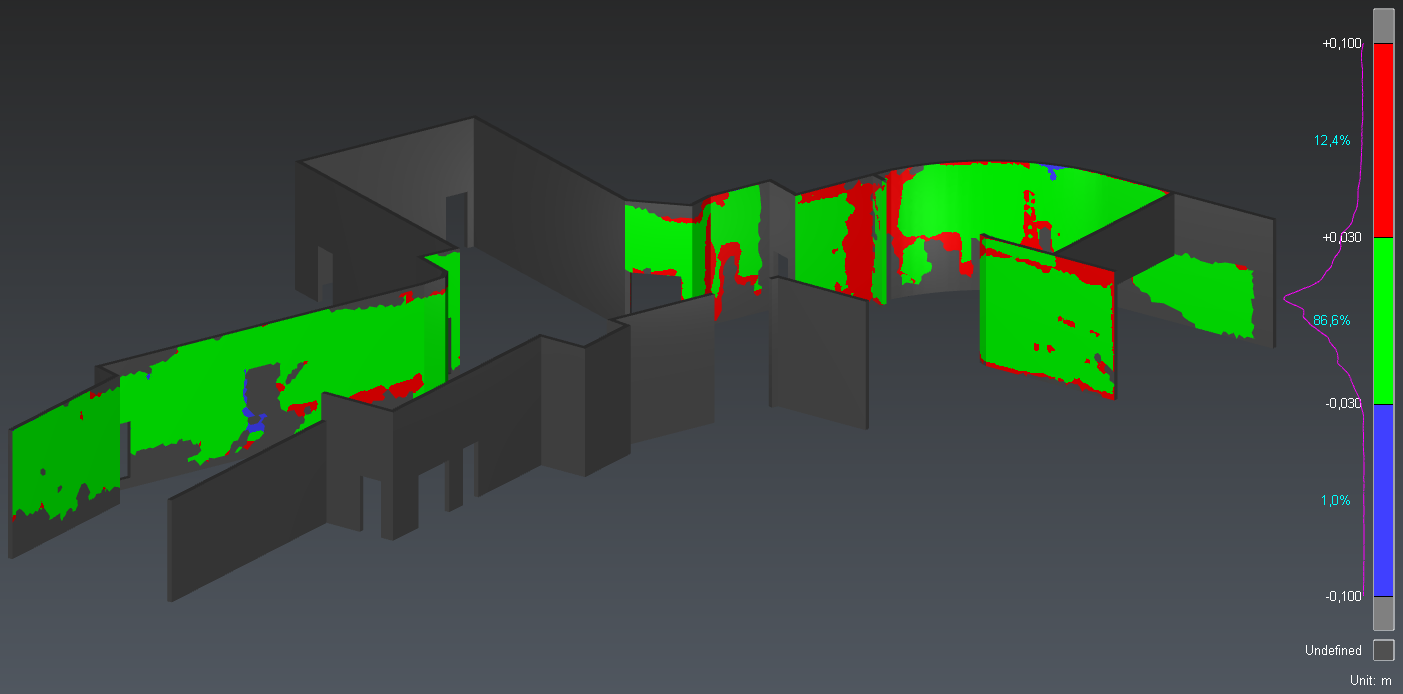
BIM inspection
Click OK twice to validate the inspection.
Annotate
Select the inspected mesh and launch Inspection Notes.
Identify a blue or red area and add a note on it thanks to the toolbar at the bottom center of the scene.
You can describe the issue (Title, Description) and set its Priority. Then, you can add deviation measures and save viewsets.
Add a note on another wall defect. Note the wall ID (BIM Component field), stored in the IFC source file, is automatically stored in the note.
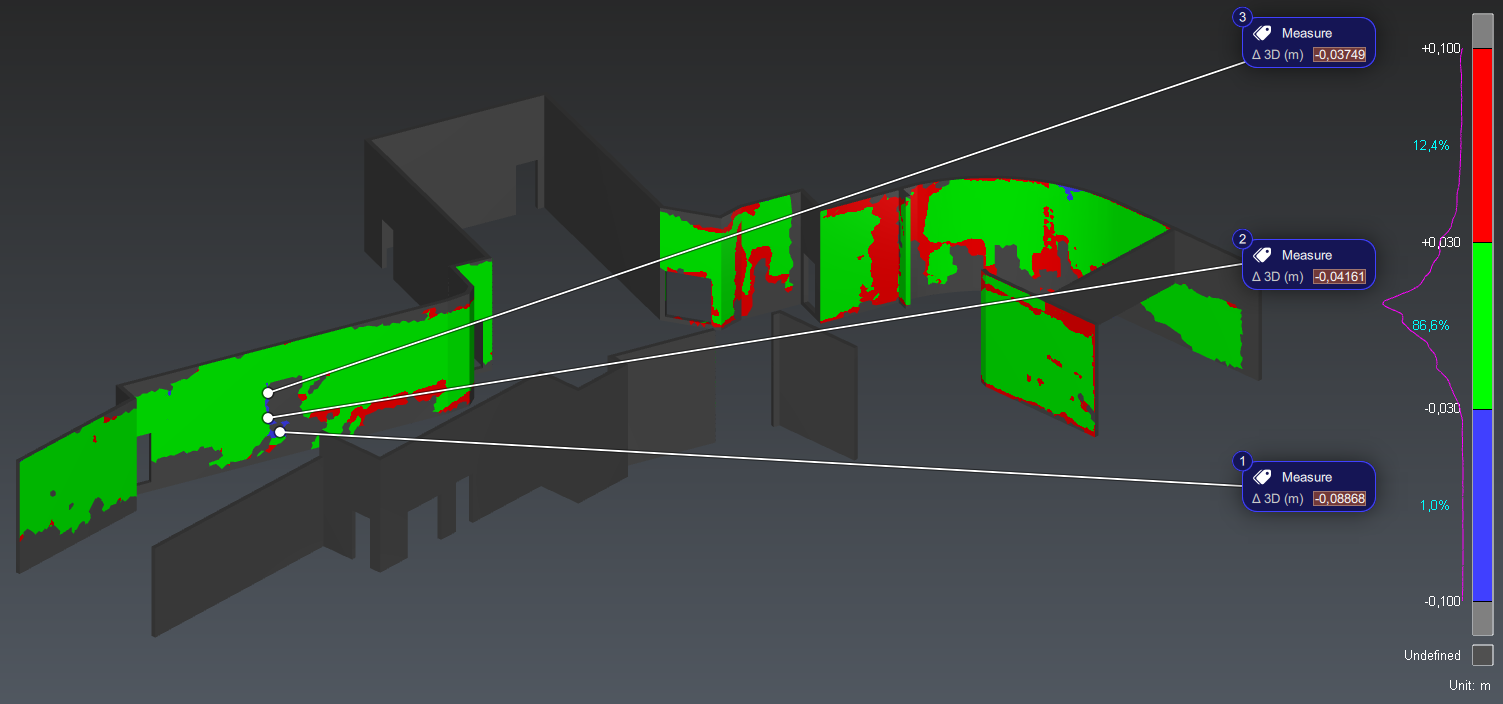
Inspected BIM and measures assigned to an issue
Optionally, create other notes. Validate with OK.
These notes can also be exported to a BCF file.
Reporting
Open the report editor: a chapter called Notes - BCF Project gathers all inspection notes. Click To PDF to generate the report.
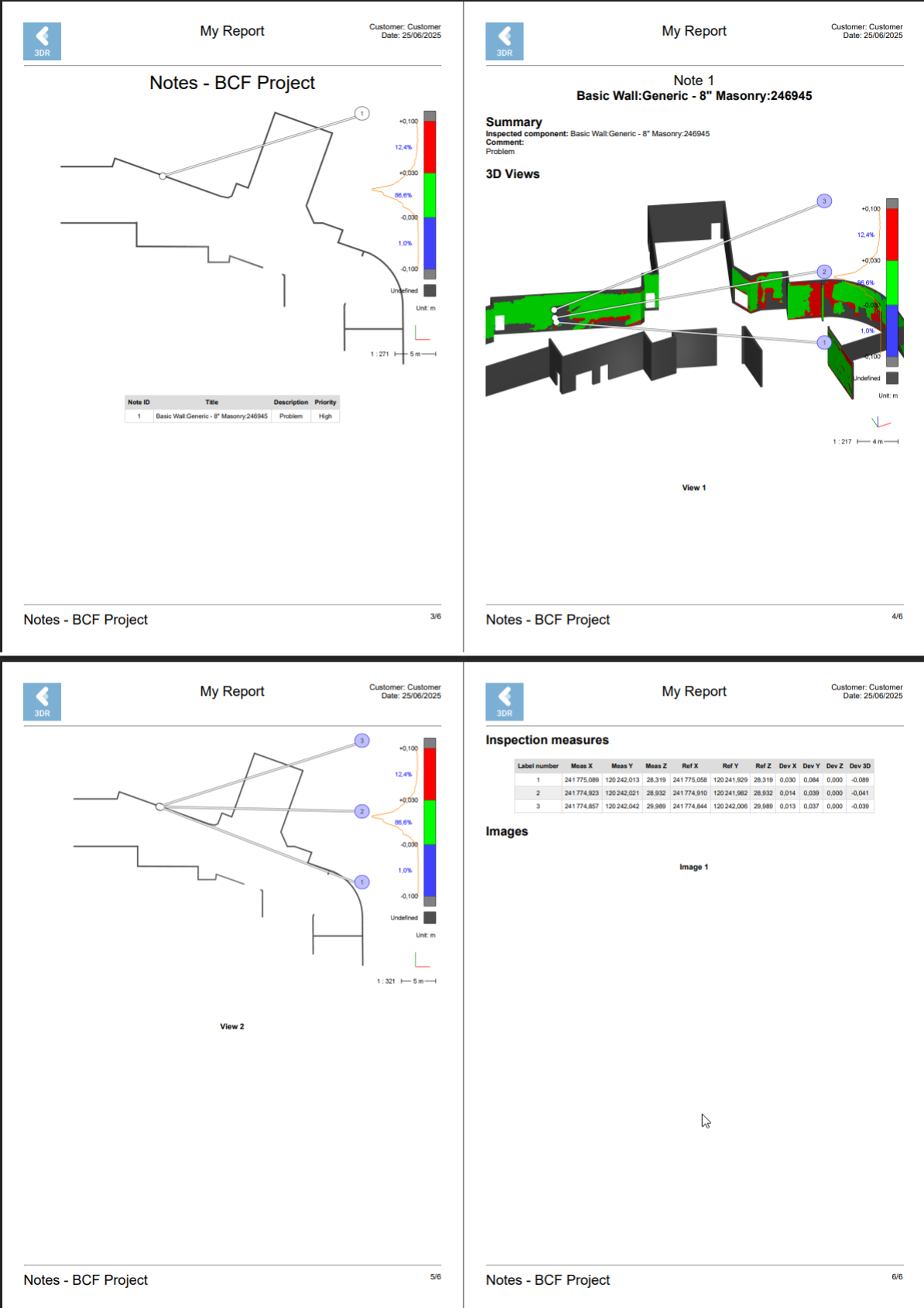
Inspection notes report