
Skip table of contents

Template Library Settings

The goal of the template library settings dialog box is to configure the default templates for each report data category:
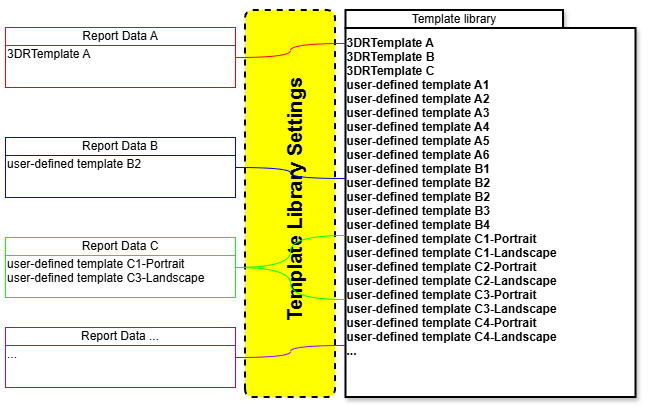
image-20250430-095631.png

Figure 1: create links between Report data and Template library

Launch the Report Editor and open the Template Library Settings dialog box thanks to the ribbon icon called Template Library.
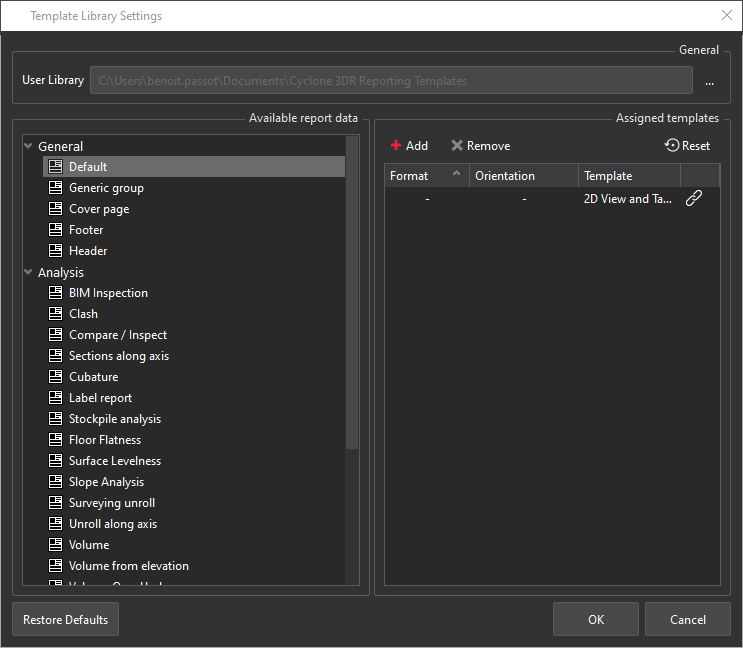
  1. Set the template library folder in User Library field. 

  2. Select a Report data category.

  3. Define which default templates the report editor is going to use (Assigned templates):

    1. Click to assign a template to the selected report data category.

    2. Click to unassign a template to the selected report data category.

    3. Click to restore the default template for the selected report data category.

    4. Click Restore Defaults to reset default templates for all available report data category.

Tips & Tricks

A report data category can point at several templates:

  • 1 per Format (paper size)

  • 1 per Orientation (Portrait or Landscape)

Native templates

: Native Cyclone 3DR templates can't be removed.

User-Defined templates

Templates must be saved on your computer in User Library folder:

  • To use a shared template, you can either copy/paste a template in this folder, import it or modify the folder file path.

  • To use your own template, you have first to define it through the report editor interface within the template view. You should define your own template starting from a native template.

JavaScript errors detected

Please note, these errors can depend on your browser setup.

If this problem persists, please contact our support.