Open the file EnterPoints.3dr (download).
There are different tools to measure coordinates, distances, angles or surfaces such as the tools listed below:
Launch the command Pick Info and select the middle of the blue line by choosing the Middle Center option in the toolbar. The command creates a measure (n°1)attached to this point, providing its coordingated Press Enter to validate. |
|
Launch the command Distance between Points and select the middle of the blue line and the middle of the red one. The command creates a new measure (n°2) and displays an arrow showing the computed distance. Click Ok, Exit to validate. |
|
Launch the command Distance Point Plane and select the middle of the red line and the triangle. The command creates a new measure (n°3) and displays an arrow showing the computed distance. You can also measure the distance between a point and a mesh triangle using Distance Point Triangle. Click Ok, Exit to validate. |
|
Launch the command Draw Plane and, using Vertex End in the toolbar, select the three vertices of the triangle. Validate the command. Now select the plane and launch the command Translation, set Translation axis to dX = 1 and the Length to 3m. Validate the command. Launch the command Distance between Planes and click on the created plane and the mesh. The command compute the distance between these two planes. The command creates a new measure (n°4) and display an arrow to show the computed distance. Click Ok, Exit to validate. |
|
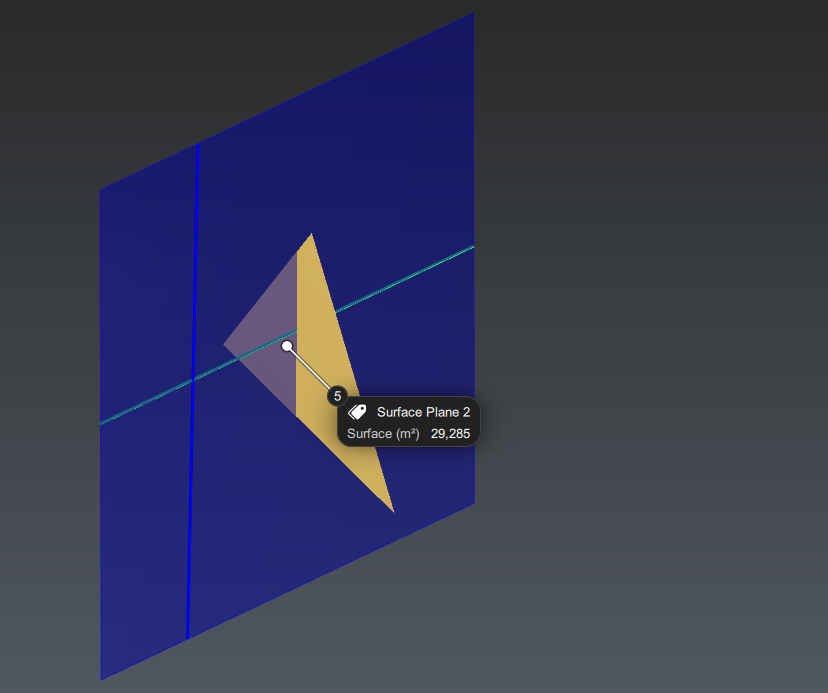
Select the triangle, the blue line and the green one, use right-click on the selection to open the contextual menu and select Show Only. Launch the command Draw Plane again and create by clicking on the extremities of the blue line and the green line. Validate the command. Launch the command Measure Surface and click on the plane, a new measure (n°5) with its surface is created. Click Ok, Exit to validate. |
|
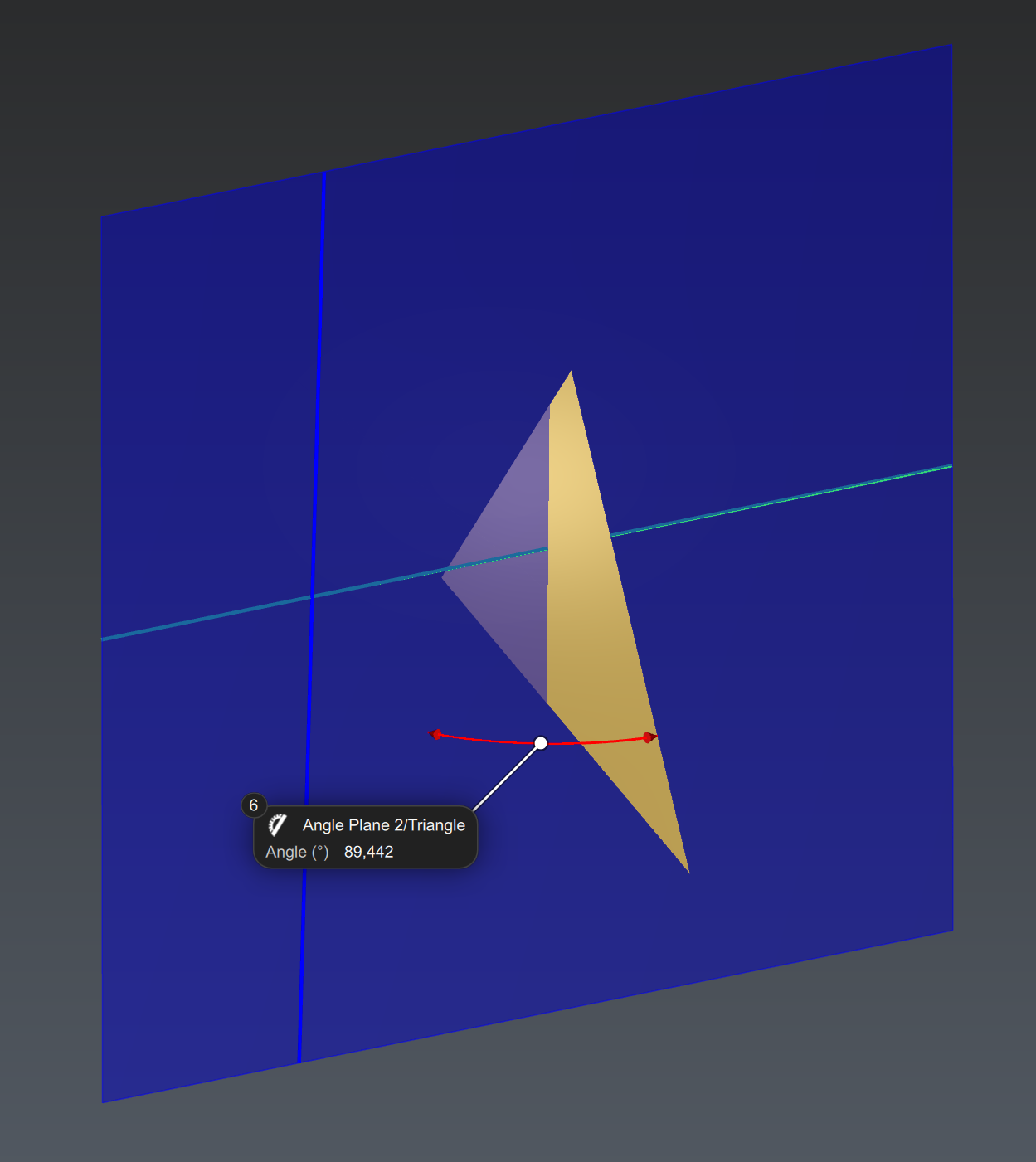
Launch the command Angle between Planes and select the plane and the mesh. Validate. The command creates a new measure (n°6) and displays an arrow to show the angle. Click Ok, Exit to validate. |
|
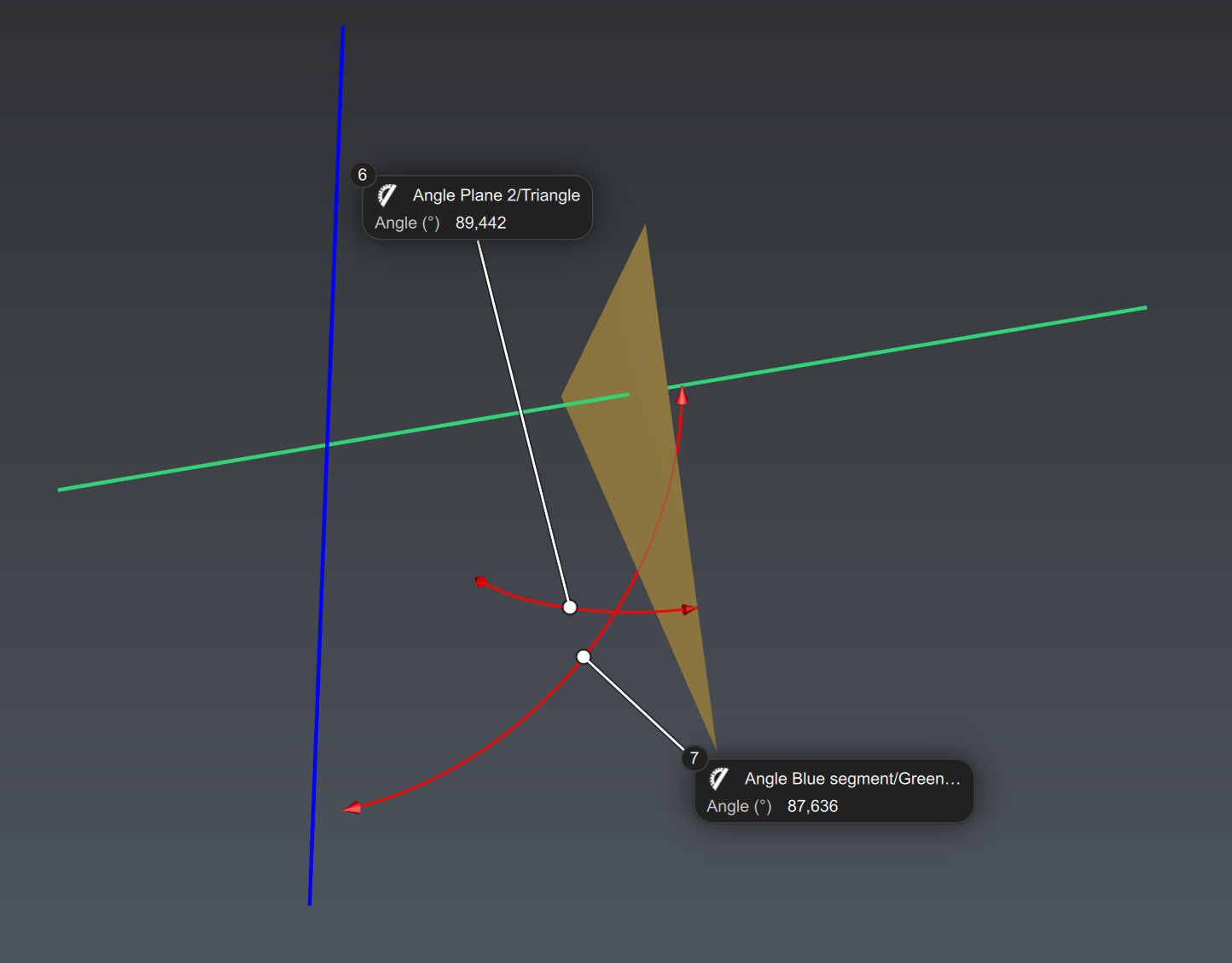
Now hide the plane and launch the command Angle between Lines and click the two visible lines. The command creates a new measure (n°7) and display an arrow to show the angle. Click Ok, Exit to validate. |
|
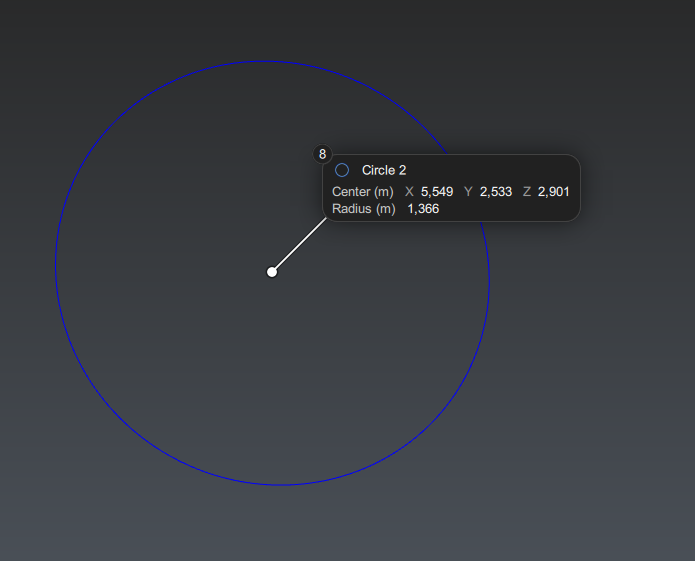
Select and show only the circle and launch Measure Geometry. As there is no nominal data here, uncheck Add nominal information. The command creates a new measure with the circle definition. Click Ok, Exit to validate. |
|
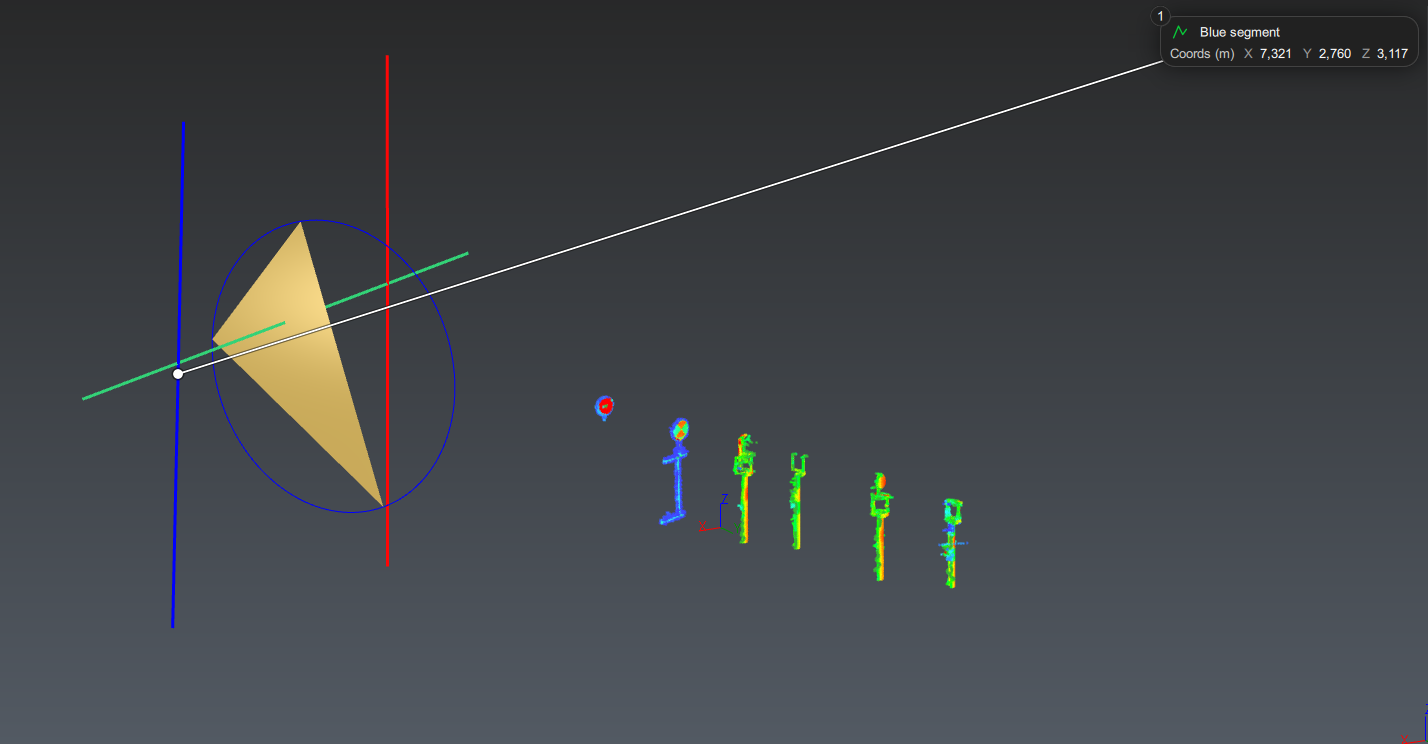
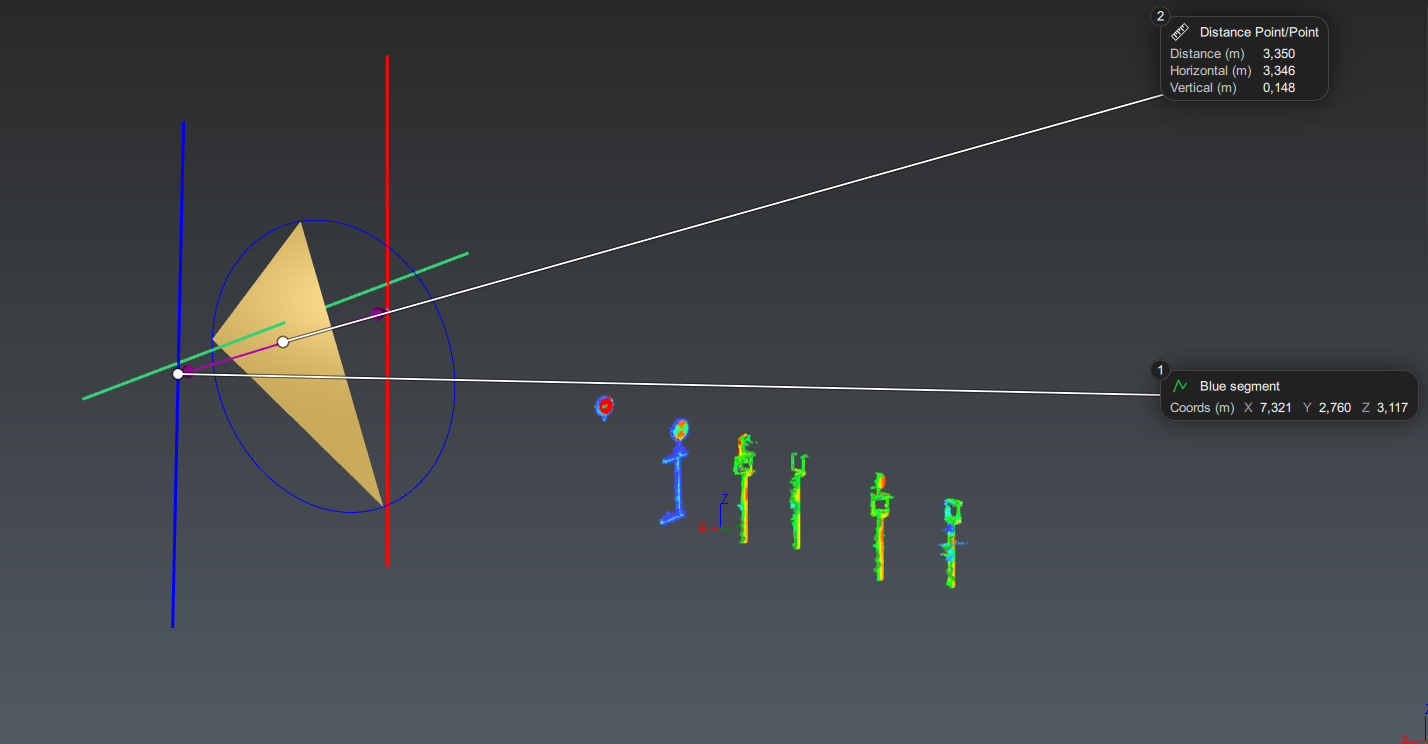
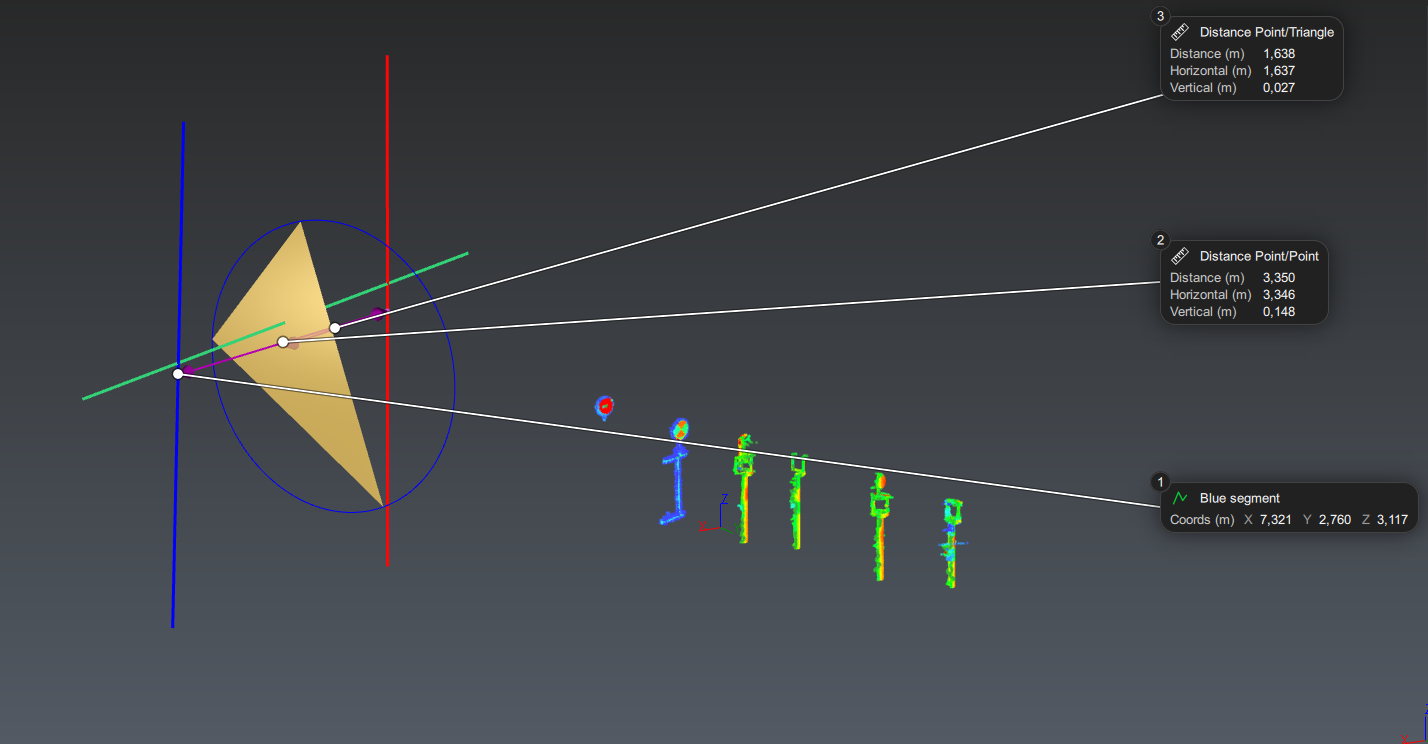
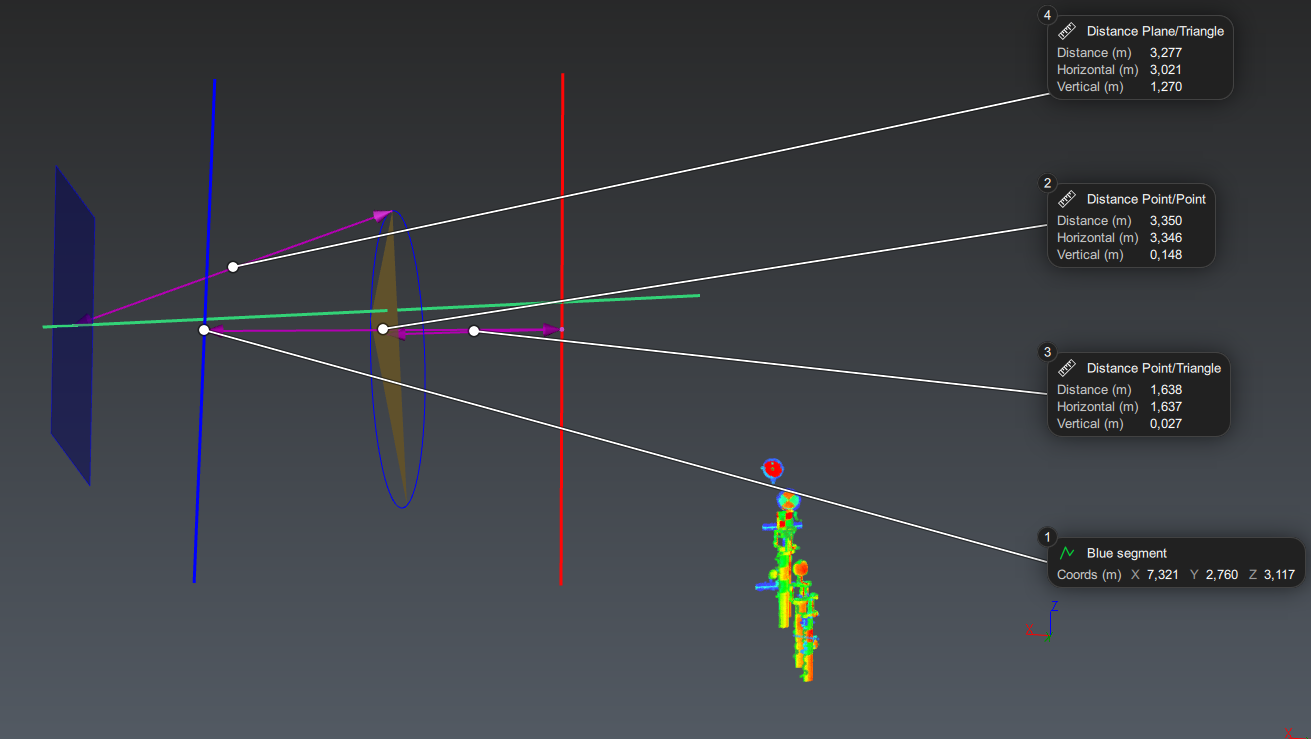
Modify measures
You can change the info displayed in measures by using Edit Measures and add comment with Edit Comment. It is also possible to change the tolerances of measures with Edit Tolerances.
Measurement tool in the toolbar
It is also possible to use tools to quickly make measurement: using the Measurement Toolbar in the top right corner of the scene, you can measure distance, angle between planes or angle between line faster, without launching a command in the ribbon.