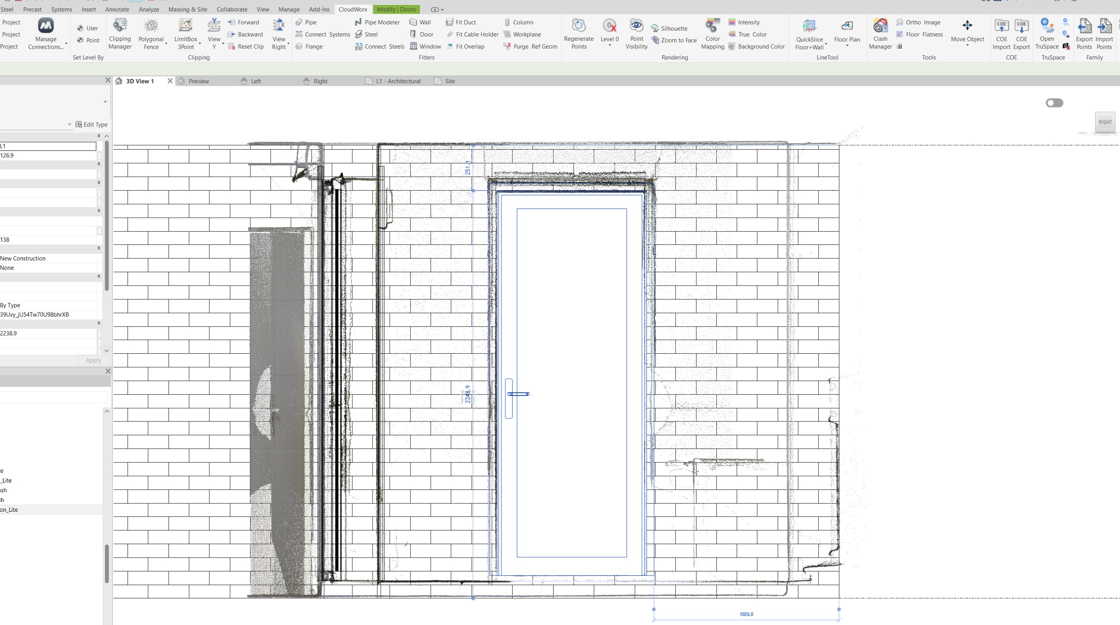
This guide outlines the workflow for fitting doors in CloudWorx for Revit.
Practice Data
Panneau Plein - Ouverture ext.rfa
Setting Fence
-
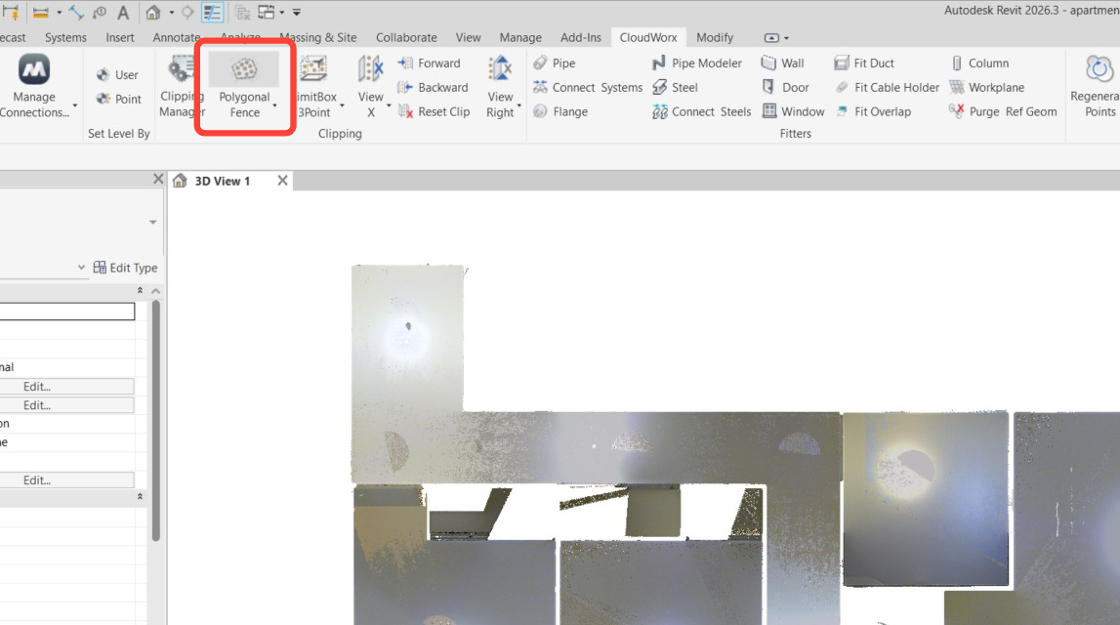
After loading the dataset, use the fence tool to define the area of interest and temporarily hide unnecessary points. Click Polygonal Fence in the Clipping panel and outline the required area.

Fitting Wall
Before fitting the door, it is necessary to create a wall where the door will be fitted.
Creating Wall Geometry
-
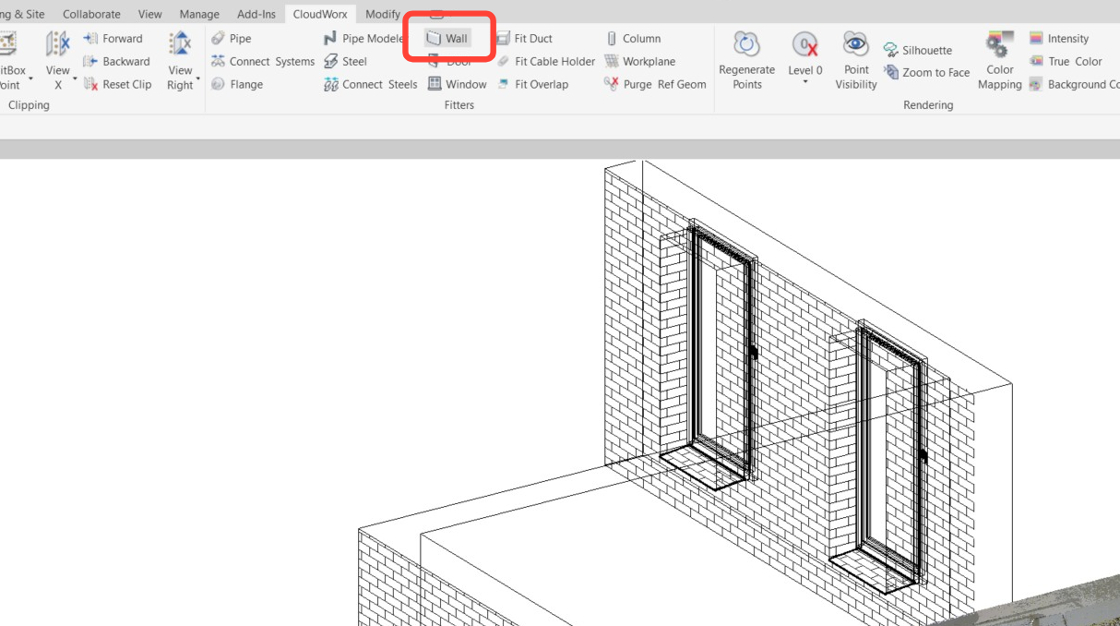
In the Fitters panel, click Wall.
-
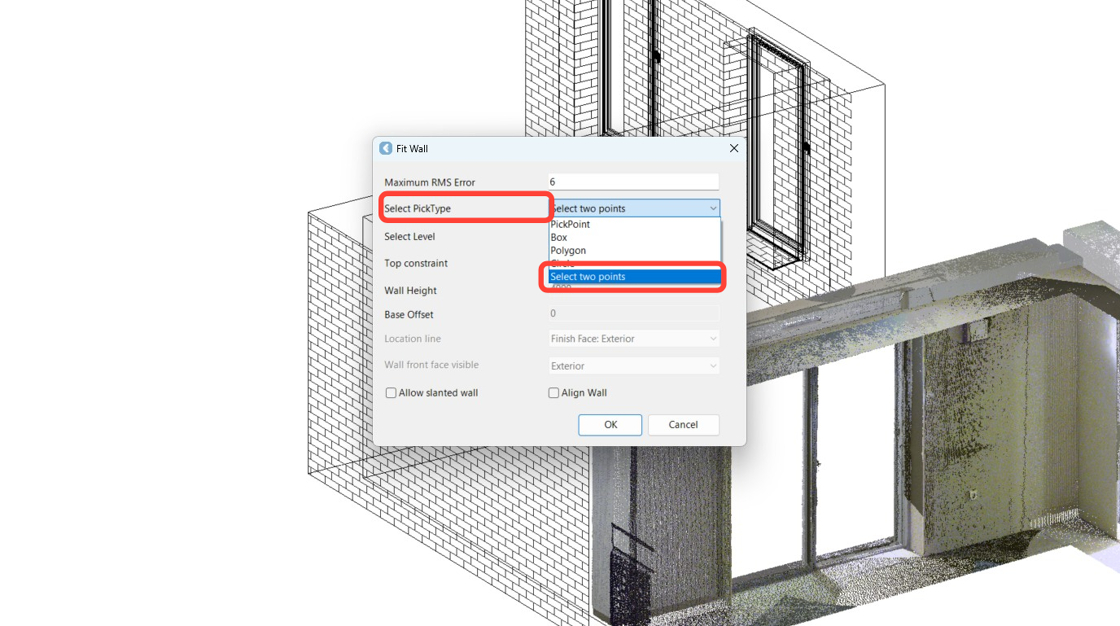
When the Fit Wall dialog appears, choose Select two points for the pick type and click OK.
-
First, select the exterior face of the wall. Next, rotate the point cloud and select the interior face of the wall.


-
In the Select wall type dialog:
-
Select the Create new type check box to match the wall thickness.
-
Specify the new type name.
-
Select the M_Exterior - Brick on Mtl Stud wall type.
-
Click OK.
-

-
Since the Wall Fitter tool remains active, repeat Steps 4-5 to create another wall for the area outlined in the image. The type created for the last wall can be used.

-
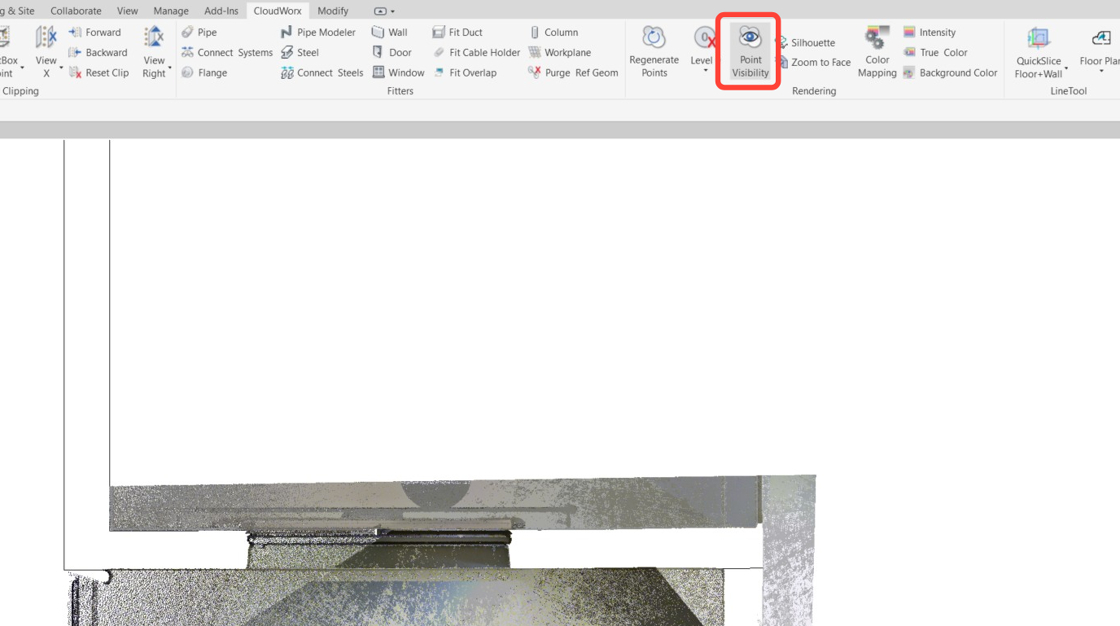
In the Rendering panel, click Point Visibility to hide cloud points and display the created walls.
Adjusting Wall Geometry
Due to the presence of openings and some noise, the wall geometry remains incomplete. This issue can be resolved using Revit functionality.
-
Click the necessary wall and then click Trim/Extend Single Element on the Modify tab.
.png?cb=a2c4896b339f22a7c80c0017e8622f5e)
-
Click the midpoint of the second wall to enable the Extend to boundary option.

-
Click another wall to extend it.

-
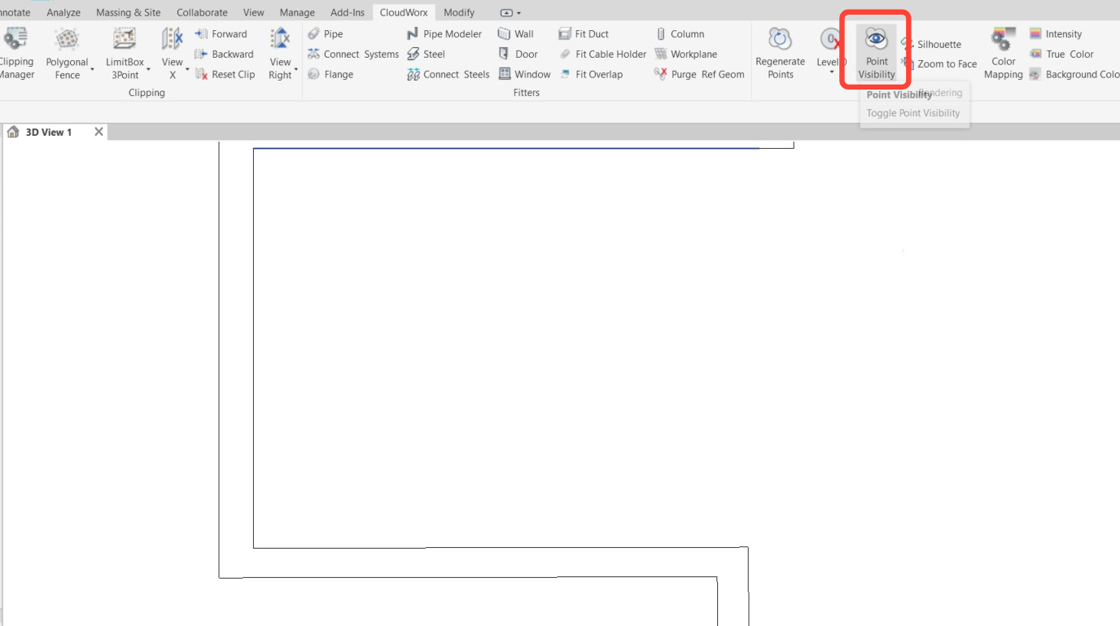
The walls are now joined. Enable point visibility.
-
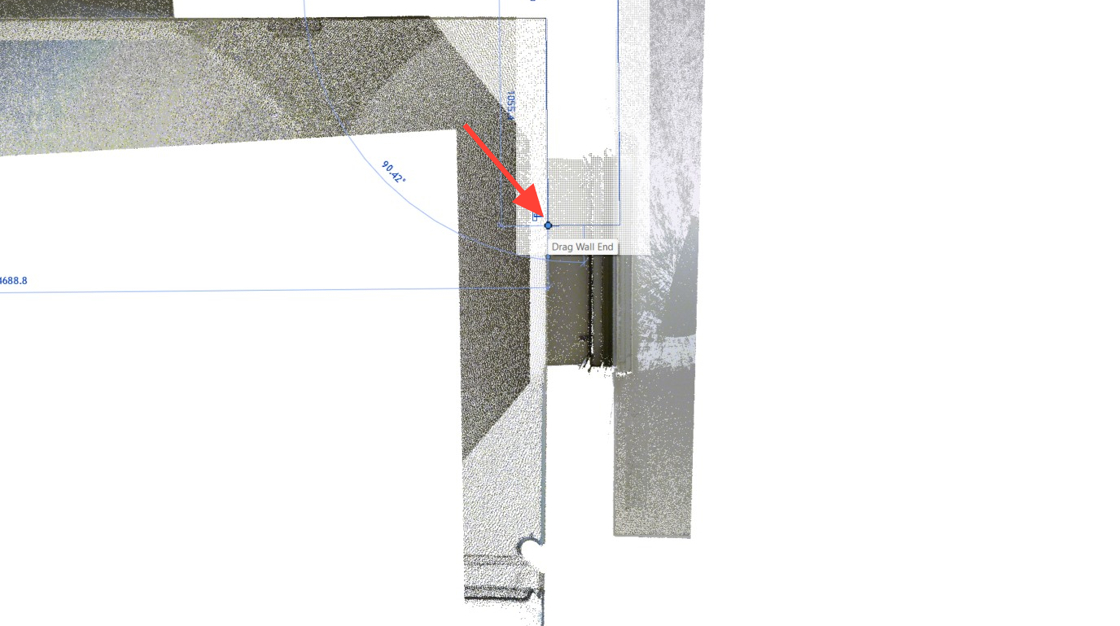
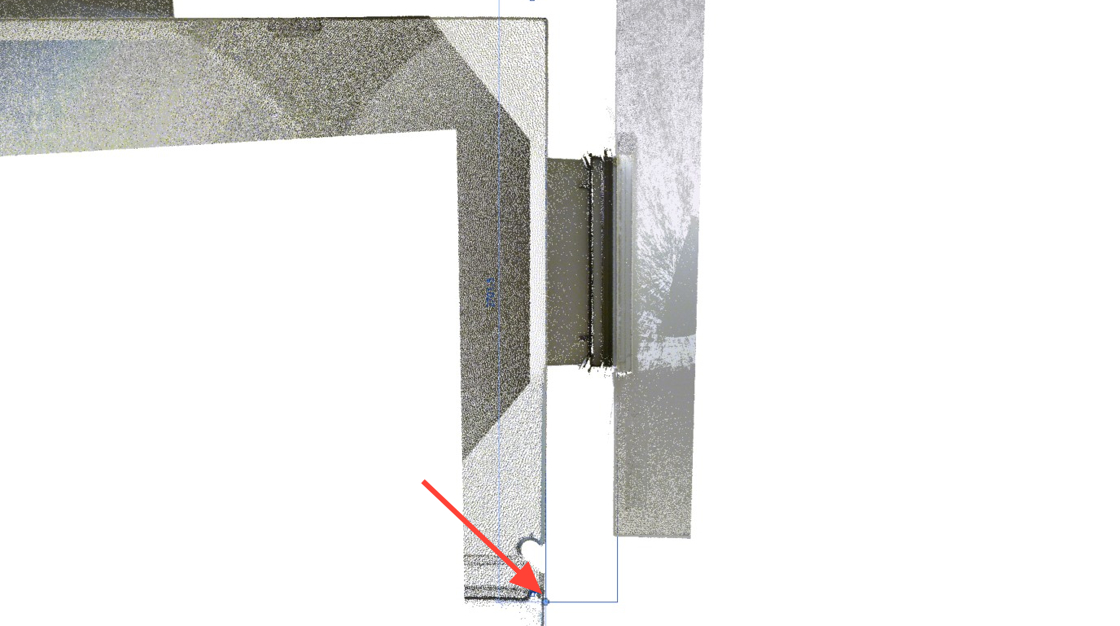
Click the second wall and extend it by dragging its edge to the necessary position.
Fitting Door
Adjusting View
-
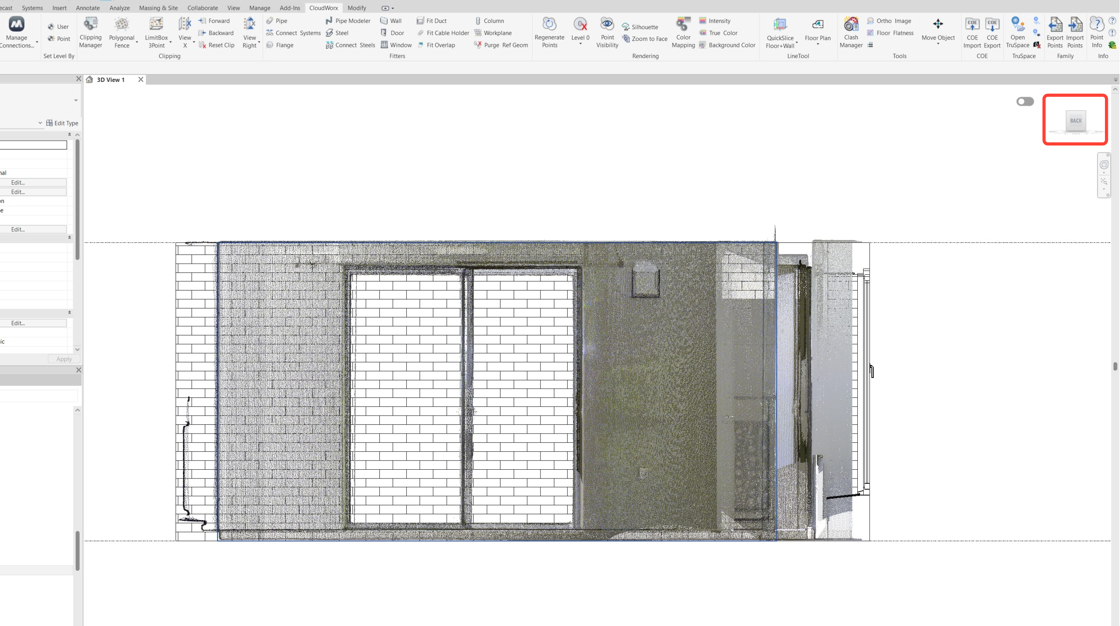
Use the ViewCube to adjust the view for optimal visibility of the object of interest. In this case, select the Back orientation and then pan to display the wall with the sliding glass door.
Adding Door Type from Autodesk Family
As this project lacks the required door type, it can be selected and downloaded from the Autodesk collection.
-
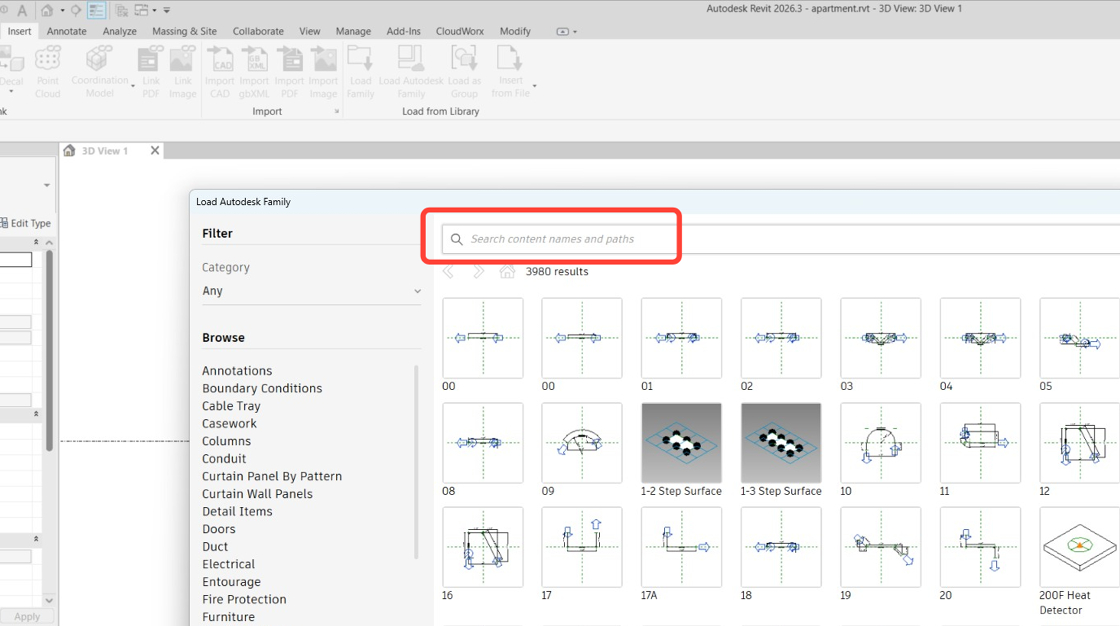
Navigate to the Insert tab and click Load Autodesk Family.

-
In the search bar of the Load Autodesk Family dialog, type ‘sliding door’.
-
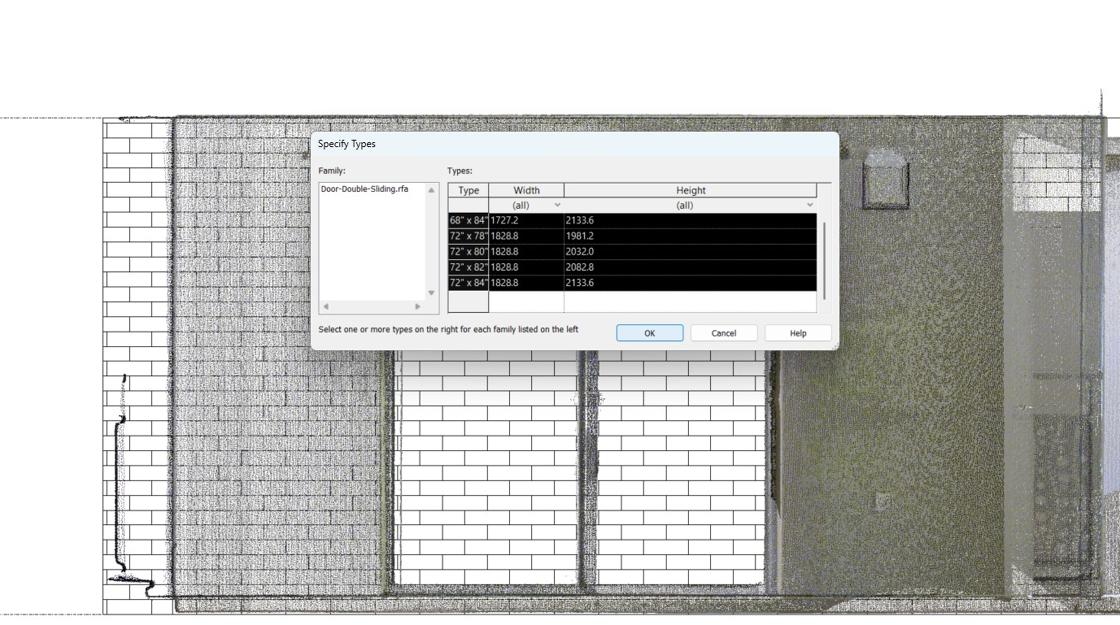
Select the Door-Double-Sliding family and click Load.

-
(Optional) Specify the required door size, if necessary.
Creating Door Geometry
-
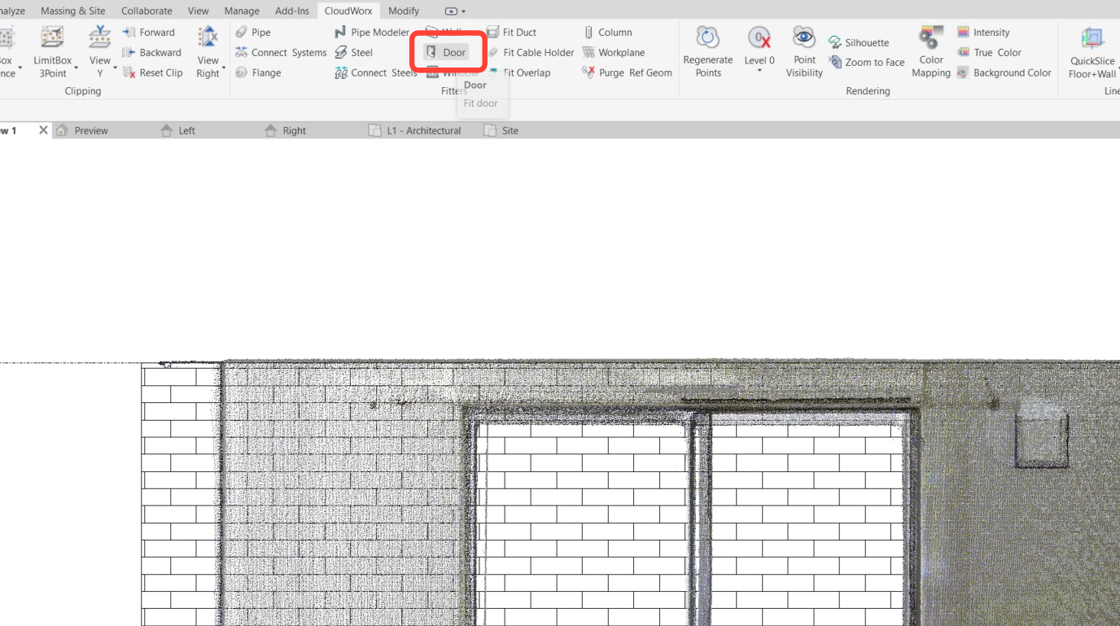
Go back to the CloudWorx tab and click Door in the Fitters panel.
-
When the Fit Door dialog appears, select the Door-Double-Sliding family, which is now available in the drop-down list. Click OK.
-
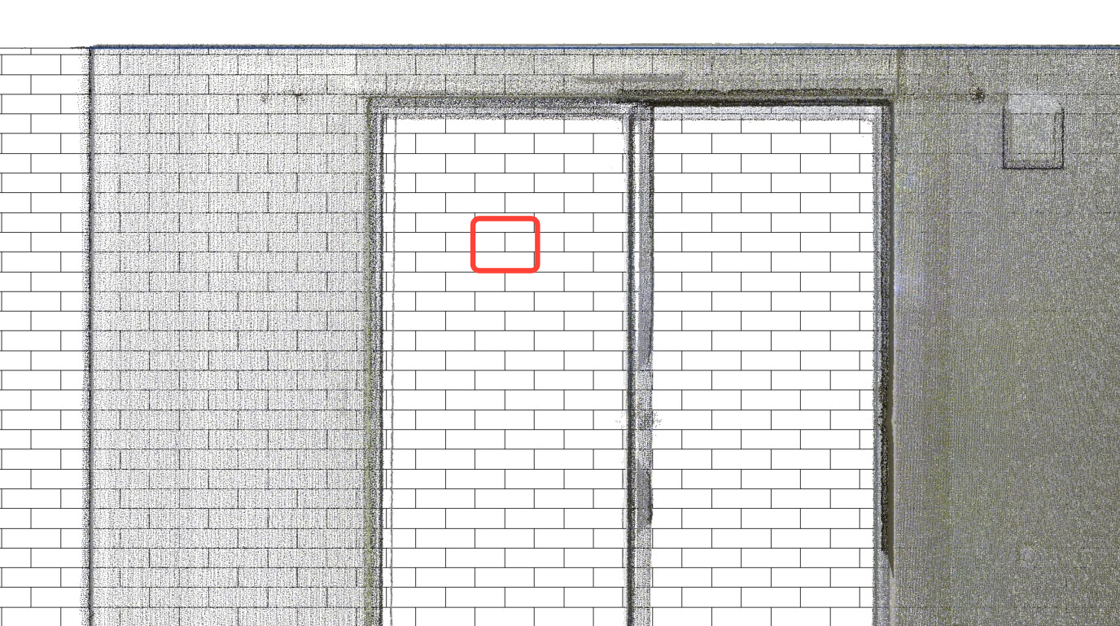
Click the host wall.
-
The only option for door fitting is window selection. Click the upper corner and then the lower corner on the opposite side of the door frame.

-
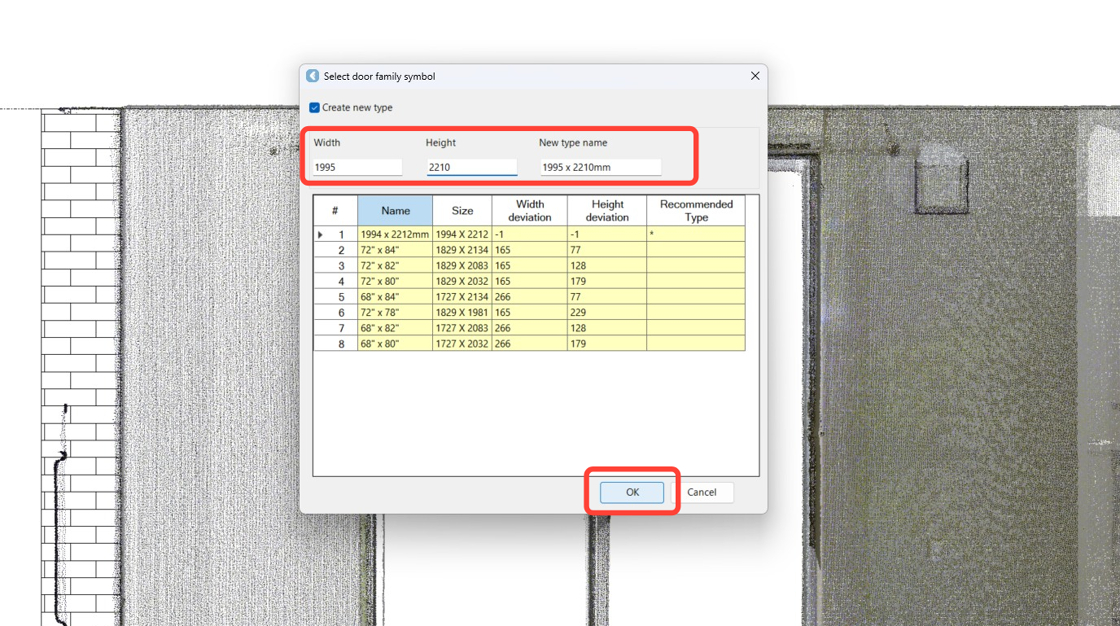
In Select door family symbol dialog:
-
Select the Create new type check box.
-
Optionally, adjust the dimensions and name of the newly created type.
-
Click OK.
-
-
In Revit Project Browser, find the L1 - Architectural floor plan. Double-click to open it.

Adjusting Door Geometry Alignment
-
Enable the cloud silhouette by clicking Silhouette in the Rendering panel.
-
If the door panels are not aligned with the cloud, select the door and use blue arrows to adjust their orientation.
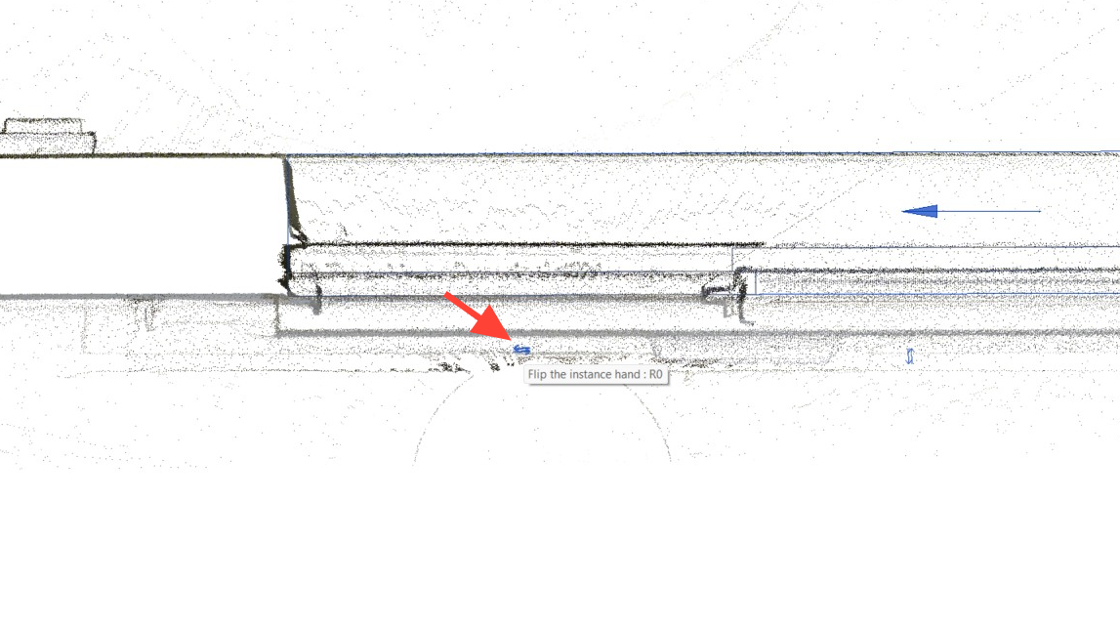
The door is now aligned with the point cloud.

-
Disable silhouette mode and switch to the 3D view.
.png?cb=f585289f277e02414be5b28d28460b0d)
Creating Door Geometry of Another Type
Now let’s fit the door of another type.
-
Adjust the view using the ViewCube and navigate to the Insert tab. Click Load Family.

-
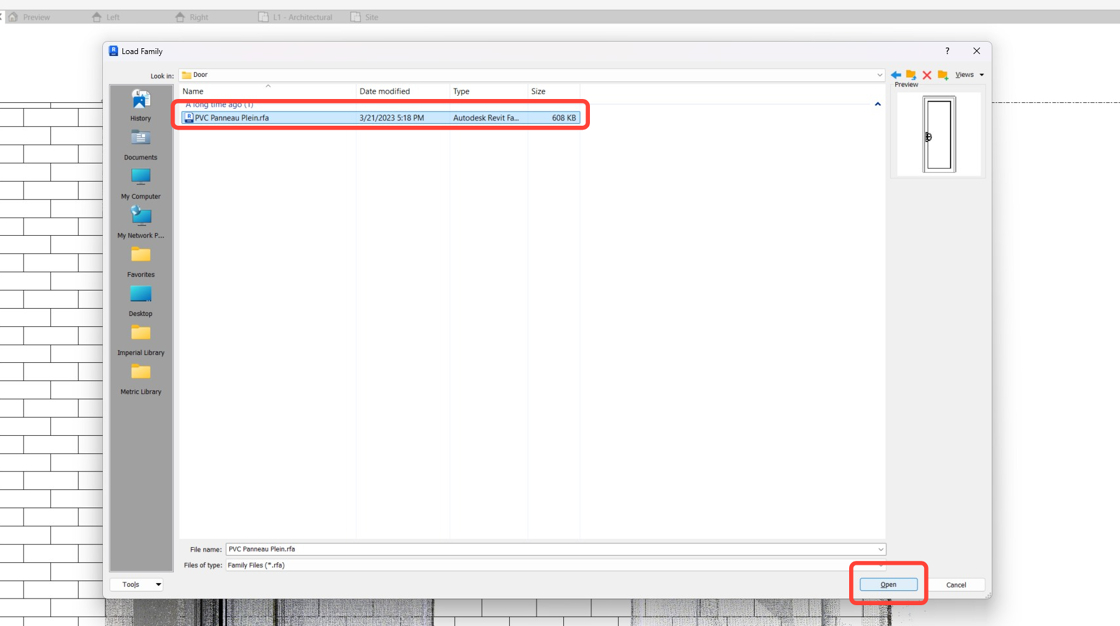
In the Load Family dialog, select the file containing the required door family—in this case, it’s PVC Panneau Plein.rfa—and click Open.
-
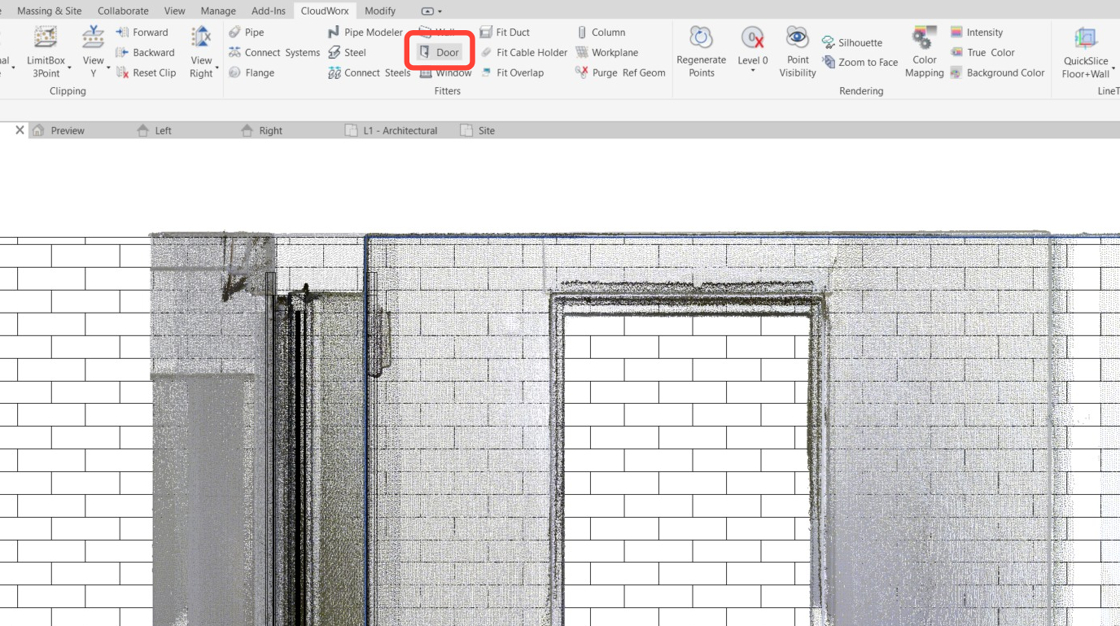
Return to the CloudWorx tab and enable the Door Fitter tool.
-
As you can see, the family is loaded successfully and appears in the Select Family drop-down list. Click OK to continue.

-
Click the host wall.
-
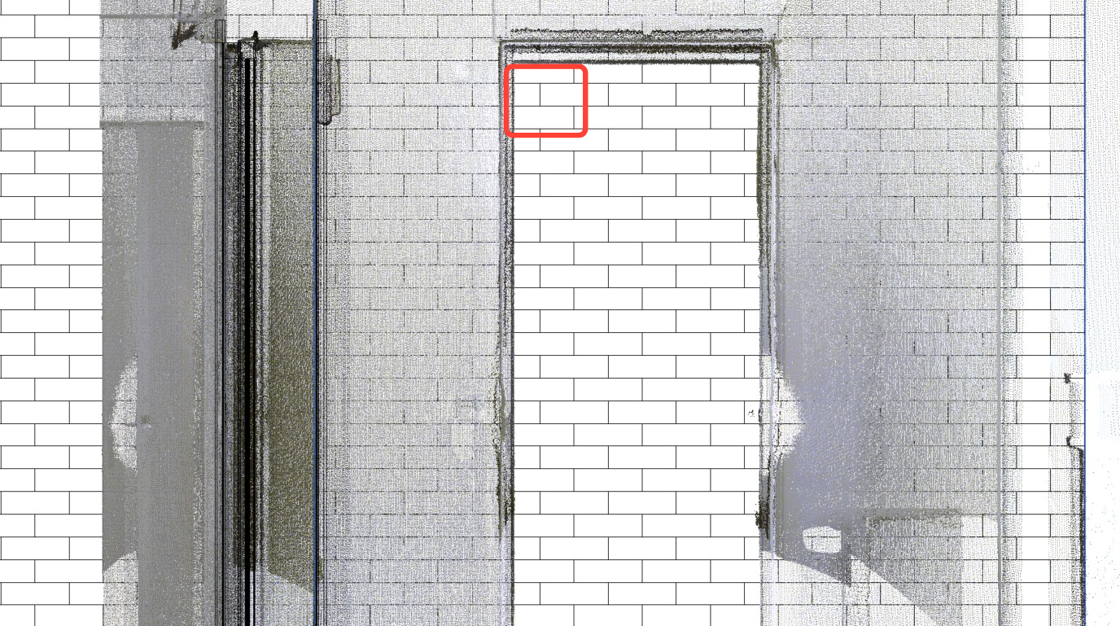
Click two points on the door as described in Step 21.

-
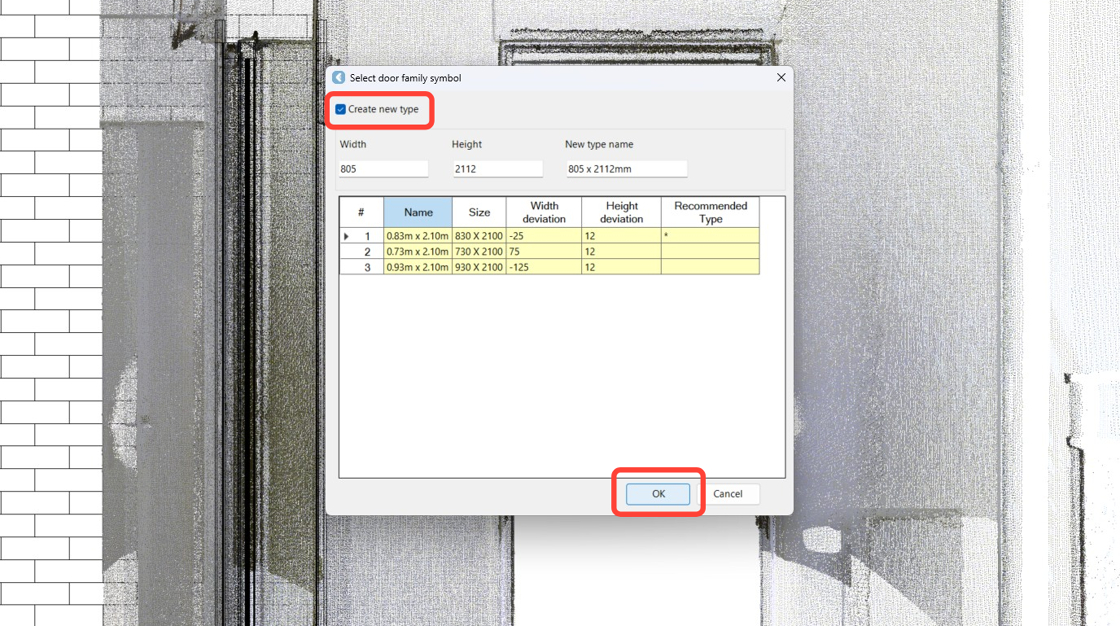
In the Select door family symbol dialog, select the Create new type check box and click OK.
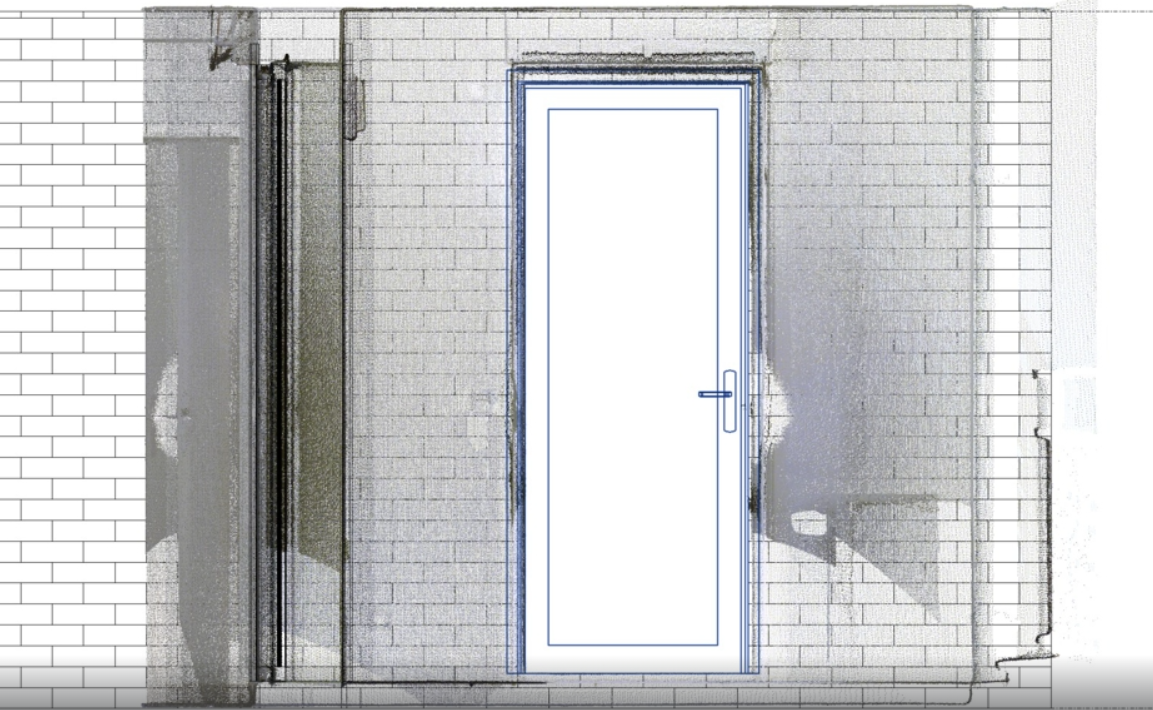
As a result, the door is fitted in place on the wall and cloud.
-
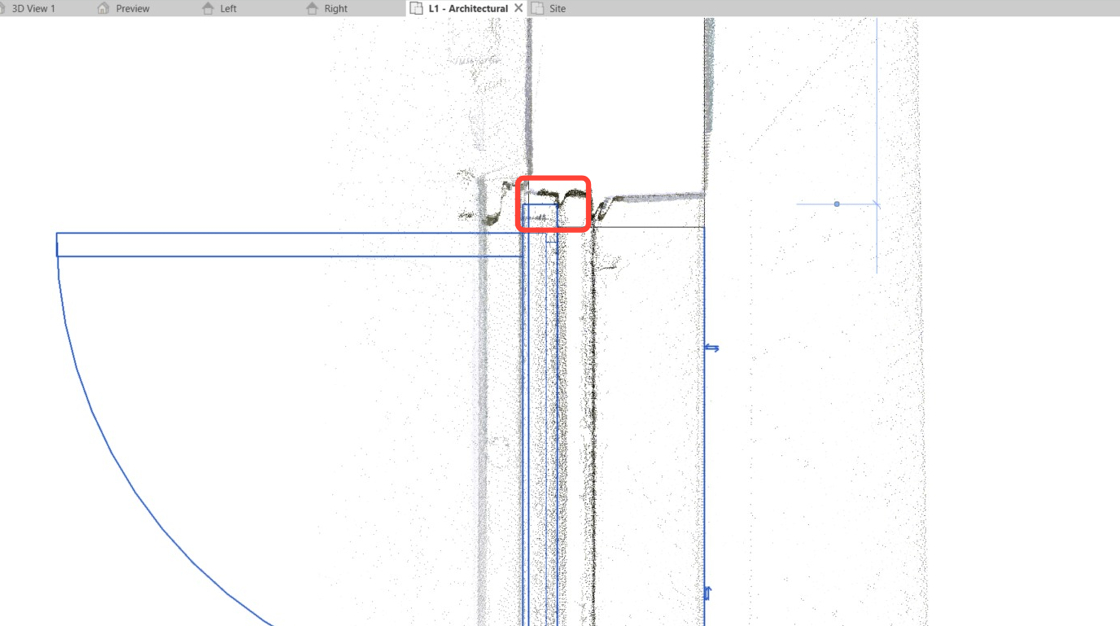
To adjust the door alignment, open up the L1 Architecture floor plan.

-
Enable silhouette mode. If the door looks misaligned, select and drag it to make the necessary adjustments. When finished, disable silhouette mode.
-
Switch to the 3D view to see the result.