
Using Dedicated GPU for Optimal Performance
To fully leverage the capabilities of Cyclone REGISTER 360 PLUS, especially when working with large projects and intensive graphical computations, it is recommended to configure the application to use a dedicated High-Performance Graphics Card rather than the integrated GPU.
Why is this important?
Cyclone REGISTER 360 PLUS relies on advanced graphical operations for rendering point clouds and visualising data. Integrated graphics (e.g., Intel UHD) may limit performance and increase processing time. A dedicated GPU (e.g., NVIDIA) provides:
-
Faster rendering
-
Improved stability
-
Higher visualisation quality
Setting GPU Preferences
To set GPU preferences in Windows 11, follow the steps below:
-
Open Windows 11 settings.
-
Click Start | Settings | System | Display.
-
-
Navigate to Graphics settings.
-
Add Cyclone REGISTER 360 PLUS application.
-
Click Add desktop app.
-
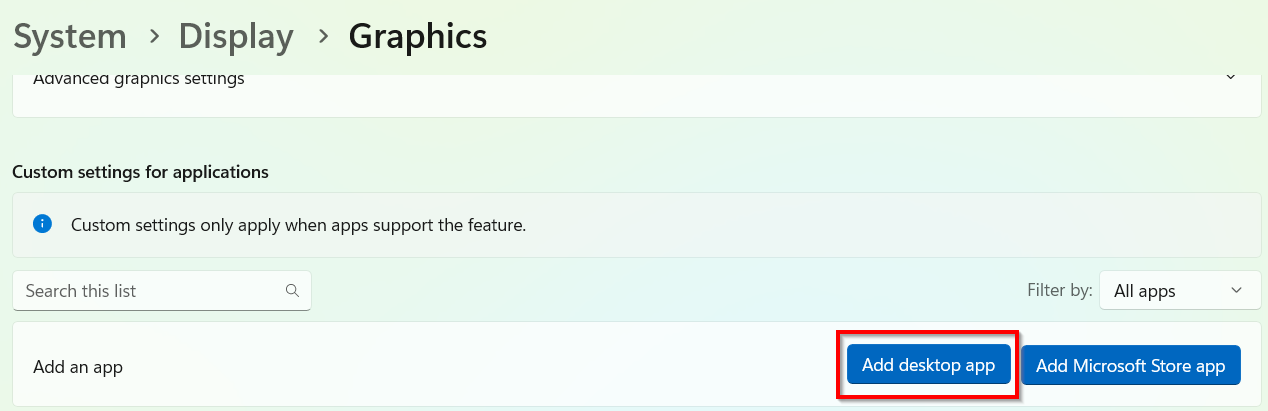
b. Navigate to the default installation path:
C:\Program Files\Leica Geosystems\Cyclone REGISTER 360 PLUS {version}
c. Select the executable file: Register360.exe.
-
Set preference to High Performance.
-
After adding the app, click on it in the list.
-
In the GPU preference field, choose High Performance from the drop-down list.
-
Confirm your changes.
-
After completing these steps, Cyclone REGISTER 360 PLUS will utilize the dedicated graphics card, significantly improving performance and user experience.