
The Classification Viewer is the main panel used while working with classified point clouds.

To open the Classification Viewer, go to the Review and Optimize section and select the icon above.
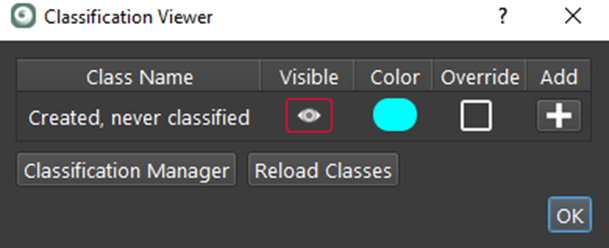
Before running classification, all points will be on the Created, never Classified class. Once points have been classified, all classes that have points will be visible.
If the Setups are classified and not hidden, the Classification Viewer will show the classes that have points on them.
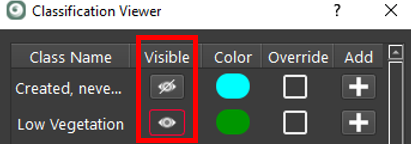
By default, all present classes will be visible, selecting the eye icon will turn that class off. Selecting the visible header will turn all visibility for all classes on or off.
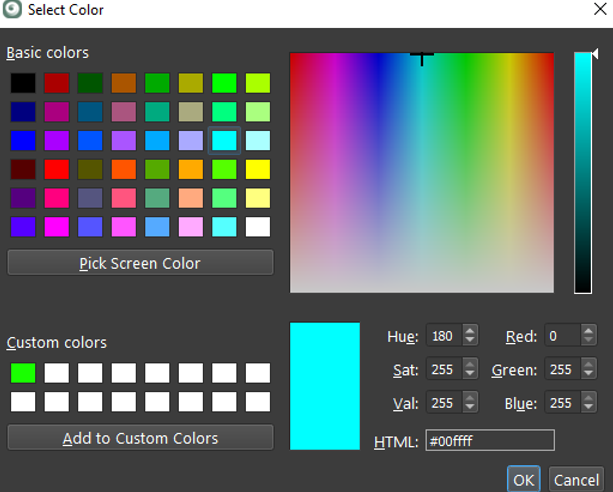
The user may modify the color of any given class. Selecting a color will bring up a menu to change the color of that class.
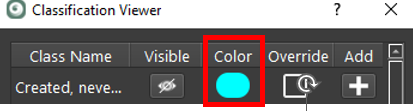
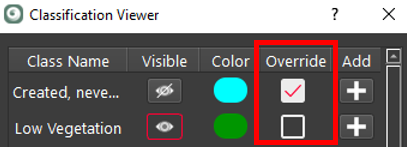
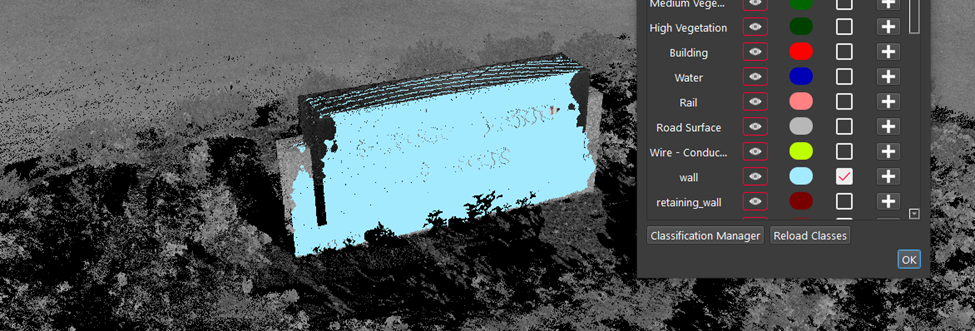
In some cases, the user may wish to display a single class. Selecting the Override check box will make that class retain its class even if coloration modes, such as Grayscale or Color From Scanner, are chosen. Selecting the Override header will select or deselect all check boxes.
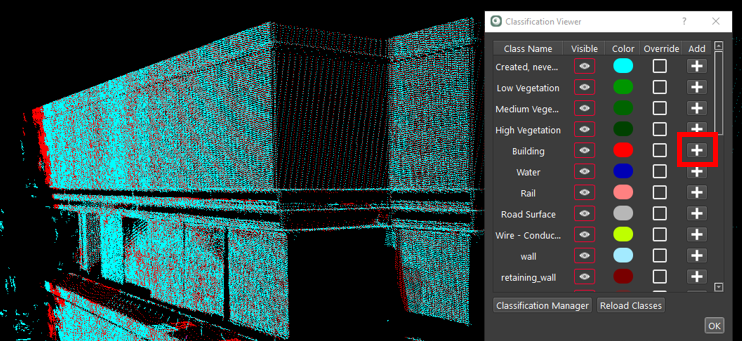
To manually change the class of points, fence the portion of the point cloud desired and select the + icon on the class.
WARNING: Undo is not available when classifying point clouds.
The image below shows two Setups that have points in the same area. One has classified the points on the wall as Building, while the other Setup shows them as Created, never Classified.
Fencing this area and clicking the Add icon will move those points to the Building class.
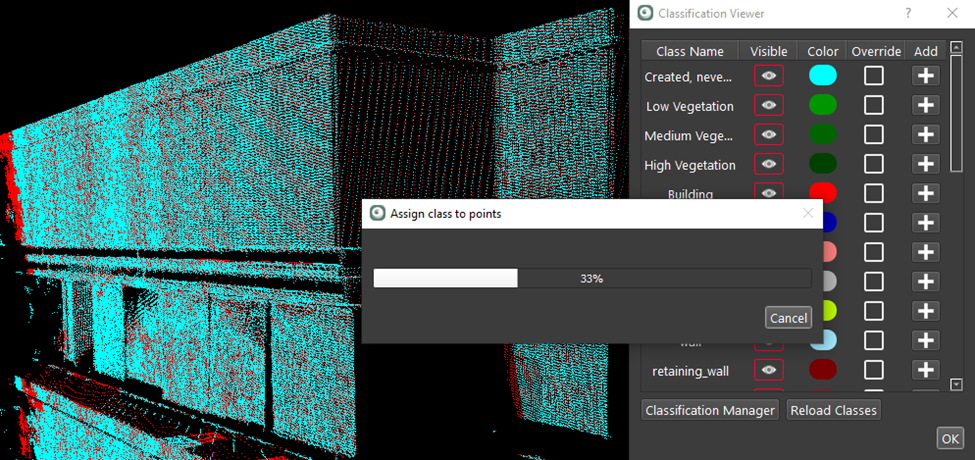
The image below now shows all the points in this area to be on the Building class.
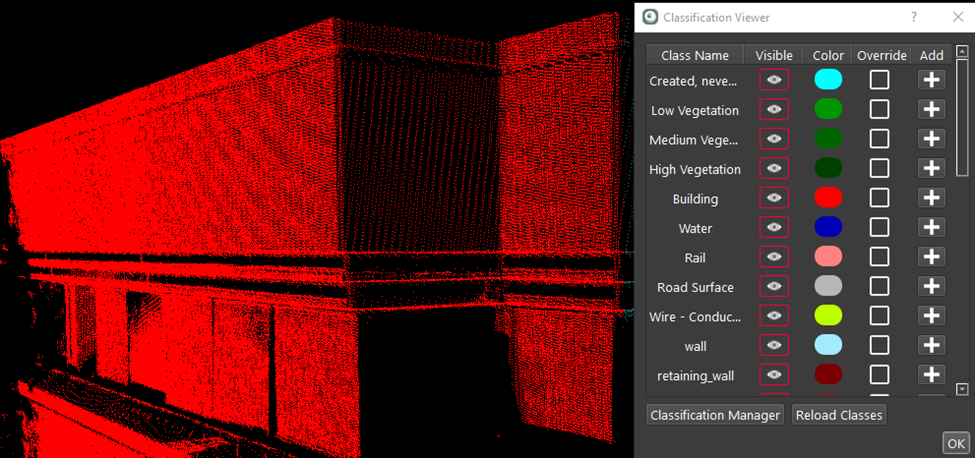
To run automatic classification on visible point clouds, use the Classification Manager.

Reload Classes will reset the classes listed in the Classification Viewer to show only the classes that are included in Setups that are not hidden. This is used to limit the number of classes that are visible in the Viewer. In the Classification Manager, all classes are always available.

Clicking OK will close the Classification Viewer.
View by Class
A new rendering mode is available to view point clouds by their class. If the Override check box is selected, that class will be shown in its class color rather than the other view modes, such as Color From Scanner or Grayscale Intensity Map. This can be useful to highlight certain features.
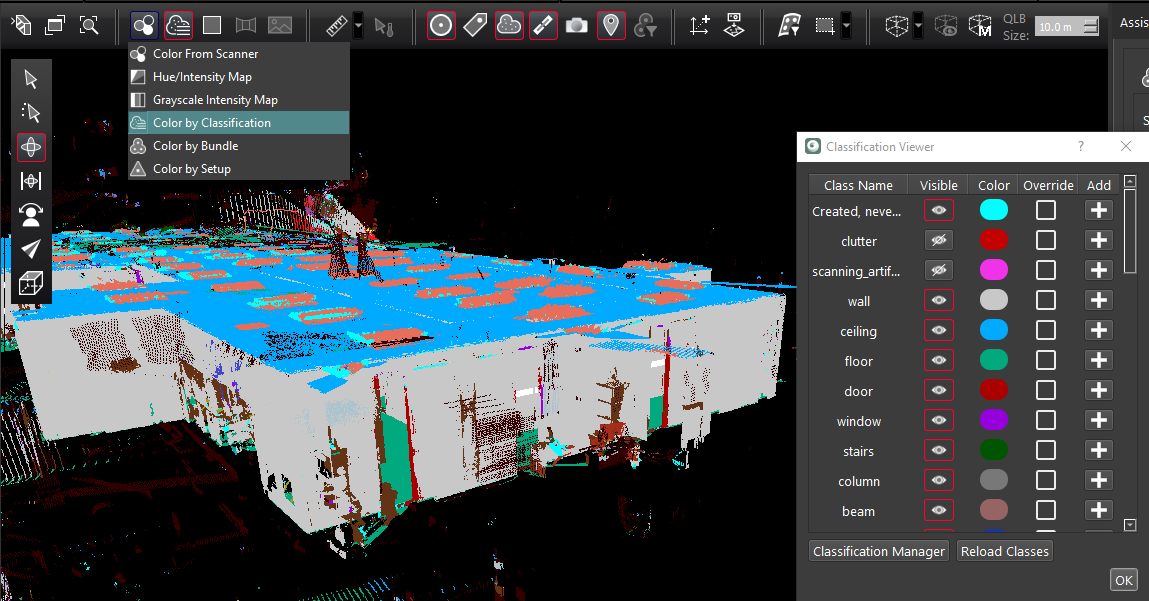
Note: In some cases, the classified point clouds seem to disappear when switching between SiteMap and Bundle Cloud view or Setup view. Selecting Show/Hide Setups twice can refresh the screen, and they will be visible.