AUTOCAD PRO bentley Bricscad pro ULTIMATE
Tools | SmartPick Viewport
Command Line
-
AutoCAD / BricsCAD: CWSMARTVIEW
-
MicroStation: CloudWorx Smartview
Smart picking is a customized OSNAP type feature that assists the user in selecting the exact point of interest by using powerful algorithms to analyze the user pick and return the best point that matches the settings.
Using the Tool
To use the SmartPick Viewport, follow the steps below:
-
Ensure Node OSNAP (OSNAP) and Point Snap (CWSNAP) are enabled.
-
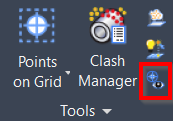
Click the SmartPick Viewport button in the Tools panel or type a command line prompt specific to the preferred CAD system and press ENTER.
-
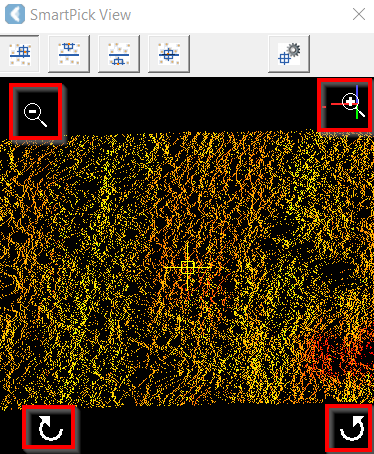
The SmartPick View dialog will open.
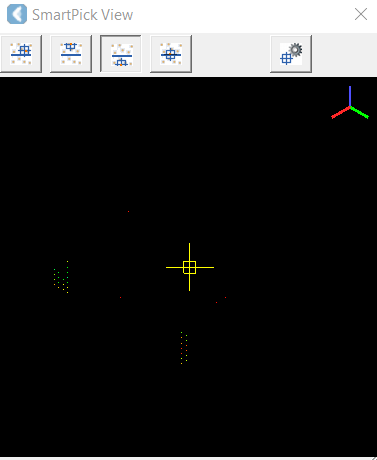
Note: The SmartPick View will remain empty until the corresponding CAD drawing command is initiated.
-
Initiate the 3D Polyline CAD command and ensure a 3D visual style is selected. The point cloud will appear in the SmartPick View dialog.
-
Select the desired SmartPick:
-
Closest Point

-
Highest Point

-
Lowest Point

-
Ground Point

-
Configure Smart Picking Parameters

-
-
Note: The SmartPick View allows for easy rotation and zooming of the point cloud around the selected pick by hovering over the buttons located at the corners.