
AUTOCAD BASIC AUTOCAD PRO bentley navisworks bricscad basic bricscad pro ULTIMATE
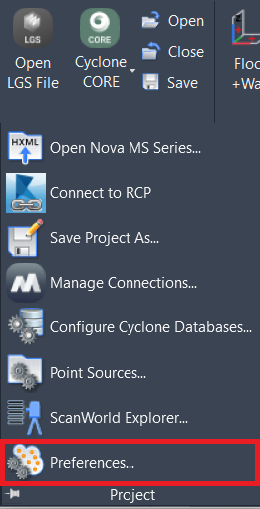
Project | Preferences…
Command Line
-
AutoCAD / BricsCAD: CWPREFERENCE
-
MicroStation: CloudWorx Preference
This command opens the Preferences dialog, which is used to edit a range of CloudWorx settings.
Note: The tabs in the Preferences dialog may vary depending on the chosen CAD system.
Using the Tool
Typical Preferences Settings
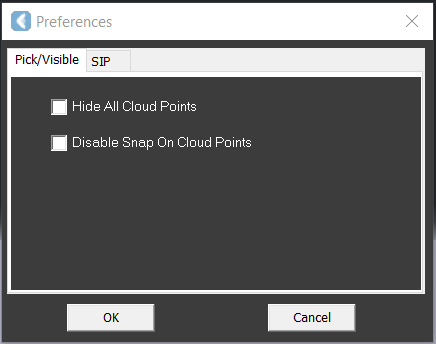
After executing the command, the Preferences dialog opens.
-
Pick/Visible affects all the point clouds and offers the same tools as:
Note: Pick/Visible does not work on connected RCP point clouds.
-
SIP allows managing participation in the Software Improvement Program.
Preferences Settings in CloudWorx for Bentley
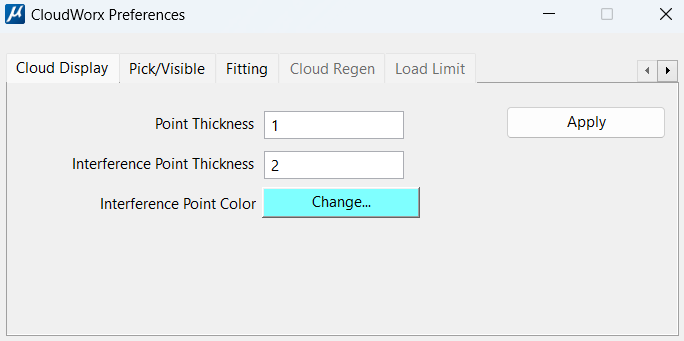
In CloudWorx for Bentley, the Preferences dialog includes the following tabs:
-
Cloud Display:
-
Point Thickness: Enter a value for the width in pixels of each point in a point cloud display.
-
Interference Point Thickness: Enter a value for the width in pixels of each point in an interference check display.
-
Interference Point Color: Click the Change button to select the colour used to display points in an interference check.
-
-
Pick/Visible:
-
Hide All Point Clouds: Select to toggle OFF the visibility of all point clouds.
-
Can Select Point Cloud: Select to toggle ON the ability to select point clouds.
-
Can Snap To Point Cloud (Tentative Picking): Select to toggle on the ability to tentatively pick point clouds.
-
-
Fitting:
-
Fit to Pipe:
-
Create Surface: Select to insert an extruded circle when fitting a pipe.
-
Create Centerline: Select to insert a centerline when fitting a pipe.
-
Create Annotations: Select to displays an annotation of the pipe's diameter on the centerline when fitting a pipe.
-
-
Fit To Patch:
-
Result Patch: Select Convex Hull or Mini Rectangle.
-
-
Maximum RMS Error: Enter a value for fit quality for point cloud fitting. If the fit does not meet this number, the fit is rejected.
-
-
Cloud Regen and Load Limit: See the Regenerate Points page for details.