Function
This command allows you to easily change the color of an inserted block. A good example would be changing the color of a car from blue to red in the symbol librarian.
Procedure
When you start this command, you will be prompted at the command line to choose your block. Click on the block you wish to edit.
The Block Color Wizard dialog will show every combination of layers and colors within that block.
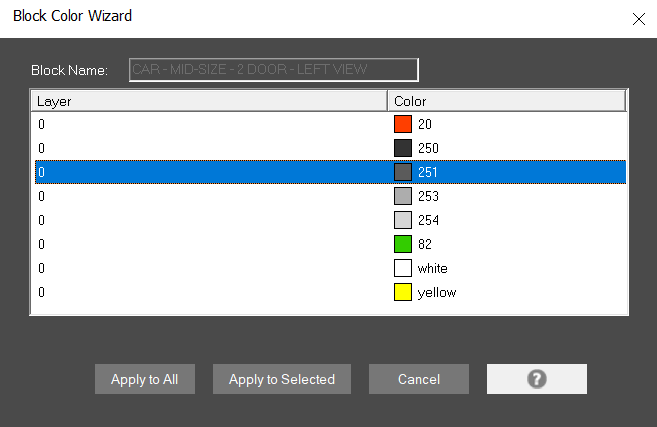
Here you can change the color of different colors of parts of your symbol. Select one of the colors from the Color column.
You are then able to quickly change the color of objects within the block that are the same color and on the same layer. For example, you can change all the objects ton layer 0 that are color 170 and 160 to say Yellow or whatever is desired.
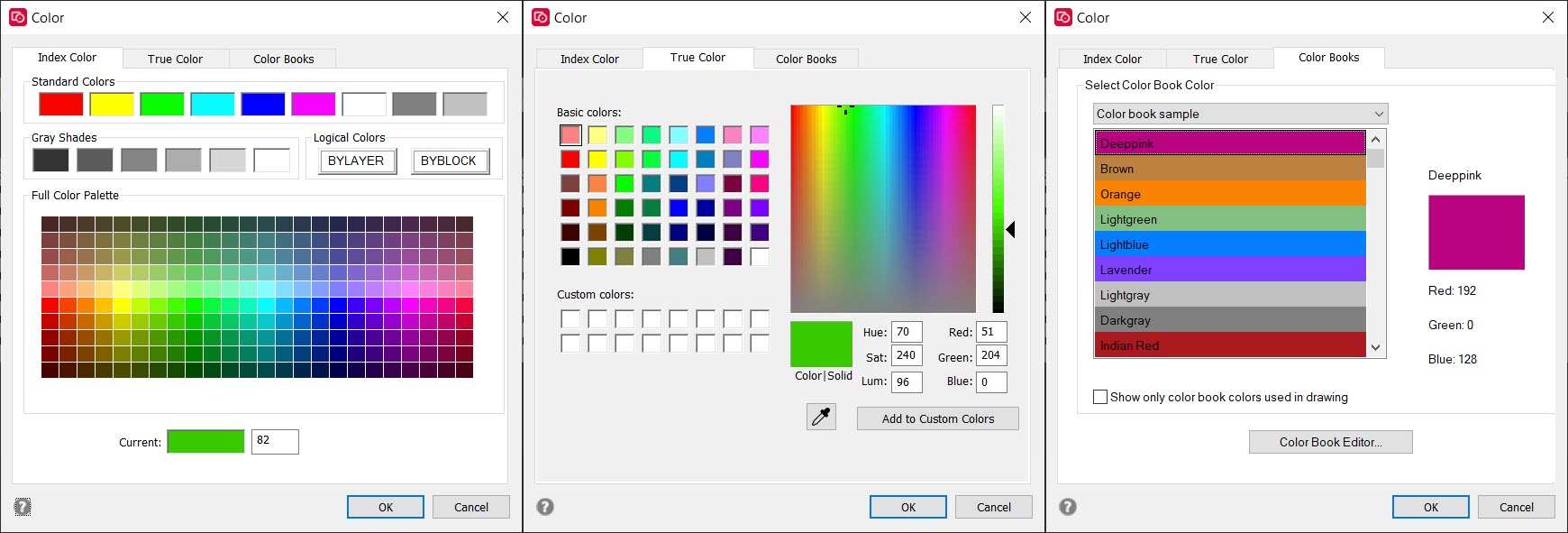
From the True Color dialog, you can use the Eyedropper button:

This will allow you to pick a color by selecting anything on your screen, and use the color from the location of your mouse click.
Once a color is selected, press OK
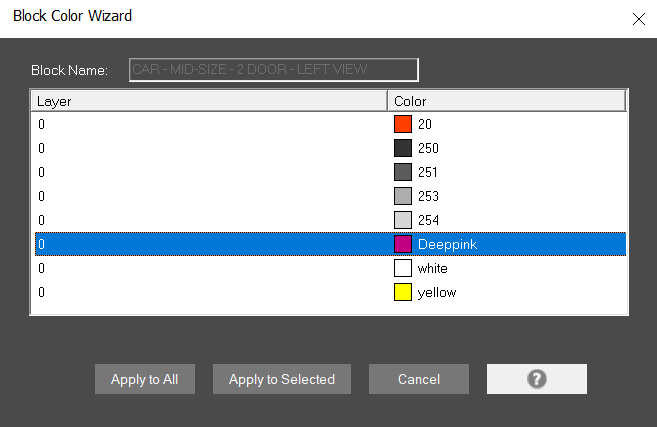
Apply To All
Makes changes to the original block. If you wanted to change a color permanently to this block you would use this option. If you have multiple copies of the selected block inserted in the drawing, they will all be updated to the new color(s).
Apply To Selected
Creates an entire new block. You will pick a name and be able to use this new block in new drawings while still having access to the old block. The selected block will be replaced by this new block, but all other copies of it in your drawing will be unaffected.