
Company account members with the Admin role can export a usage report: a CSV file showing how much each project and each user in the account has contributed to upload, download and processing volume. Use it to attribute subscription consumption to a specific job, client or cost centre, or to see which projects are consuming the most.
Only Admin users can generate a usage report. Maintainers can view usage information on the Subscriptions dashboard but cannot export it. See Roles and permissions.
Generate a usage report
-
Click your account badge (bottom-left corner).
-
Click Subscriptions.
.png?cb=b5d4ccbfbc57733ce33bbf86e3f18c3c)
Subscriptions page -
In the Usage Information panel, click the usage report button.
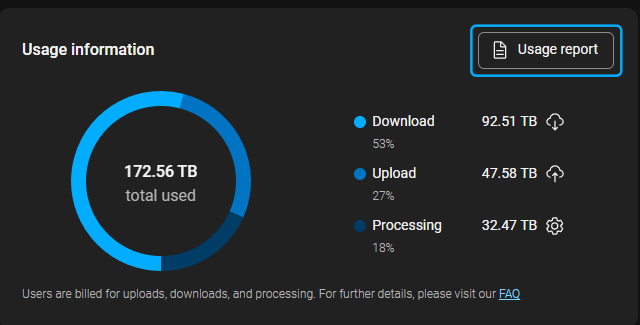
Usage report button -
Enter a name for the report. Select a start date and an end date. See Date range limits below for the allowed ranges.
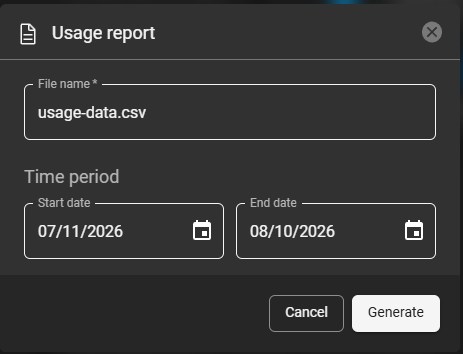
Usage report dialog -
Start the generation. Hexagon GeoCloud builds the file on the server, so stay on the Subscriptions page while it works.
-
When the report is ready, a download link appears. Click it to download the CSV.
Stay on the Subscriptions page until the download link appears. If you navigate away before the report finishes, you will need to generate it again.
What the CSV contains
The report has one row per user, per project, per activity type, per day. It is comma-separated and UTF-8 encoded, and opens directly in Excel.
|
Column |
Description |
|---|---|
|
Company ID, Company Name |
The company account the activity belongs to. |
|
User ID, User Name, Email |
The user who performed the activity. |
|
Project ID, Project Name |
The project the activity was recorded against. |
|
Date |
The day the activity took place. |
|
Activity Type |
Upload, download or processing. |
|
Upload [GB], Download [GB], Processing [GB] |
The volume consumed, in gigabytes. |
Date range limits
-
The shortest report covers one day.
-
A single report can cover a maximum of three months.
-
You can look back up to one year.
-
Reports cannot cover dates from before this feature was released.
If you choose a range wider than three months, Hexagon GeoCloud will ask you to narrow it before the report can be generated.
Things to know
-
Some rows may not show project information.
-
Each report is generated fresh. The download link and the generated file are temporary, so save the CSV once it is ready. To get the same report later, generate it again.
Related pages
-
Interpreting the Dashboard — how to read the subscription plan and usage information panels
-
Usage-based Account Information — what counts towards your data allowance
-
Roles and permissions — which roles can view and export usage