Hexagon GeoCloud integrates with several Leica CloudWorx plugins. The integration allows users to stream 3D point clouds from GeoCloud directly into the CloudWorx plugin for use in the host CAD application – no download or file transfer required.
Streaming to CloudWorx can help shorten project timelines by:
Eliminating rework by ensuring all team members are working with the current data thanks to utilising GeoCloud as the central source of truth for data
Increasing productivity by eliminating per-team-member file transfers (uploads, downloads, shipping hard drives, etc.)
Increasing Scan-to-Model (a.k.a. Scan-to-BIM) and Scan-to-Plan efficiency by streaming classified point clouds and/or focas areas via Limit Boxes managed in GeoCloud
Enabling distributed teams across offices, time zones, or continents to work simultaneously
Eliminating format conversion steps required to deliver data to clients, especially when combined with the client’s use of the free CloudWorx Viewer plugins.
Supported CloudWorx plugins include:
CloudWorx for AutoCAD (Basic and Pro editions)
CloudWorx Viewer for AutoCAD
CloudWorks for BricsCAD (Basic and Pro editions)
CloudWorx for Navisworks
CloudWorx for Revit
CloudWorx Viewer for Revit
Users can stream point cloud assets directly into CloudWorx regardless of the asset’s original upload format (i.e., B2G, E57, LAS, LGS, LGSx). Users can then use the native CloudWorx tools for clipping, fitting, measuring, viewing point cloud classification, measurements, and more—all on cloud‑hosted data.
Check here to view the latest CloudWorx release notes.
Streaming is limited to point cloud data from a single asset only. Streaming multiple assets in a project simultaneously (including those in a single Scene) is not currently supported.
Streaming is free and does not count against a subscription's usage quota.
How to connect to GeoCloud
With the CloudWorx plugin installed, open the CAD application.
Navigate to CloudWorx within the menu ribbon.
Locate and click GeoCloud within the Project group of commands.

CloudWorx menu ribbon
The HxDR login dialogue opens. Log in with your unique credentials or with Single Sign-on if your organisation’s account is set up for it.
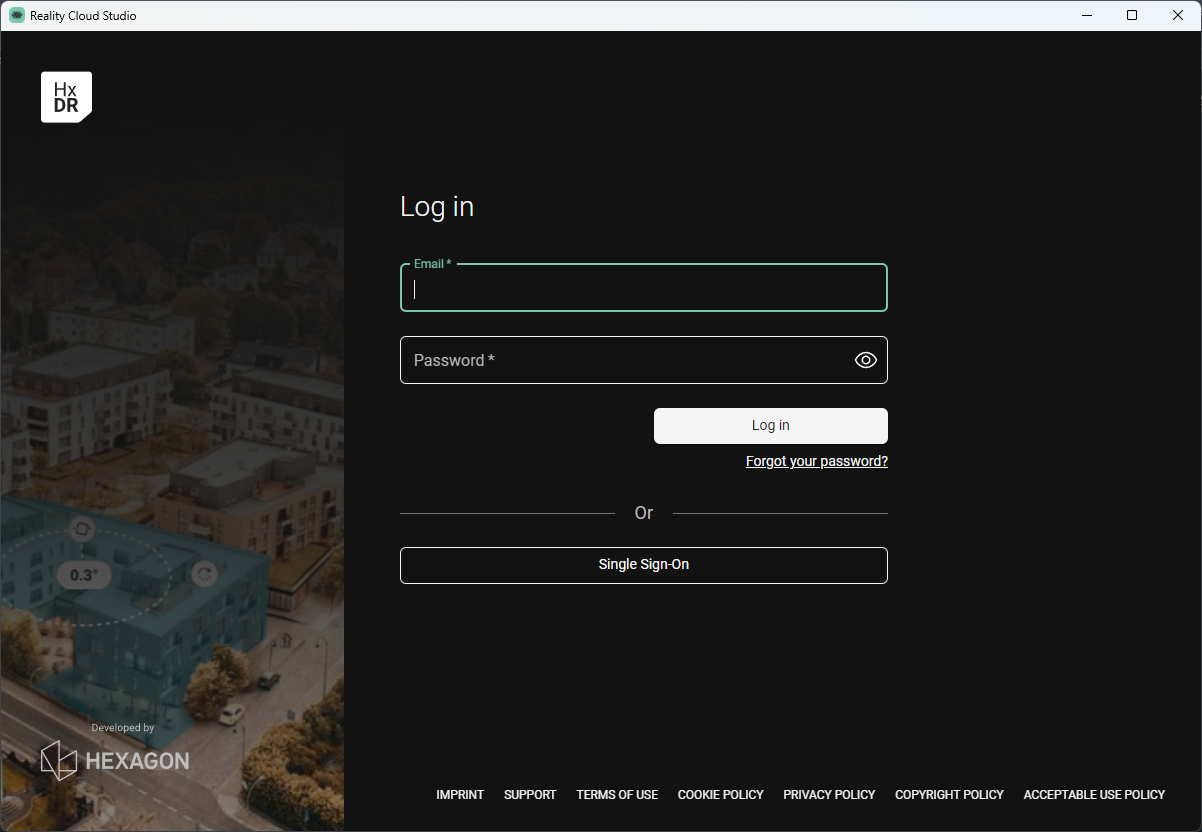
HxDR login window in CloudWorx
The Open GeoCloud Project dialogue opens.
Click the browse button (three dots).
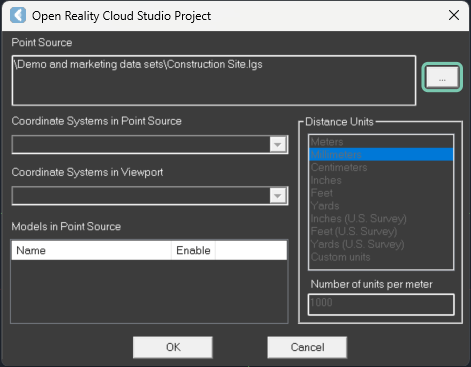
Browse button on “Open GeoCloud Project” dialogue
The GeoCloud projects dialogue opens. Navigate to the desired asset and click it to stream to CloudWorx.
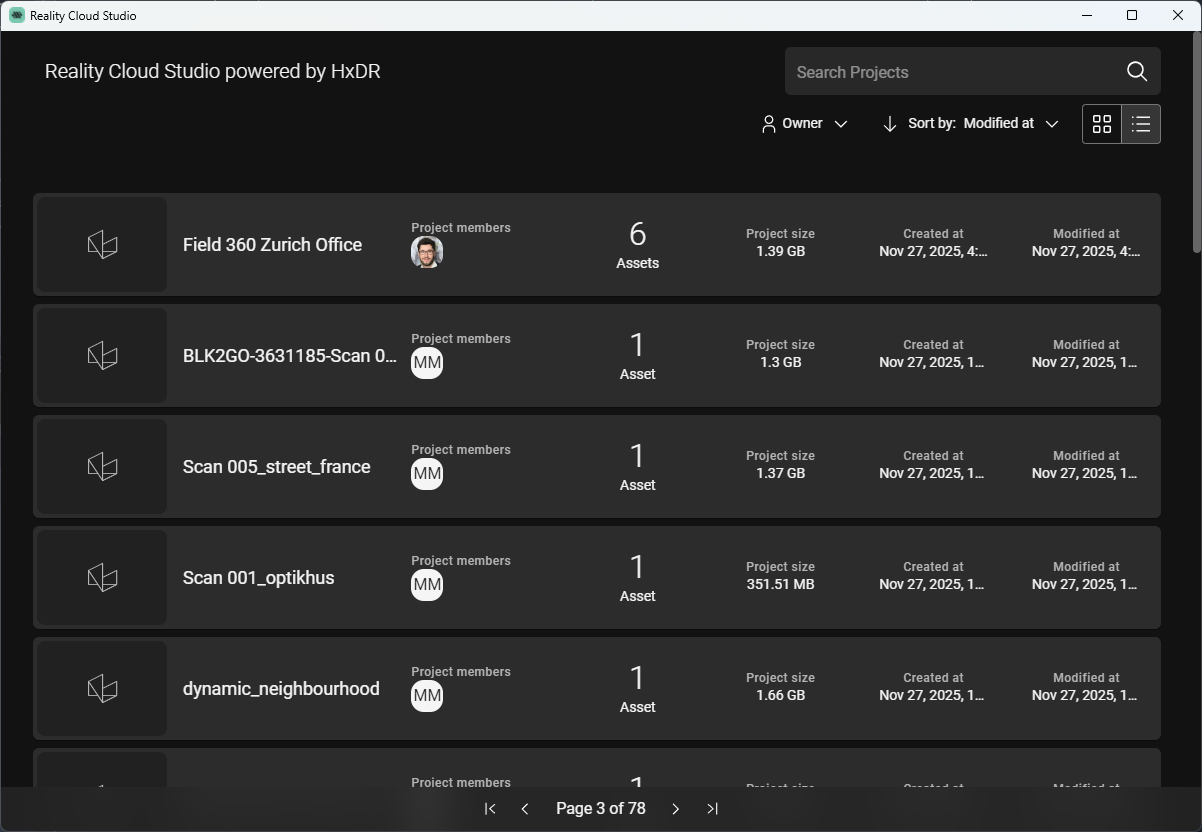
Browse your GeoCloud projects to find the desired asset
After selecting the asset, the Open GeoCloud Project dialogue reappears.
Confirm the desired asset is listed in the Point Source section.
Click OK to initiate the point cloud streaming.
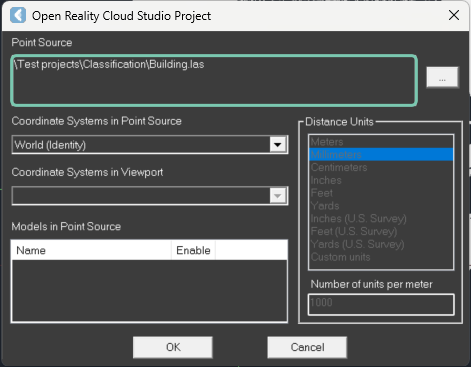
Confirm the selection of the asset to be streamed
The selected data set will be streamed and ready for use with CloudWorx and host application tools.
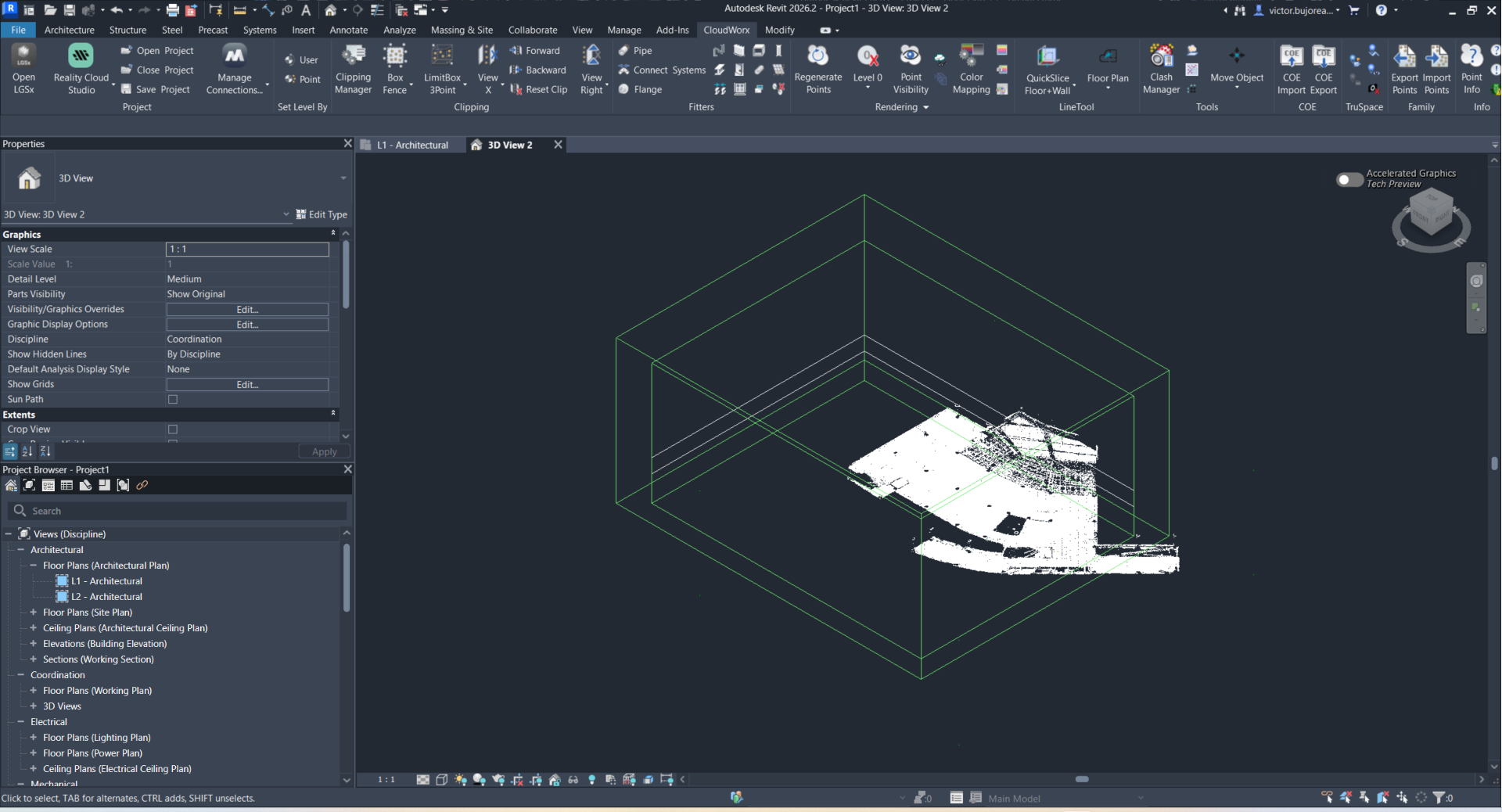
Point cloud streaming from GeoCloud to Revit via CloudWorx for Revit
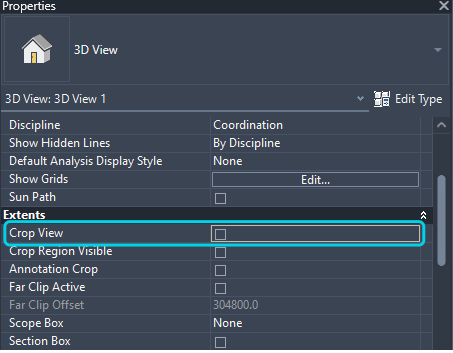
If you experience occlusion issues while navigating a streamed point cloud in Revit, open the Properties window. In the Extent properties group, uncheck Crop View.