
AUTOCAD BASIC AUTOCAD PRO bricscad basic bricscad pro ULTIMATE
Orientation | Workplane | Wall + Wall
Command Line
-
AutoCAD / BricsCAD: CWWORKPLANE | WALL+WALL
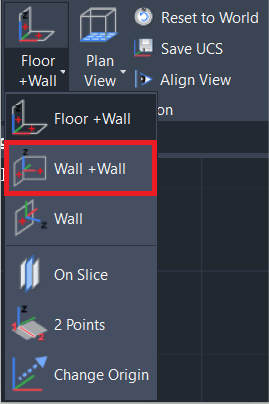
This command creates a UCS based on two perpendicular walls without changing the Z-axis. The Workplane is then set to the wall.
Using the Tool
Note: Before using the tool, ensure the Snap to Node setting is enabled by typing OSNAP at the CAD command line.
To create a UCS based on two walls, follow the steps below:
-
Activate the tool using any option below:
-
Select Wall + Wall from the Workplane menu in the Orientation panel.
-
Type a command line prompt specific to the preferred CAD system and press ENTER.
-
-
When prompted to Pick 1st wall point, select a point on the point cloud to define the first wall.
-
When prompted to Pick 2nd wall point, select a point on the point cloud to define the second wall.
The UCS will now be aligned to the intersection of the walls that were defined.