
TruView controls are designed to be intuitive and touch responsive with buttons large enough to be used on a tablet.
Primary Toolset
The primary tools are located on the left-hand side of the application. The navigation tools are located in the top left hand corner of the main viewing window.
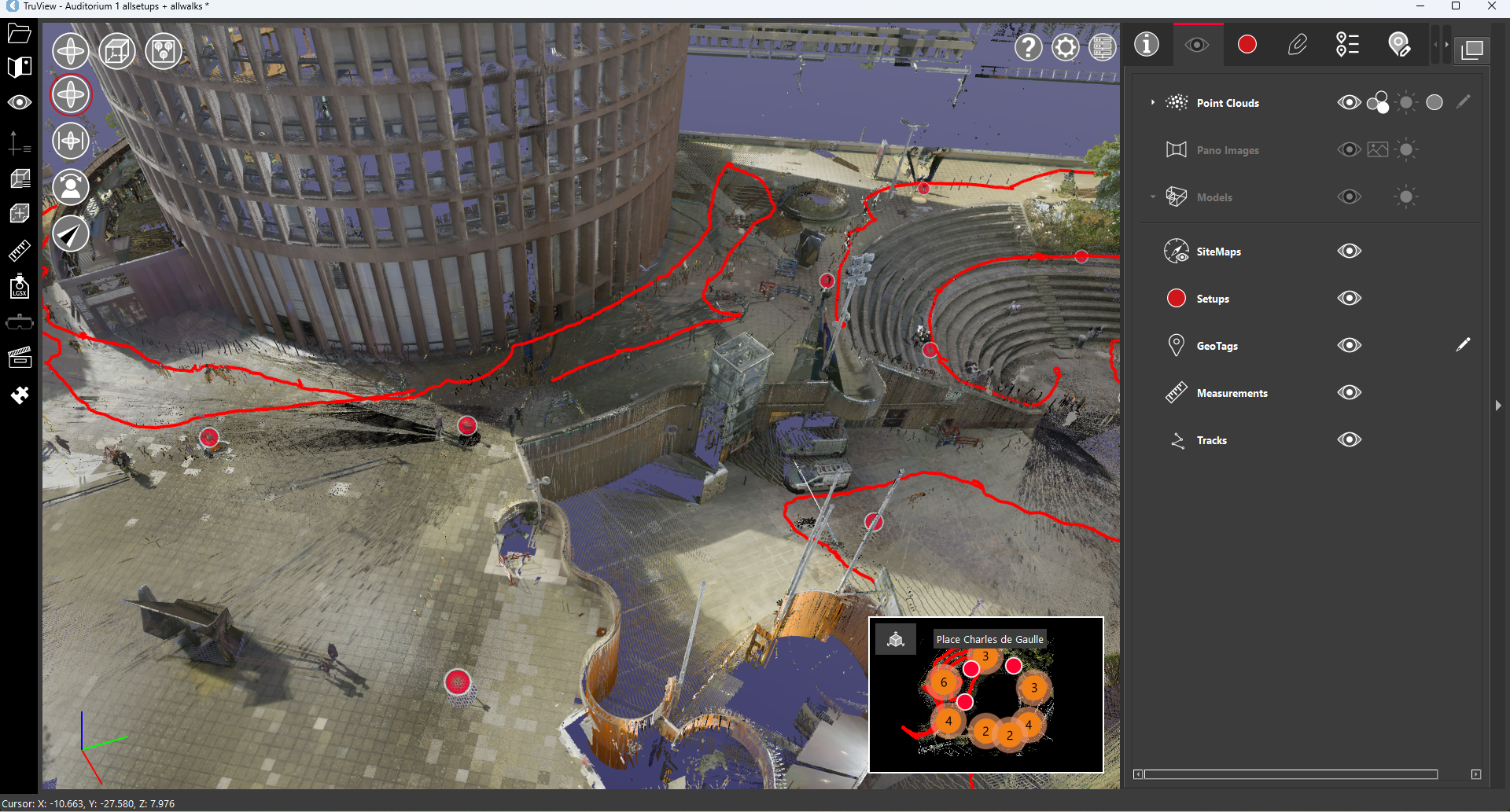

Panels
TruView includes a collection of Panels on the right-hand side of the application which include different information and functions of the program. These include:

Viewer Settings
Viewer settings, help and the connection manager are located in the top right-hand side of the main viewing window. Available settings include:
Allow Software Improvement Program
Floating Toolbar
Floating toolbars will display when editing models, limit boxes and measurements.