Function
The most commonly used settings can be accessed from one dialog. Easily change drawing specific settings, labeling settings, options, and even define a coordinate system. These settings can be set as permanent to apply to future drawings.
Procedure
Access the settings from the Map360 icon button at the top left of the screen.
There are four tabs on the dialog containing specific settings.
Drawing Settings
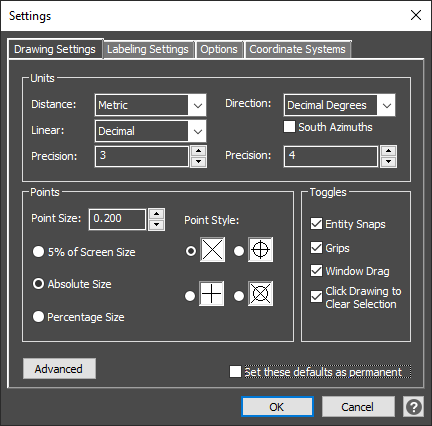
Define the units of the drawing for distance and direction as well as the number of decimal places that is displayed. The point size and style can be adjusted, and default toggles can be updated for turning on or off snaps and grips.
The window drag defines the method for the selection or crossing window for selecting entities. When checked, the user must left click and hold the mouse button down while they drag across the drawing area. When unchecked, a single left click will start the selection window and a second left click will end the selection window. The Click drawing to clear selection checkbox allows selected entities in a drawing to be unselected by left clicking an open space in the drawing area.
The advanced button will open the CAD drawing settings dialog containing additional settings.
Label Settings
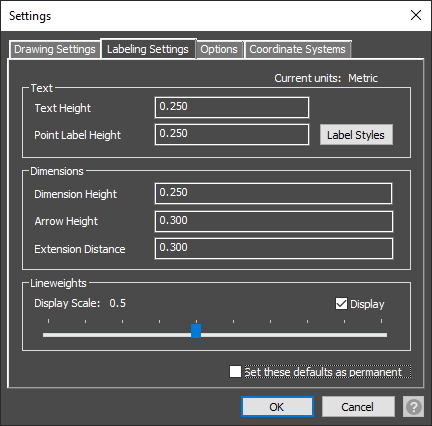
The defaults for text and dimension labels are defined based on the drawing units. These settings can be adjusted and set for future drawings or temporarily set from the properties panel.
The label styles button will open a separate dialog to make additional changes to the Point Identifiers, Elevation, and Description labels.
Toggle the display of lineweights and adjust the display scale for a thicker appearance to drawn entities.
Options
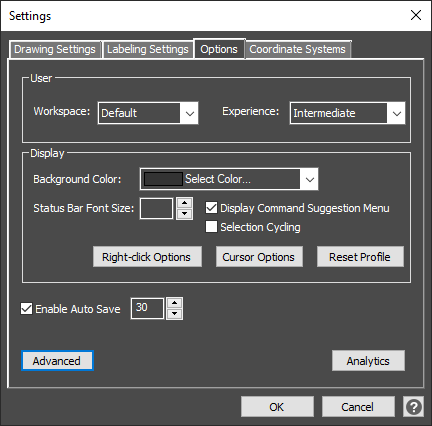
The work environment can be changed based on the user’s experience and the complexity of the scene. The default workspace provides the tools required for most scenes however, for more advanced CAD tools and workflows, the advanced workspace is available. Any custom workspaces that are defined will also be added to the list. The experience level will define which ribbons and tools are displayed in the work environment. Map360 Sketch is limited to the Beginner experience level, Map360 Standard is the Intermediate experience level but can be changed to Beginner, and Map360 Pro is the Advanced experience level but can be changed to Beginner or Intermediate.
The display can also be customized by changing the background color for the drawing area and the size of the text on the status bar and the cursor options. With the command bar closed and the Display Command Suggestion Menu checked, a user can type commands and suggestions will display as they type. The profile can also be reset to the defaults.
By default, the drawing is saved every 30 minutes to a backup file. The Auto Save time can be changed or completely disabled.
Opt in or out of the Analytics program at any time.
The advanced button will open the CAD Options dialog containing additional settings.
Coordinate System
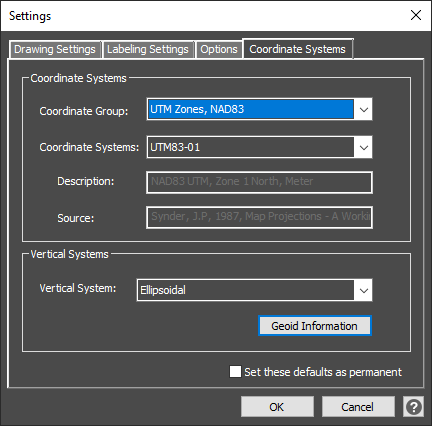
Specify the appropriate horizontal coordinate system for this drawing to ensure correct map projection allowing for greater accuracy. This option is used primarily for viewing points in Google Maps™, or for exporting to Google Earth™, as well as for computing coordinate transformations, combined scale factors, and convergence angles.