
This guide demonstrates feature extraction workflows for various feature types, including polylines, points, curves, and more.
Prerequisite: For full workflow context and results, review the following guides in this series:
Extract Polyline Features
This exercise demonstrates how to create polylines by extracting curb geometry.
-
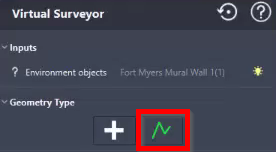
In the left-side panel, under Geometry Type, click Add Polyline.
-
From the Smart Pick tools at the bottom of the window, select Ground Point.

-
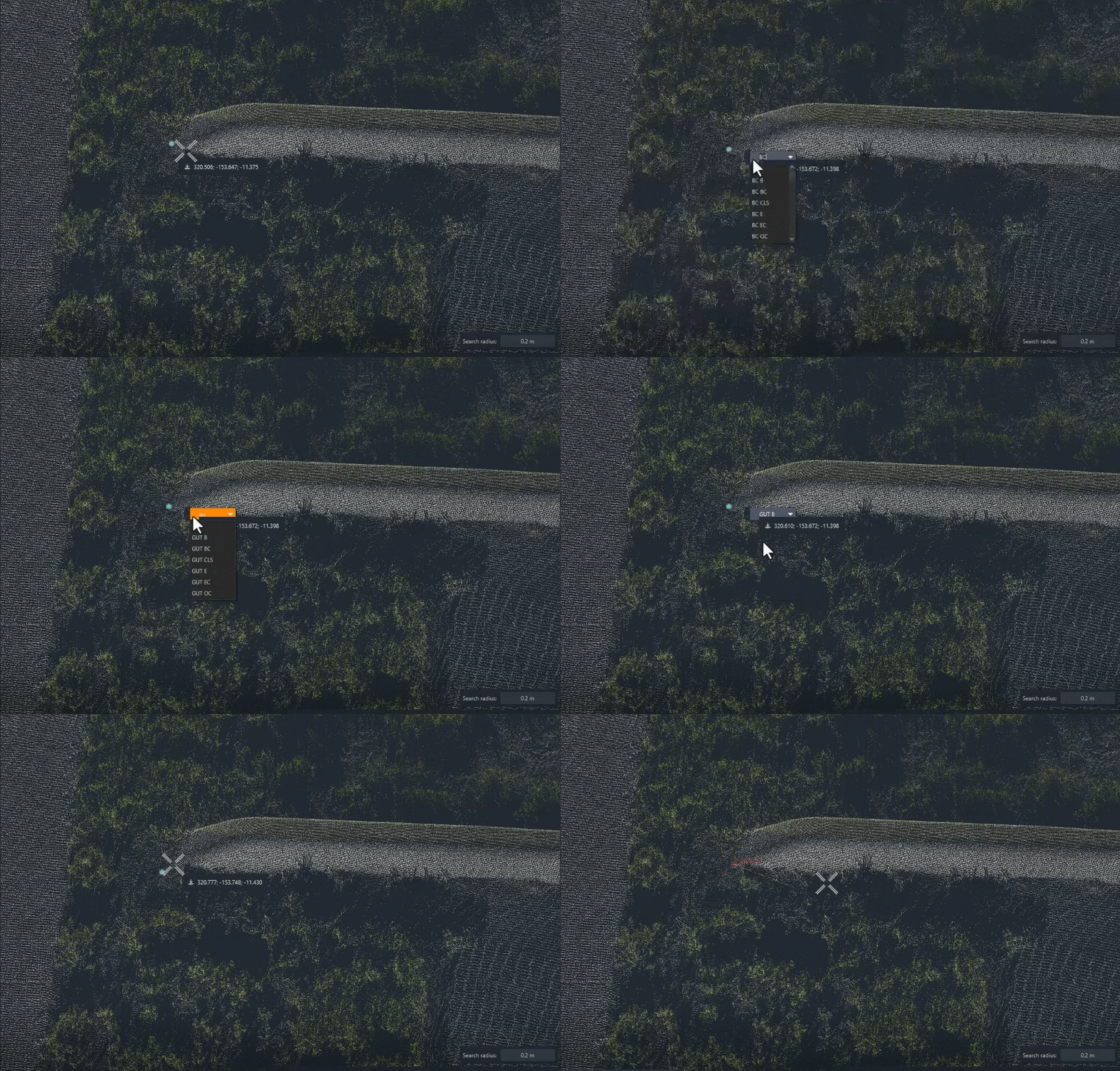
Press Tab and assign the feature code to the selected point (GUT B). Then click the point where the curb begins.
Info: A feature code must be assigned to each point in the feature.
The correct feature code should be selected before picking a point in the point cloud. Pressing Tab activates a dynamic feature code search option to switch feature codes on the fly while extracting linework and points.
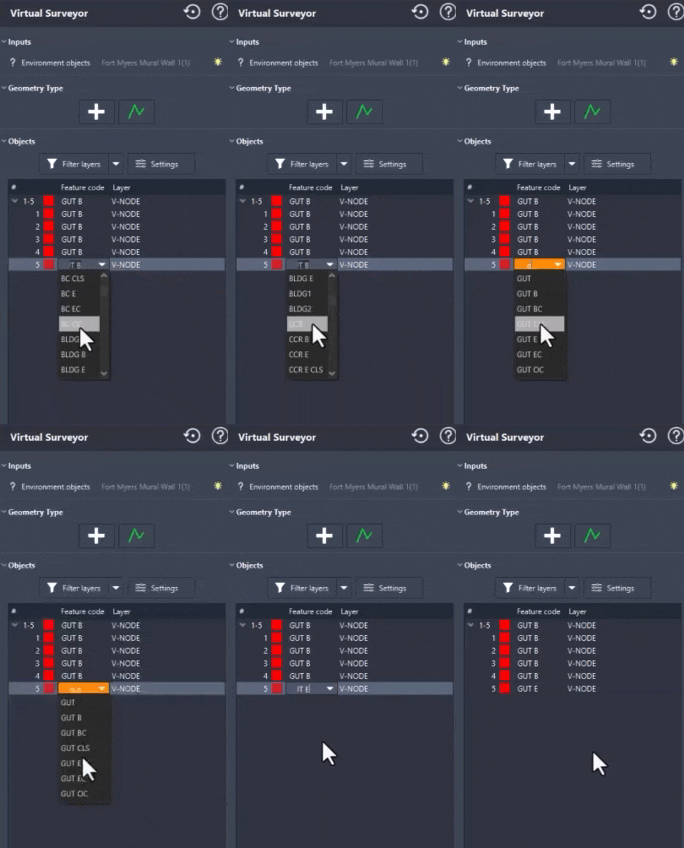
Feature codes can be modified at any time in the Feature Codes list in the left-side panel.
-
Select Edge Corner from the Smart Pick tools and continue placing points along the curb edge.

-
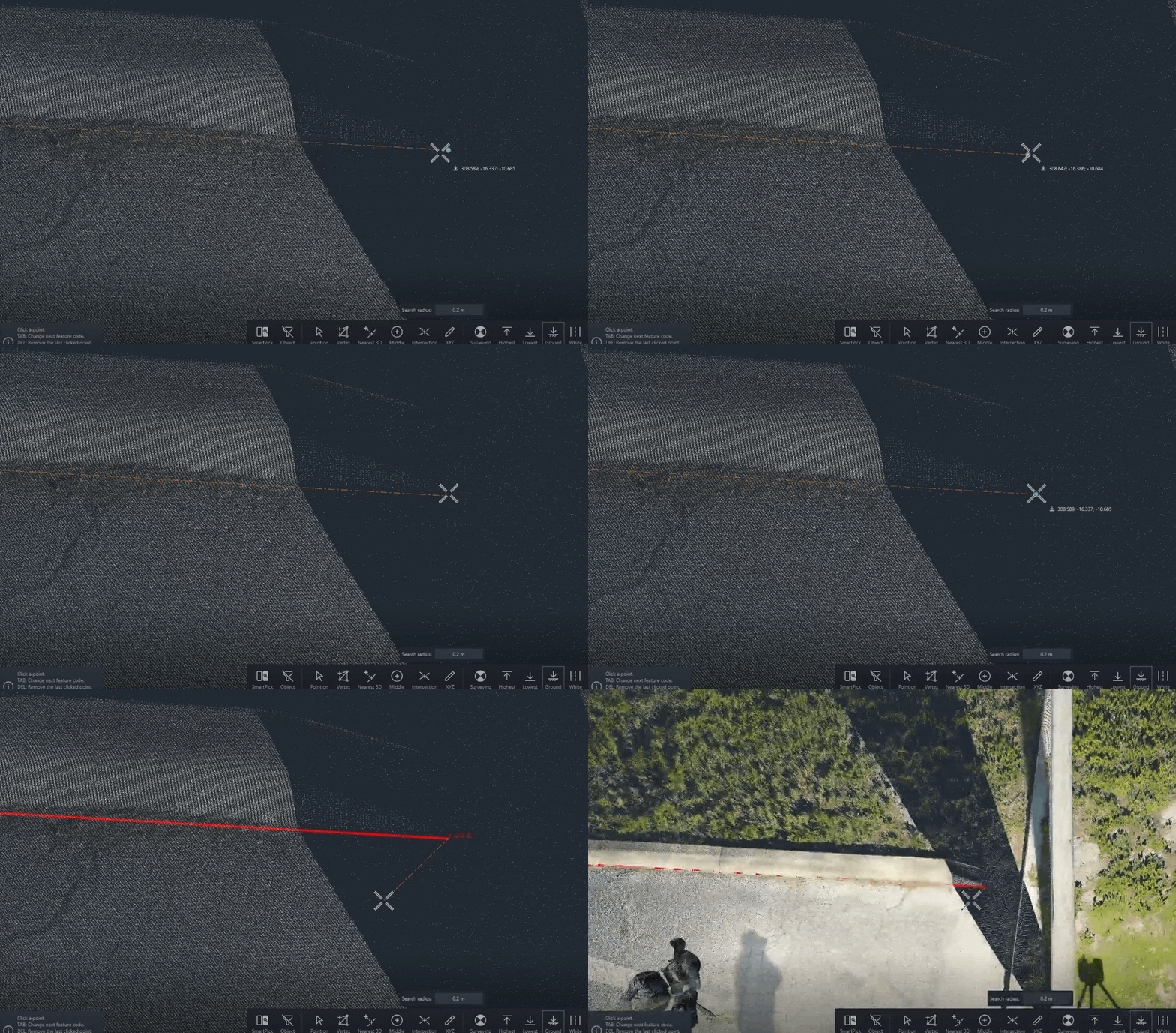
When you reach the opposite side of the curb, switch back to Ground Point, assign the feature code to the point (GUT E), and click the curb’s end point.
Tip: If the point cloud is sparse, use the Vertex End Smart Pick tool for more precise point selection and greater control over point placement.
-
Press Enter to end the polyline.
-
Verify that feature codes are assigned correctly. If necessary, update them in the Feature Codes list.
-
Repeat Steps 1-7 to create polylines for the remaining curb faces.
Tip: Check the information box in the lower-left corner for additional guidance and command-specific tips while extracting features.

-
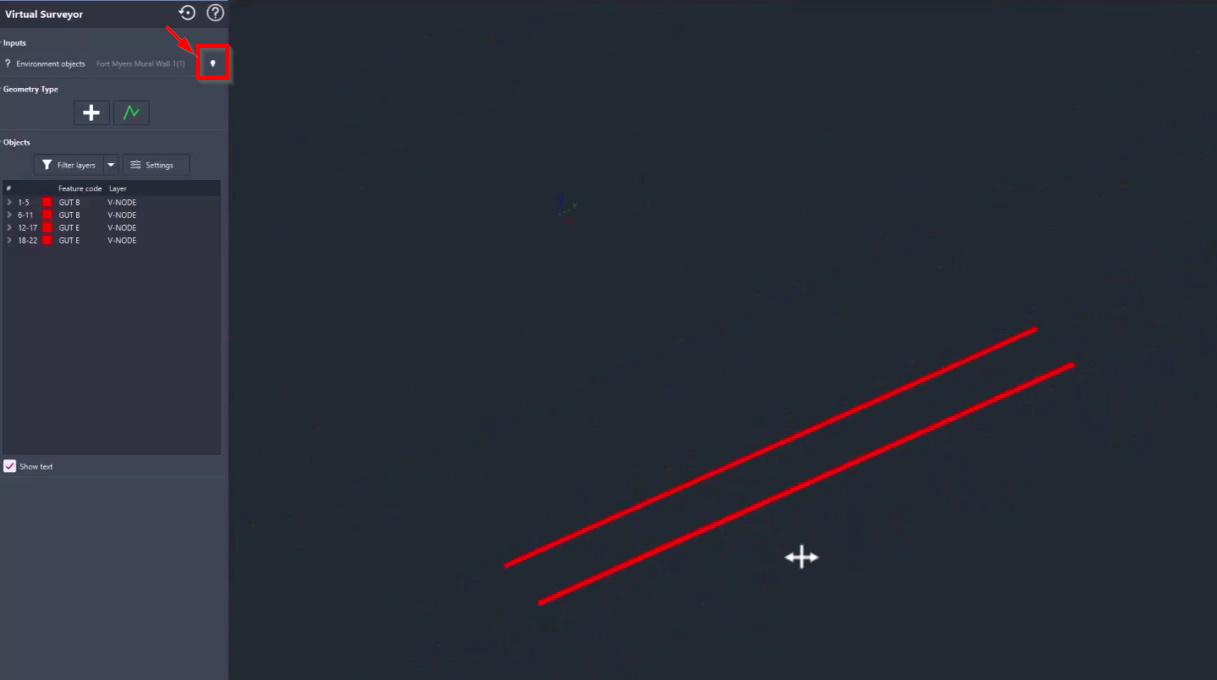
Turn off point cloud visibility to review the extracted geometry.
Extract Point Features
This exercise demonstrates point feature extraction using a tree as an example.
-
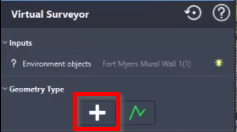
In the left-side panel, under Geometry Type, click Add Point.
-
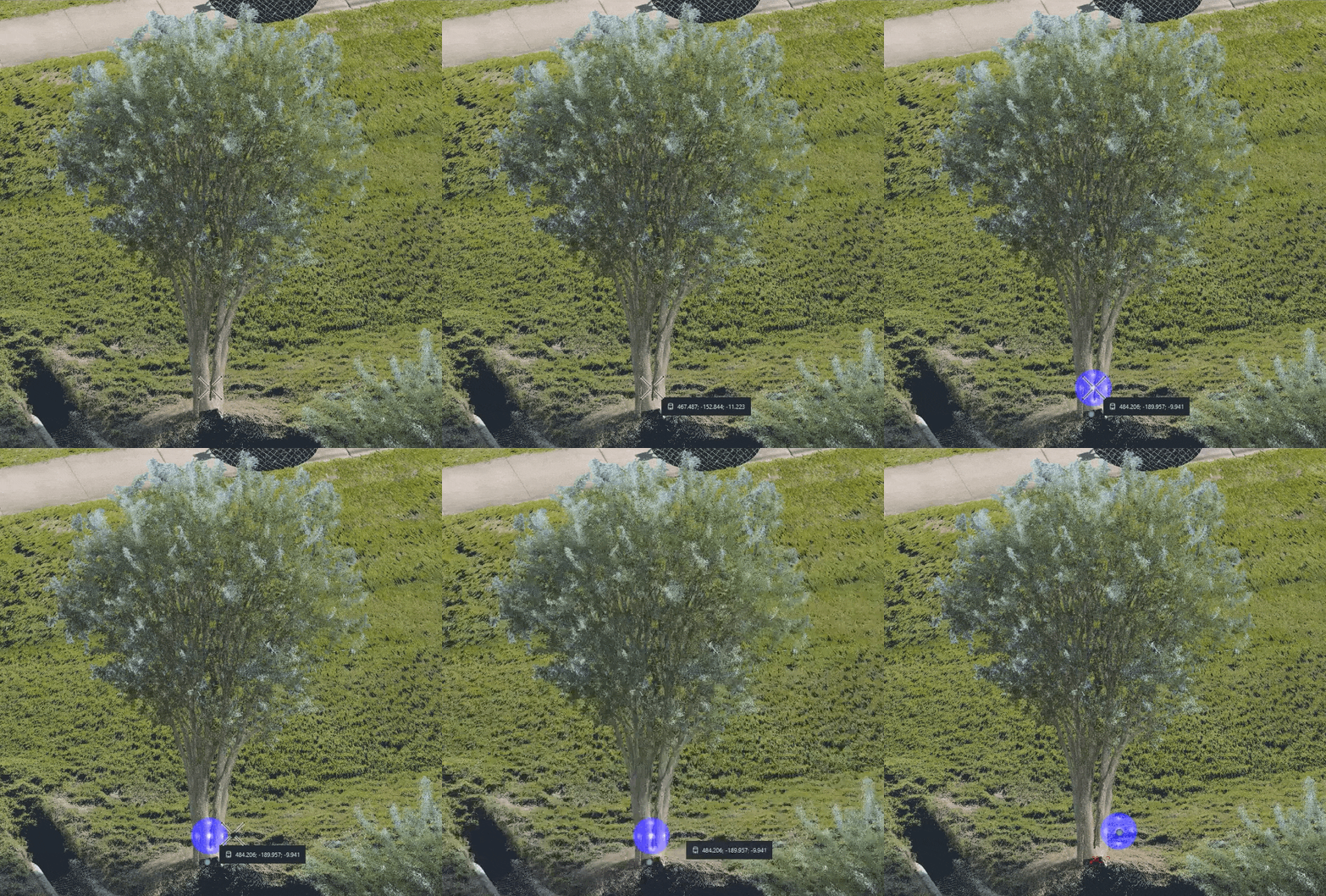
Press Tab and assign the feature code to the point (TR).
-
From the Smart Pick tools, select Pole Center and click a point near the base of the tree.

Info: The Pole Center Smart Pick tool uses a search radius to analyse neighbouring points, identify a pole-shaped object, and calculate its centre. The calculated center is then projected onto the ground, similar to the Ground Point tool.
Extract Compound Curves
This exercise demonstrates how to extract a compound curve from the pavement.
Extract the Curve
-
In the left-side panel, under Geometry Type, click Add Polyline.
-
Start with a straight portion of the pavement before the curve begins:
-
Press Tab and set the feature code to SWK BC.
-
From the Smart Pick tools, select Ground Point and click the point where the pavement begins.
-
-
To transition into a curve, select the point at the curve apex and assign the required feature code.
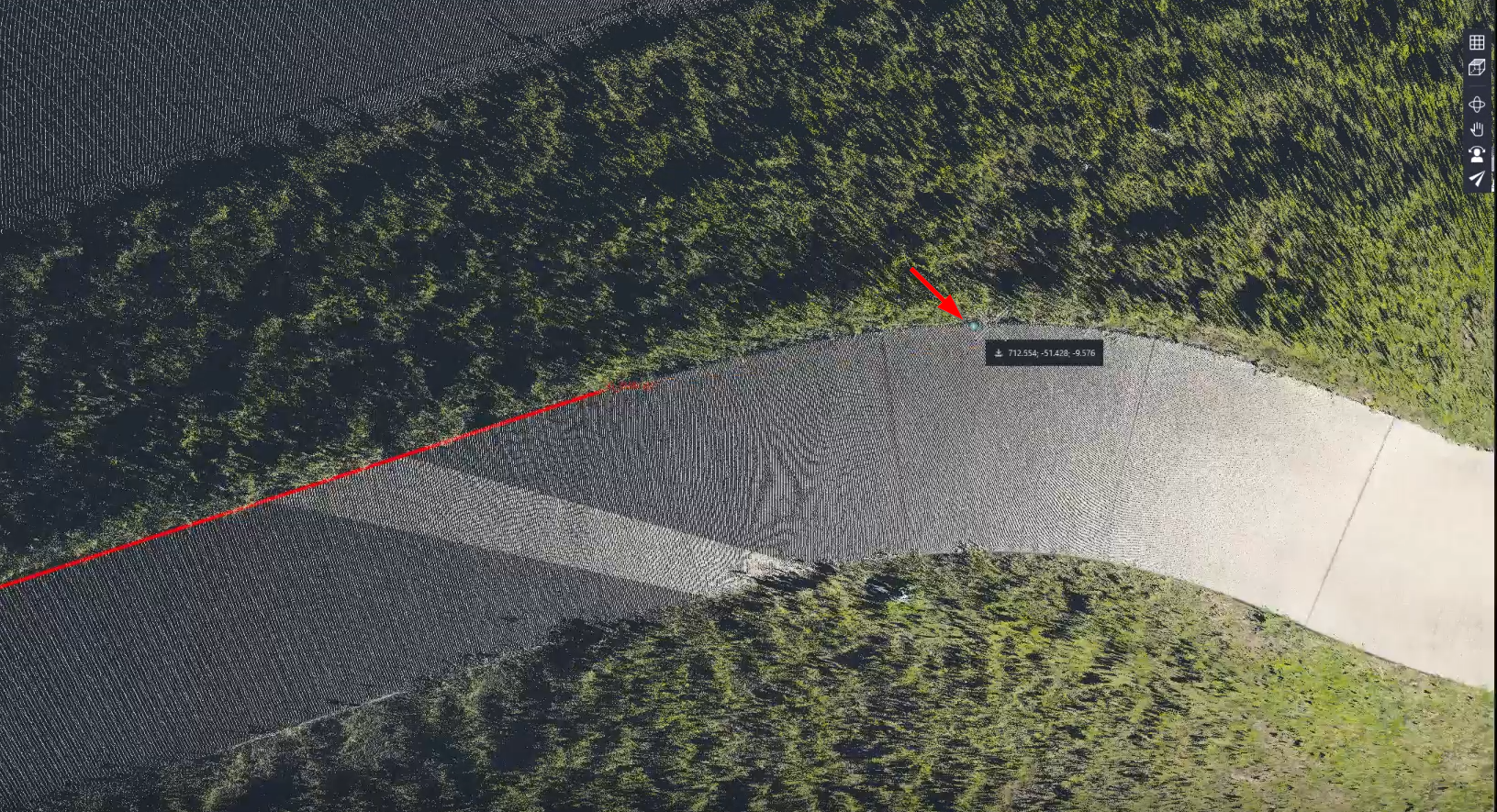
Note: In this exercise, the required feature code for the point on curve (SWK OC) is not yet available in the Feature Codes list. To avoid interrupting the feature extraction process, continue the extraction using the currently assigned feature code.
The correct feature code can be added and applied later. This process is demonstrated in the Update the Curve Geometry section.
-
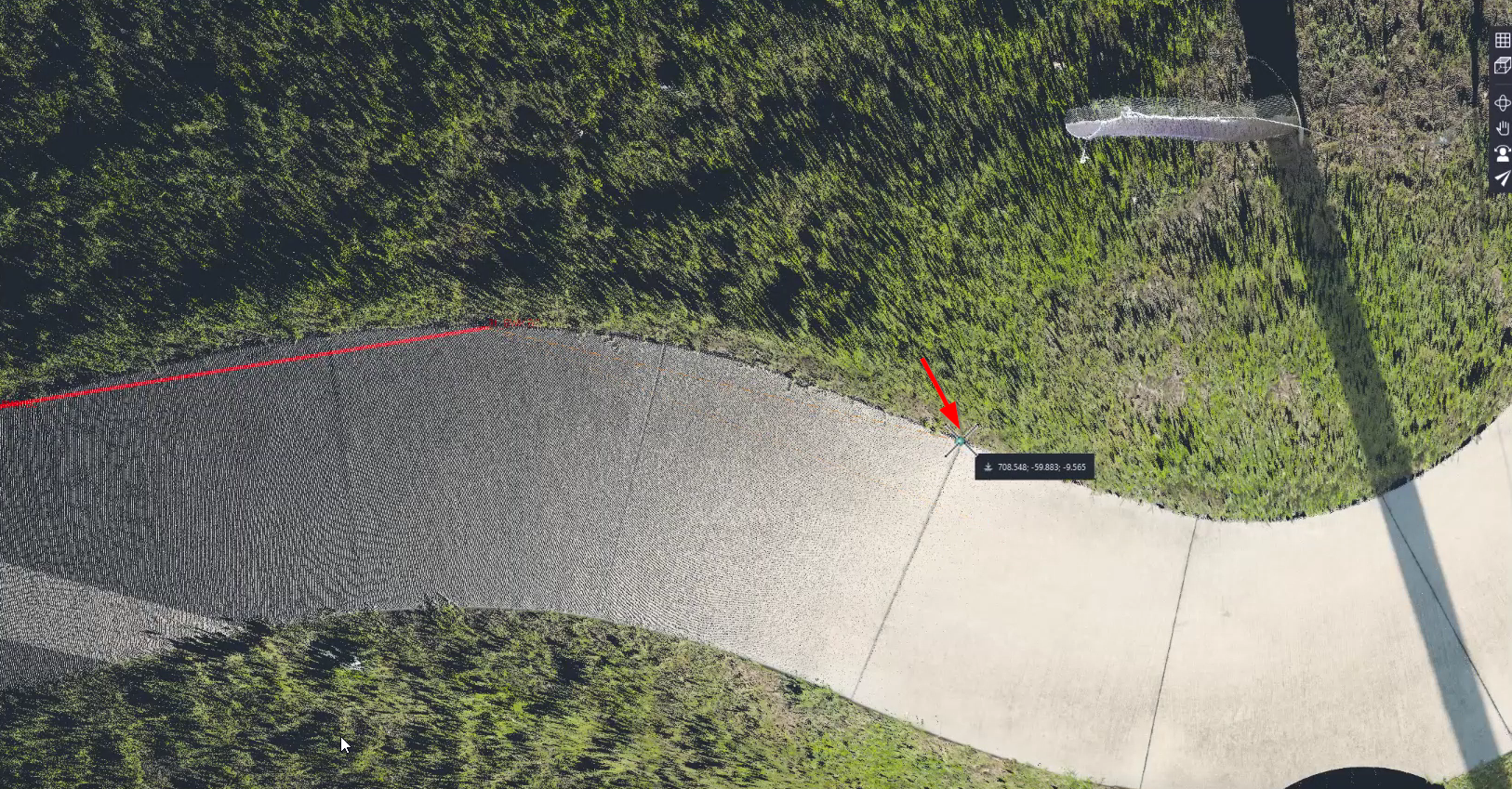
For the remaining part of the pavement segment, select the point and assign the end curve feature code: SWK EC.
-
Continue extracting the remaining pavement segments using the same logic, demonstrated in Steps 2-4, until you reach the end of the pavement.
Note: To connect several segments, use the intermediate line by selecting a point with the SWK feature code between the ending and beginning segments.
-
Once done, press Enter to finish curve extraction.
-
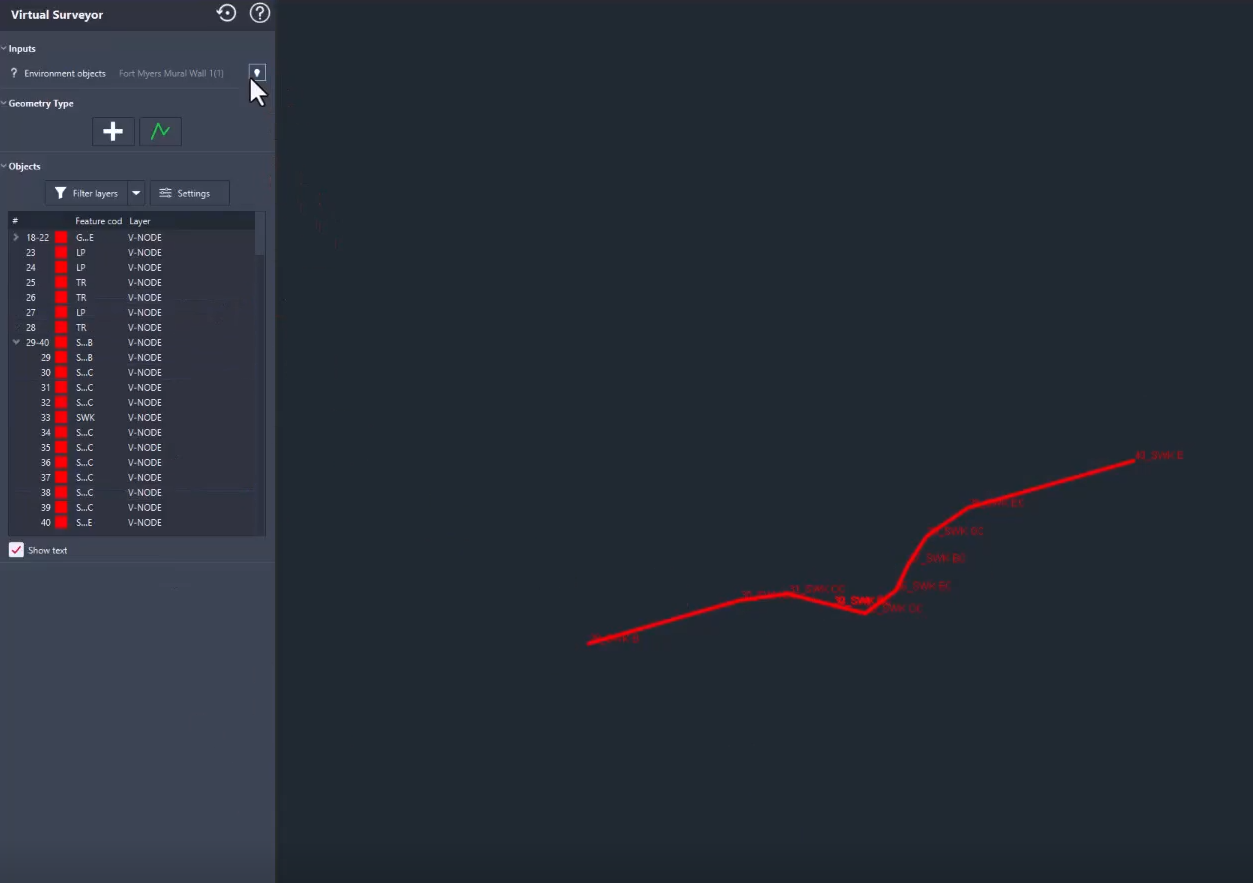
Turn off point cloud visibility to examine intermediate results.
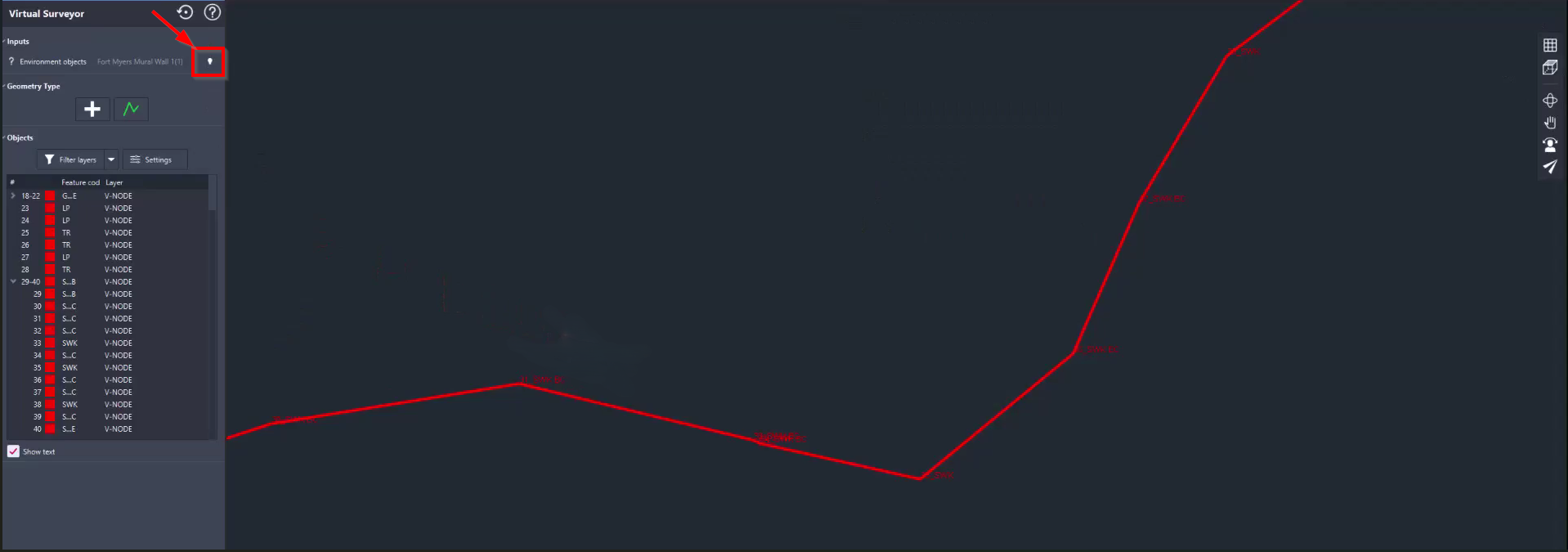
Update the Curve Geometry
To enhance the smoothness of the curve geometry, it is necessary to update the apex points of the curve segments with another feature code (SWK OC), which is currently missing from the Feature Codes list.
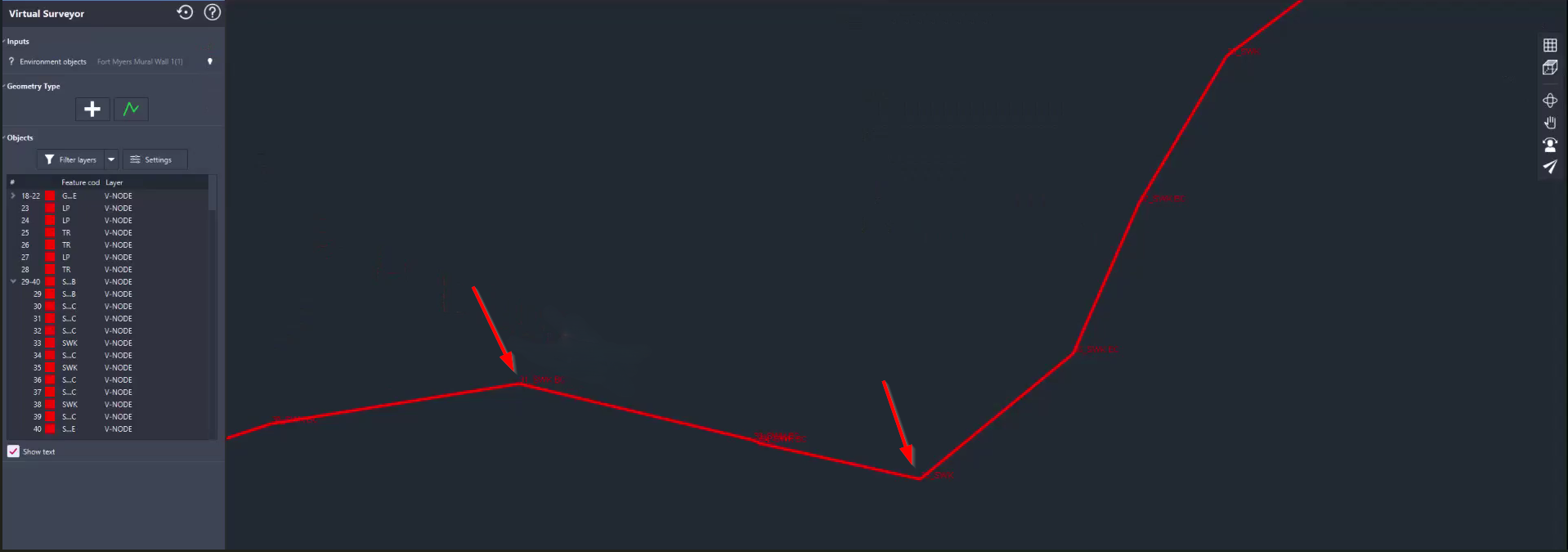
The following instructions will guide you on how to add this feature code and improve the extracted curve geometry.
-
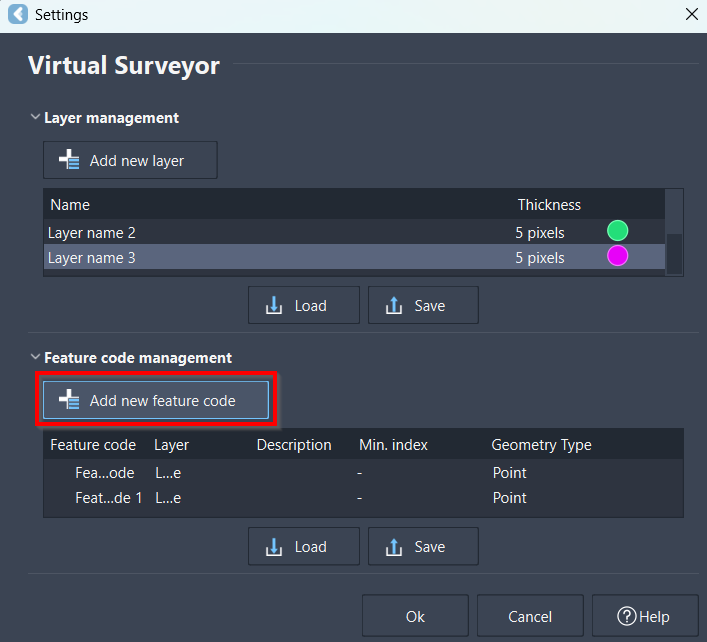
In Settings, click Add New Feature Code.
-
Configure the feature code using the following parameters:
-
Feature code: SWK OC
-
Layer: V-NODE
-
Description: Sidewalk on Curve
-
Geometry Type: Polyline
-
Click OK to save the new feature code.
-
In the Feature Codes list, update the affected points with the SWK OC feature code. The curve geometry will update automatically.
-
Review the improved curve geometry.
Explore Other Feature Extraction Methods
Feature linework can be created using different coding methods:
-
Using the beginning and end line feature codes
-
Using numbered feature codes
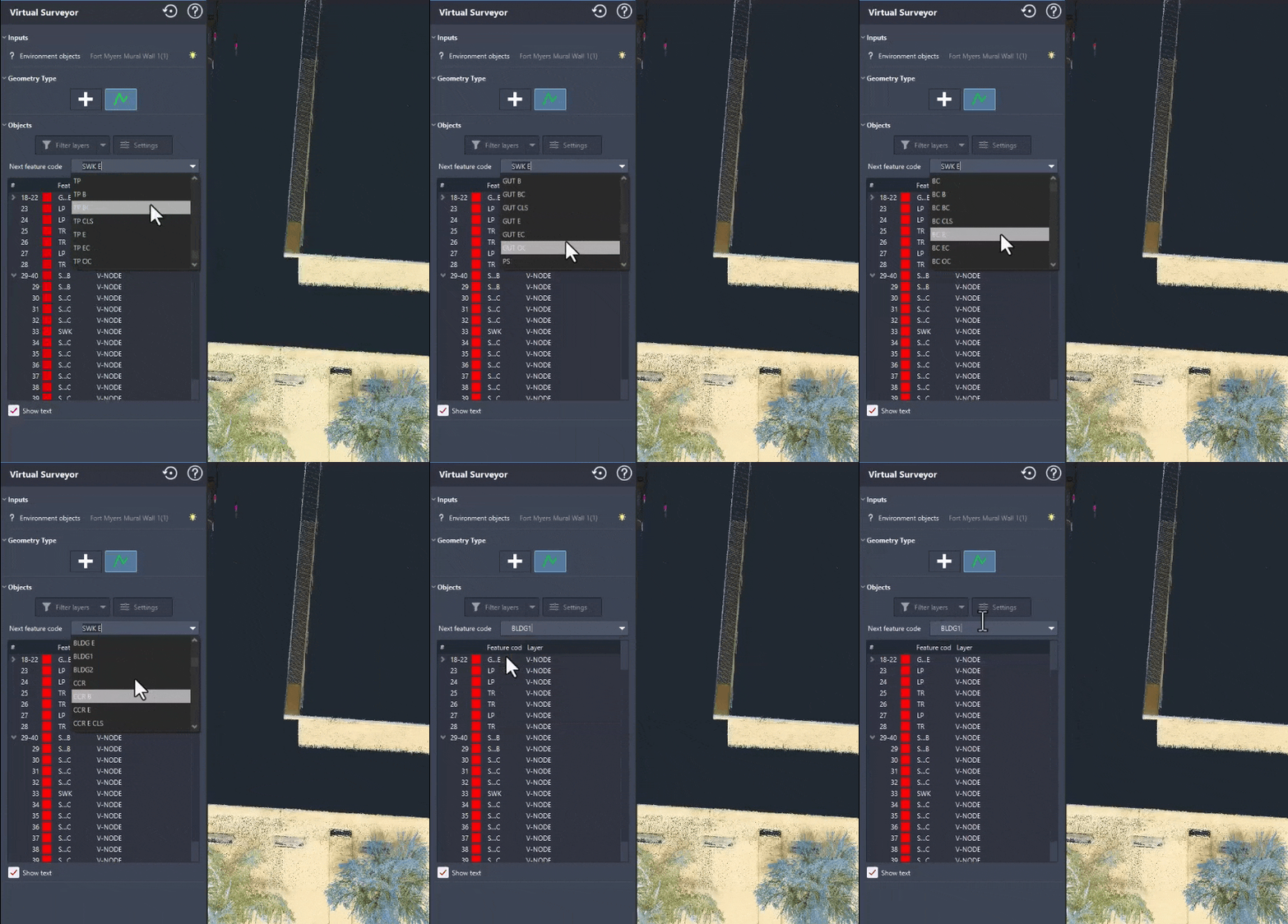
This exercise focuses on the numbered feature code method by extracting the geometry of a building.
-
In the left-side panel, under Geometry Type, click Add Polyline.
-
In the New feature code drop-down list, select the BLDG1 feature code.
-
From the Smart Pick tools, select Edge Corner.
-
Following the building outline, select a point on each corner.
-
Press C to close the polyline.
-
Turn off point cloud visibility to review the created linework.
.png?cb=5e4d197e1ac037c6b1d556c812f77d0b)
-
Repeat Steps 1-5 for the second building, but select the BLDG2 feature code instead.
-
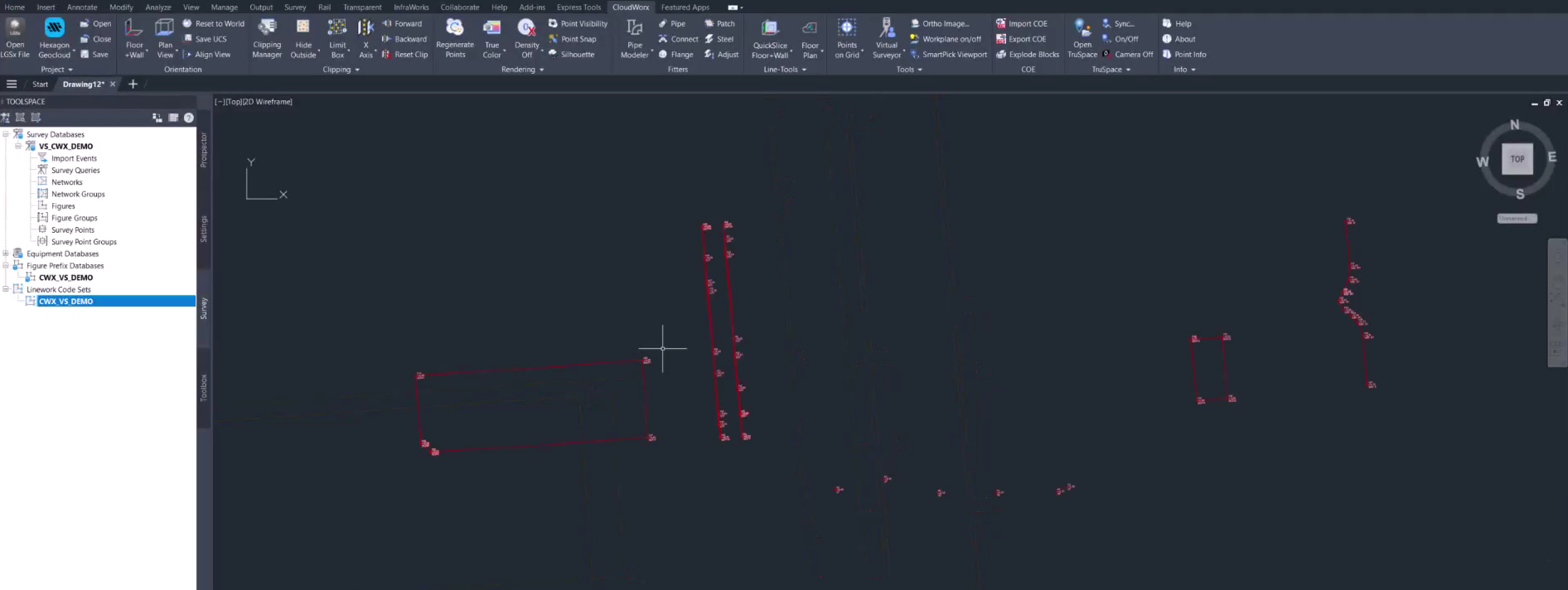
Once the extraction is complete, click OK in the lower-left corner of the Virtual Surveyor window to transfer the extracted features to the CAD drawing.
-
Review all extracted features in Civil 3D.
⬅️ Previous: Virtual Surveyor Setup