
-
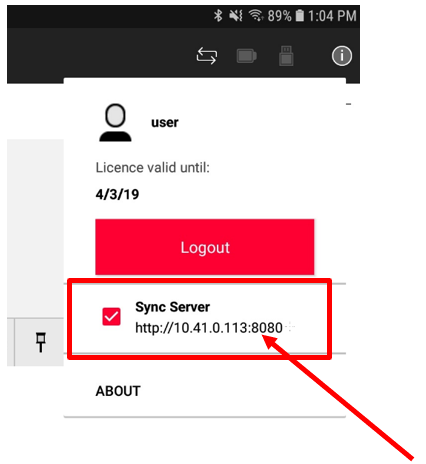
After Cyclone FIELD 360 data collection, click the info icon in the upper-right corner of Cyclone FIELD 360 to open the Sync Server option dialog and select the Sync Server checkbox to activate the server and provide the IP address.
-
Both tablet and PC have to be in a common/same (Wi-Fi) network to connect the tablet to the PC and download data.
-
-
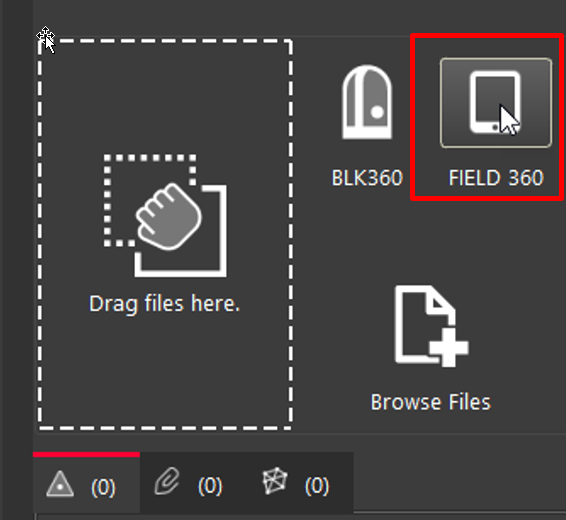
Next, open Cyclone REGISTER 360, create a new project and use the new command in the Import area: Import Cyclone FIELD 360 Project.
-
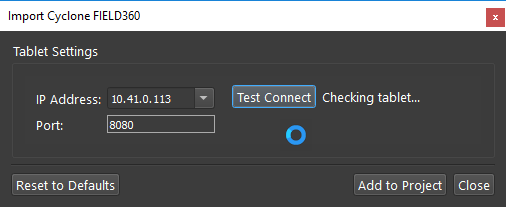
Enter the IP address from Step 1 above and click the Test Connect button.
-
Both tablet and PC have to be in a common/same (Wi-Fi) network to connect the tablet to the PC and download data.
-
-
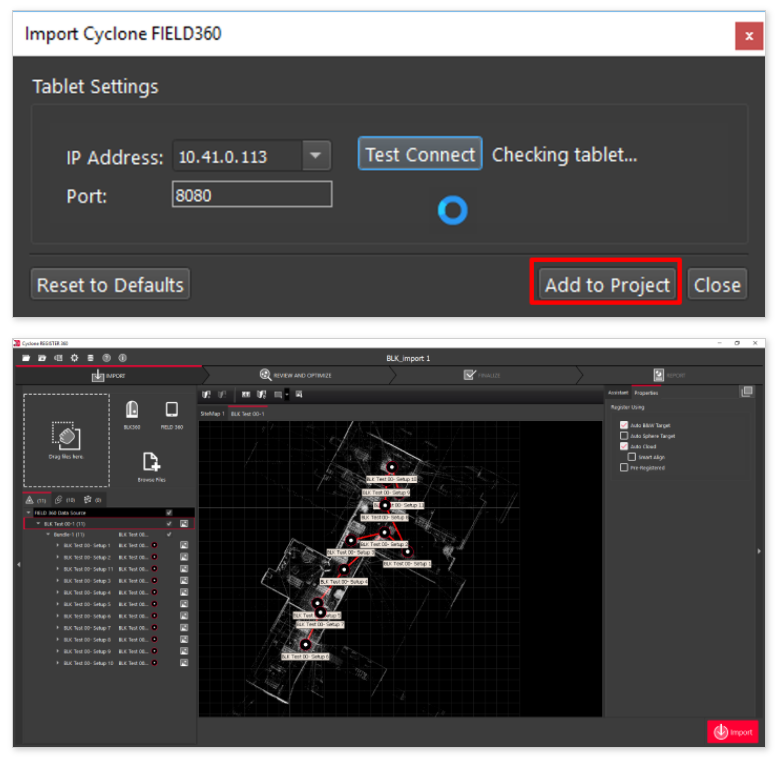
After connection, click the Add to Project button and the Setups will appear in the left side Import panel and then in the center view area.
-
After the BLK360 G1 Setups appear, the normal import workflow, as described in the Import RTC360 Data section, is used to complete the import process.