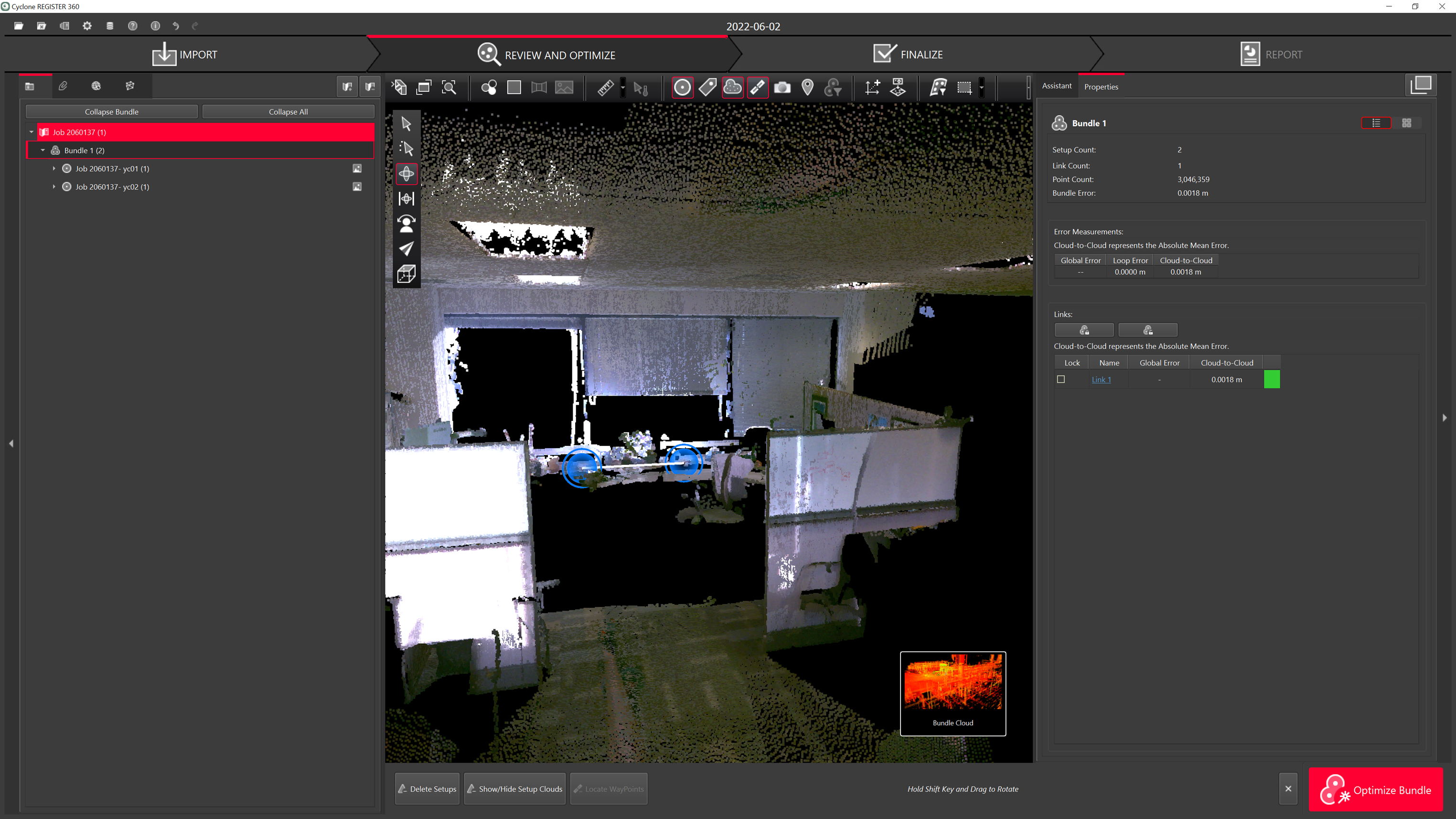
-
BLK 360 can be controlled using the FIELD 360 app Wi-Fi connection.
-
The scans can then be downloaded from the tablet or directly from the scanner.
-
Any work done on FIELD 360, like pre-registering & creating bundles will be synched back to BLK360. Importing from BLK360 will have the updated information.
-
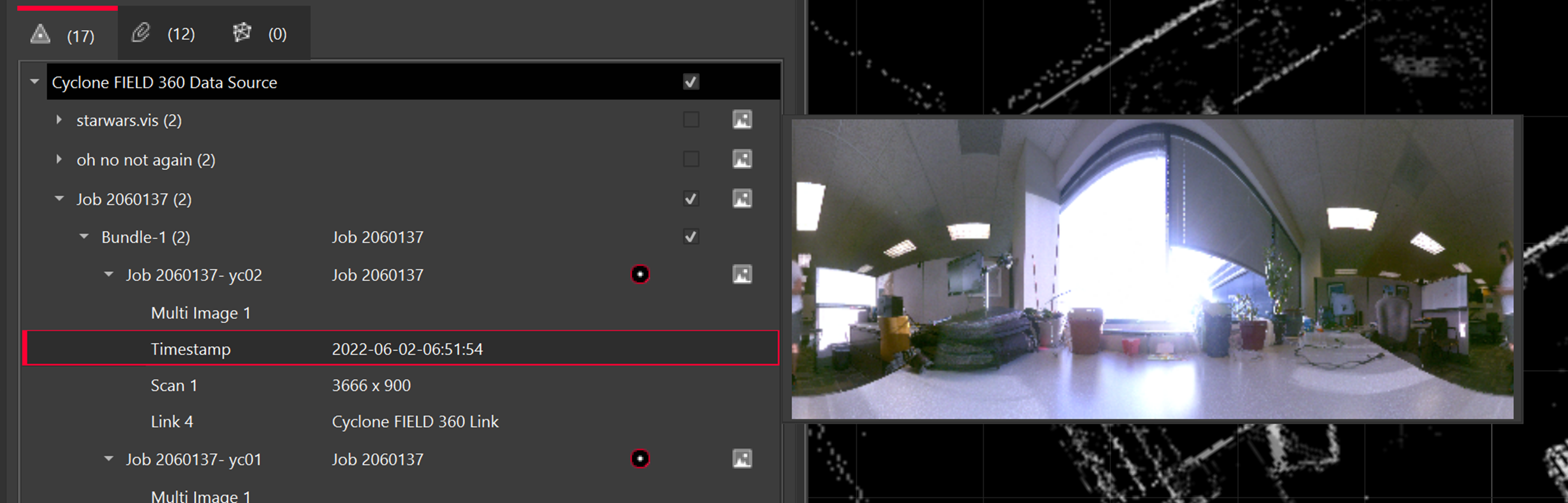
Thumbnails are supported.
-
Open Cyclone REGISTER 360 PLUS Standard or Cyclone REGISTER 360 PLUS (BLK Edition) and create a project.
-
Connect a tablet and computer to the same network.
-
On the tablet, click the info icon in the top right.
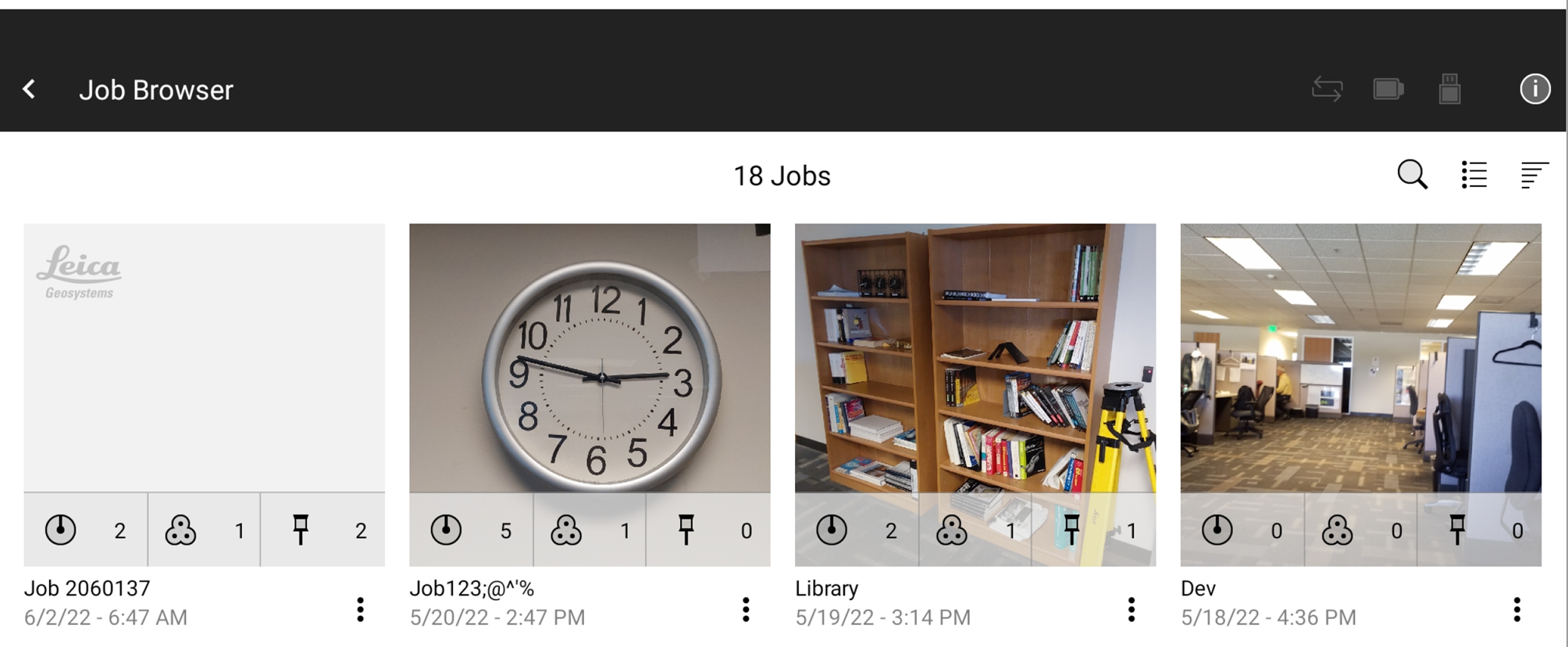
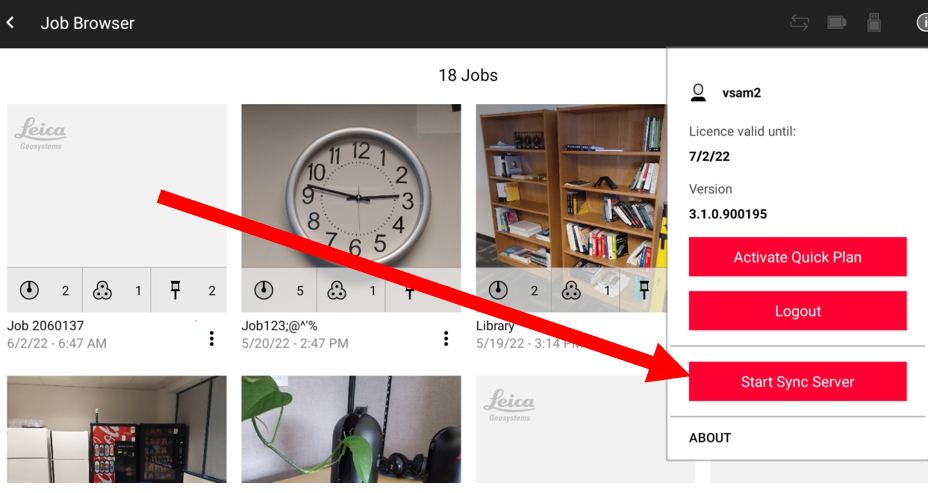
-
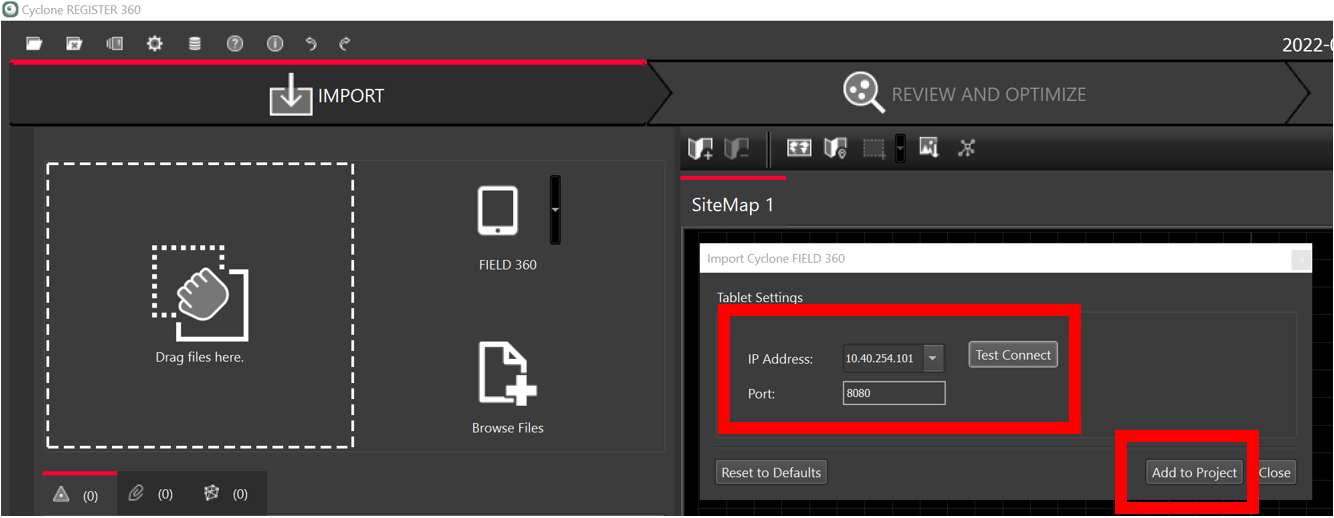
Get the IP address and Port from the tablet.
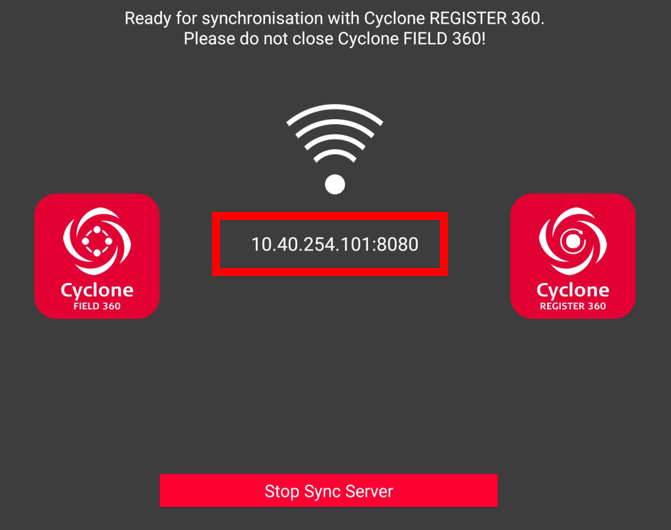
-
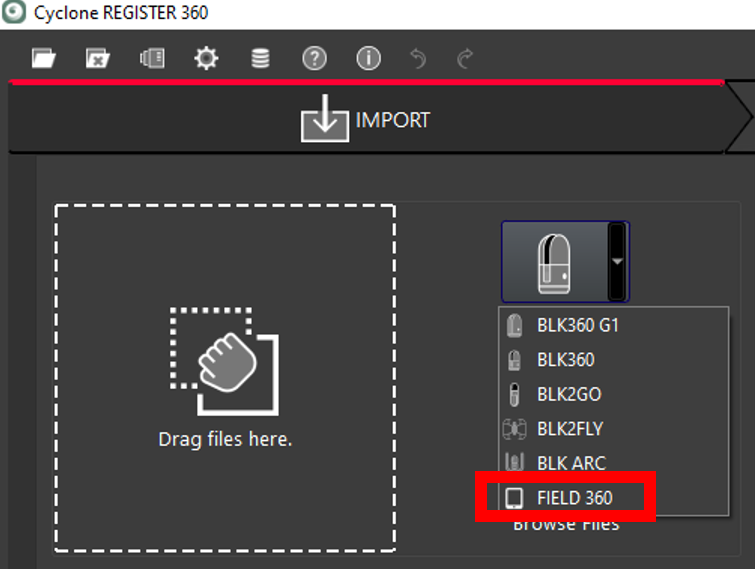
From the drop-down in the Import area, select FIELD 360.
-
Check the IP address and Port from the tablet, select Test Connect and click Add to Project.
-
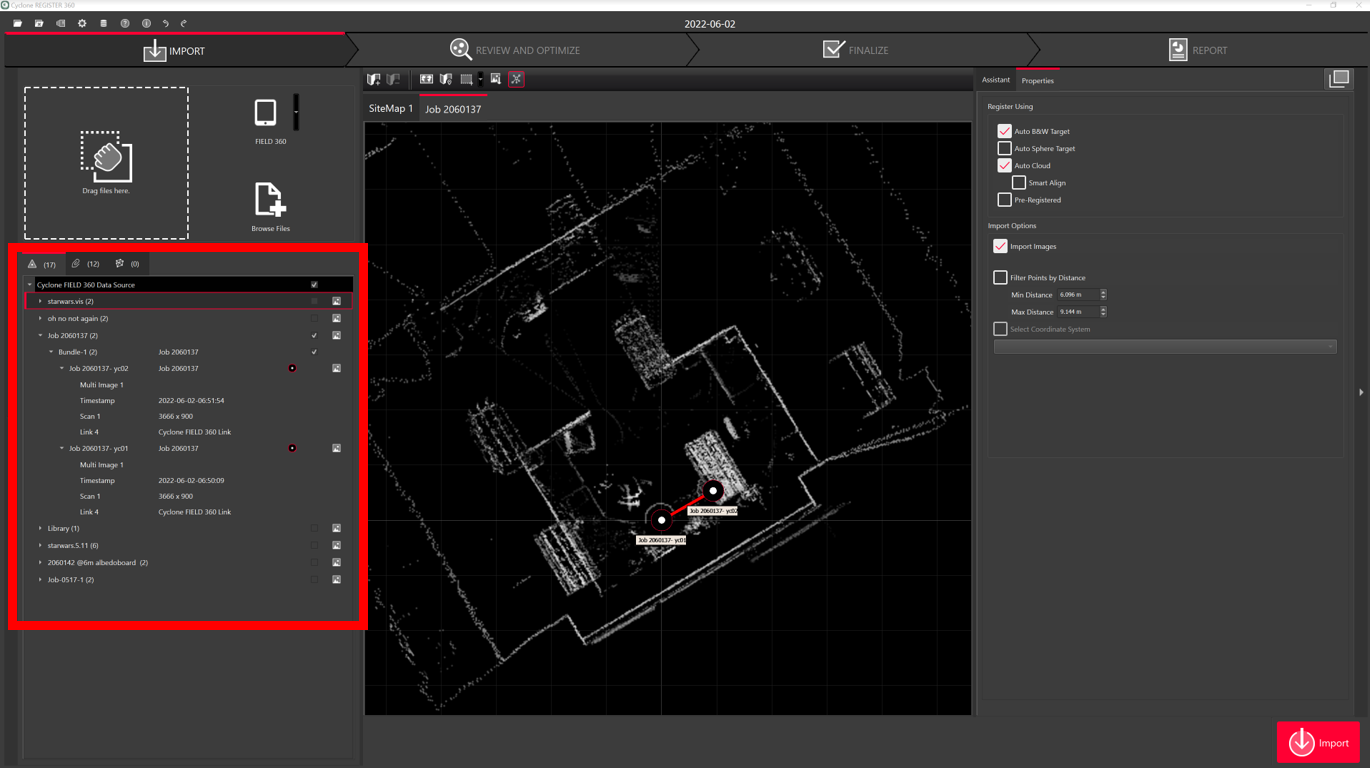
Select the scans for import.
Note: When connecting to Cyclone FIELD 360, there are LWPOs and preview images.
-
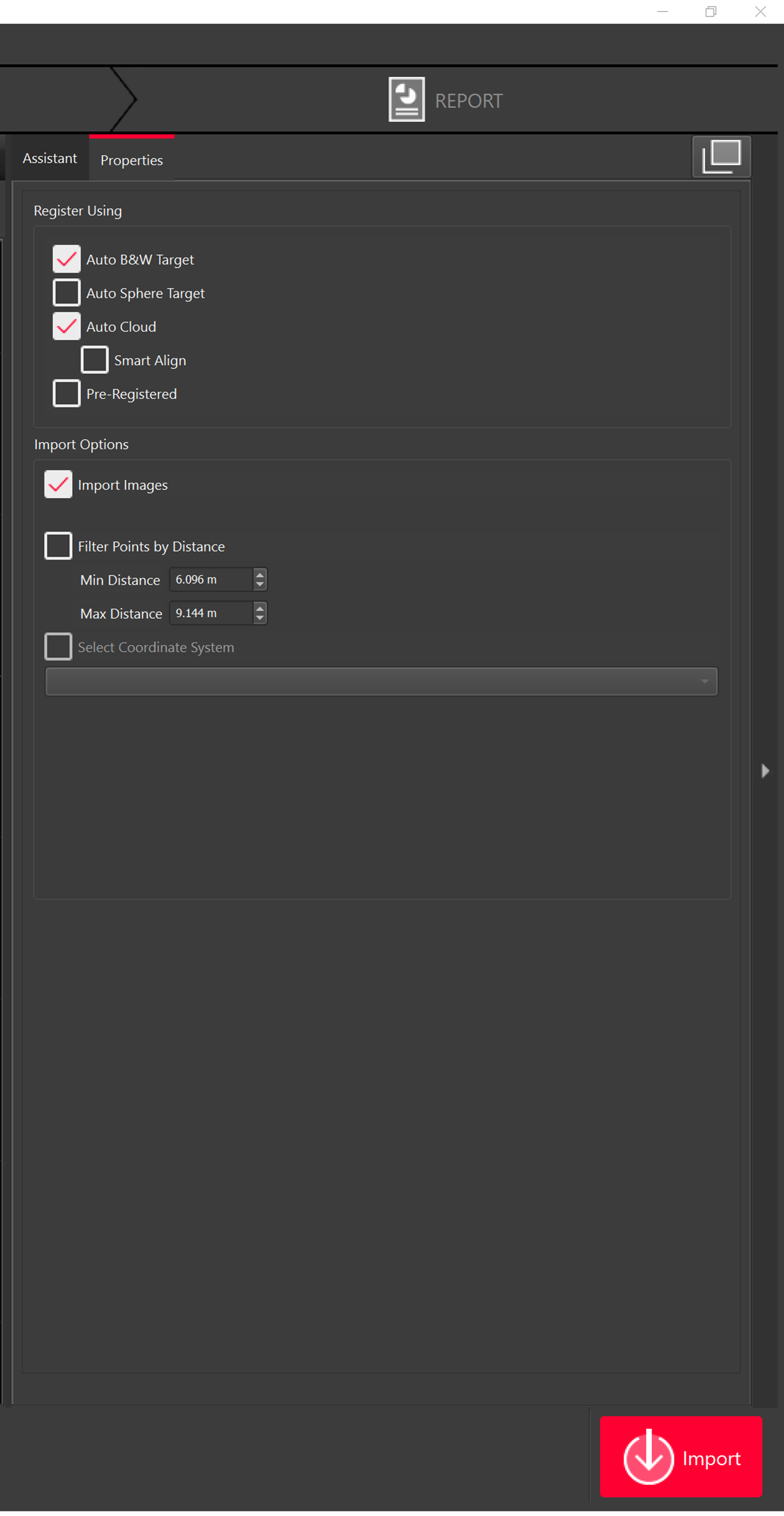
Select import settings and import scans.
-
The scans will then be imported.