
In addition to viewing and editing GeoTags created upstream, users can create new GeoTags in TruView. GeoTags created within TruView must be saved to the LGSx file.
To create a GeoTag:
-
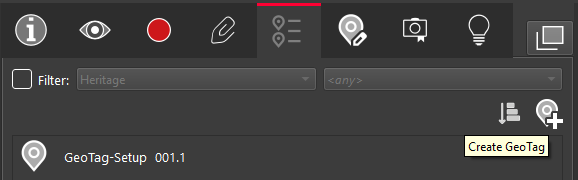
GeoTags can be created by clicking on the Create GeoTag button on the right hand corner of GeoTag panel.
-
Select the location in the point cloud where you would like to place the GeoTag.
-
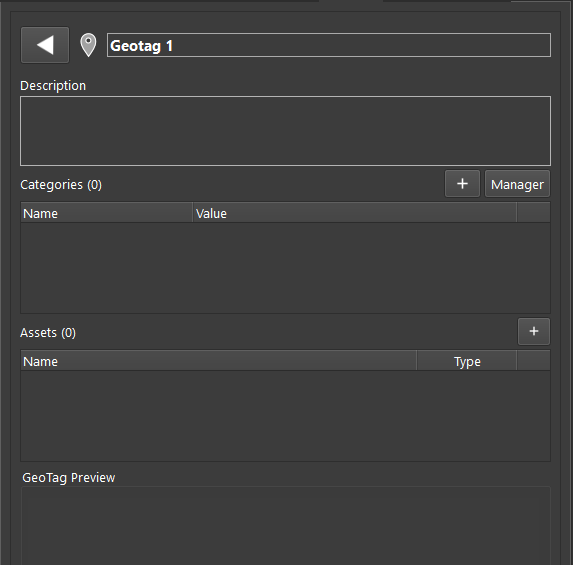
Enter a GeoTag name. This is the only field required to create a GeoTag.
Categories can now be multiple and each one can be a list or a free text (select “+”).
The category Manager manages a category database valid for all Geotags within the project.
-
Category values are a list of text fields with a matching color
-
Assets can be multiple. One asset image can be chosen to define the Geotag preview (visible when hovering the Geotag in the scene or when entering edit Geotag)
-
Click OK to create the GeoTag.
The new GeoTags are not yet compatible with Cyclone ENTERPRISE.