

Installers
CloudWorx for AutoCAD 2026.0.0 / CloudWorx Viewer for AutoCAD 2026.0.0
CloudWorx for Revit 2026.0.0 / CloudWorx Viewer for Revit 2026.0.0
CloudWorx for NavisWorks 2026.0.0
CloudWorx for BricsCAD 2026.0.0 / COE plugin for BricsCAD 2026.0.0
What’s New
This minor CloudWorx release introduces updated installers for all CloudWorx Plugins, including the Pro plugins for AutoCAD, Revit, Navisworks, and BricsCAD, the viewers for AutoCAD and Revit, and the BricsCAD COE plugin. Several bug fixes to improve stability have also been included.
autocad revit navisworks Bricscad
Upgraded CloudWorx Installers
All CloudWorx installers have been updated to the Microsoft Installer (MSI) format. This change resolves previous setup limitations, including the absence of support for silent installations, the need to manually uninstall each plugin to update to new versions, and unintended interactions with concurrent applications.
Using the new MSI installers, IT teams can now deploy installations and updates across large teams more efficiently, enabling smoother, faster installations and eliminating manual steps in the update process.
Important:
-
All CloudWorx versions released before 2026.0.0 must be manually uninstalled due to the use of a legacy installer format. Future releases after 2026.0.0 will support automatic updates without manual removal of previous versions.
Running Silent Installation
The new MSI installers support silent installation, allowing CloudWorx plugins to be installed in the background via Command Prompt.
Below is an example command for installing CloudWorx Basic for AutoCAD in Spanish, with CLM disabled:
msiexec /i Leica_CloudWorx_2026.0.0_For_AutoCAD.msi /quiet CWX_PRODUCT=Basic CWX_LANGUAGE=Spanish CWX_INSTALL_CLM=No
To run a silent installation:
-
Open Command Prompt.
-
Customise the properties below to adjust the silent installation command according to your environment and requirements.
-
CWX_PRODUCT
-
Description: Specifies whether to install the Pro or Basic version.
-
Supported hosts: AutoCAD, BricsCAD
-
Possible values: Pro, Basic
-
Default value: Pro
-
-
CWX_LANGUAGE
-
Description: Selects the CloudWorx interface language.
-
Supported hosts: AutoCAD, BricsCAD, Navisworks, Revit
-
Possible values: Chinese_sc, Chinese_tc, Dutch, English, French, German, Italian, Japanese, Korean, Polish, Portuguese, Russian, Spanish
-
Default value: English
-
-
CWX_INSTALL_CLM
-
Description: Specifies whether CLM should be installed together with CloudWorx (only applies if CLM is not already present)
-
Supported hosts: AutoCAD, BricsCAD, Navisworks, Revit
-
Possible values: Yes, No
-
Default value: Yes
-
Bug Fixes
all cloudworx
-
Fixed an issue where GeoTags from RCS projects did not appear in TruSpace.
-
Fixed an issue that caused CloudWorx to stop responding when opening a point cloud in TruSpace, particularly when using a single monitor.
-
Fixed an issue where CloudWorx became unresponsive during the conversion of an imported point cloud to LGSx.
autocad bricscad
-
Fixed an issue where LGS files with multiple user coordinate systems opened in the wrong location when imported in CloudWorx for AutoCAD or CloudWorx for BricsCAD. Now, LGS files are imported at the correct spatial position based on the selected UCS and defined insertion point.
CloudWorx Compatibility
The currently supported host CAD application versions per product are as follows:
CloudWorx 2026.0.0 for AutoCAD
AutoCAD, Civil 3D, Plant3D and Map3D 2023 - 2026
CloudWorx 2026.0.0 for Navisworks
Navisworks Simulate and Manage 2023 - 2026
CloudWorx 2026.0.0 for Revit
Revit Architecture, MEP and Structure 2023 - 2026
CloudWorx 2026.0.0 for BricsCAD
BricsCAD V23 - V26
Compatibility with Cyclone ENTERPRISE
CloudWorx 2026.0.0 is compatible with Cyclone ENTERPRISE 2021.0.0 and higher.
Compatibility with Reality Cloud Studio
This version is compatible with Reality Cloud Studio.
Upgrades
Upgrading Leica CloudWorx Installation
Administrator-level privileges for the workstation are required to correctly install Leica CloudWorx software. CloudWorx requires at minimum CLM version 2.14.
CLM 2.29.0 is now packaged with the new MSI installers. If no previous version of CLM is detected, during the installation process a prompt will be presented to install CLM per the image below:
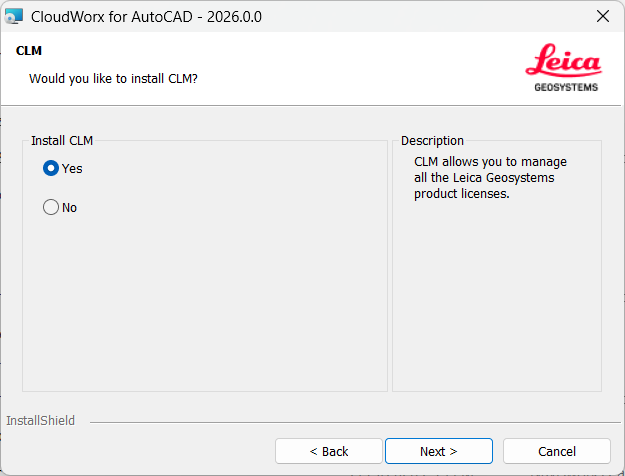
If CLM is already installed the installer will detect it and will not install the new version.
Note: If the install CLM option is selected, it will take a few minutes after the plugin installation wizard is closed for the CLM install to complete. CLM will be installed in a background process and no progress window will be shown.
Deprecated Features
Leica Geosystems strives to provide support for the widest array of operating systems and file formats given current technologies and support from third-party partners.
With each release, we review our list of currently supported formats and operating systems in line with industry trends and announced product terminations.
Leica Geosystems may add or terminate support for a file format during any release. Obsolete operating systems will be supported for six months after their announced termination or the next major software release, whichever comes first. Server products will be supported in alignment with Leica’s Client License Manager (CLM) supported servers to guard users against incompatibility.
CloudWorx (All)
-
Cyclone CORE is phased out as of version 2025.2.0.
-
CLM versions prior to 2.5 are no longer supported.
-
JetStream Enterprise is phased out after version 2024.1.
CloudWorx for PDMS
-
CloudWorx for PDMS is phased out after version 2023.0.
CloudWorx for AutoCAD
-
The Align to Surface tool, activated by the CWVALIGN command, is no longer supported as of version 2025.2.0.
CloudWorx for SolidWorks
-
CloudWorx for SolidWorks is phased out after version 2023.0.
CloudWorx for Bentley (Microstation)
-
CloudWorx for Bentley is phased out after version 2025.1.0.
Known Issues
all cloudworx
Reality Cloud Studio Limit Boxes
Projects uploaded to Reality Cloud Studio between October 2024 and February 2025 may have an issue where limit boxes created in Reality Cloud Studio have an incorrect origin or “anchor point” and should not be activated in the clipping manager in CloudWorx. To correct this issue, re-upload the original file to Reality Cloud Studio.
Streaming From Reality Cloud Studio
IT security measures such as firewalls and packets sniffers can affect the performance of streaming data from Reality Cloud Studio. For the best streaming performance, all URLs associated with HxDR and Reality Cloud Studio should be whitelisted by local IT departments.
Support for Reality Cloud Studio Projects
When searching for a specific project file name in the Reality Cloud Studio client browser, the search will be limited based on the user’s account to only the folders that the account has permission to access.
After rendering a point cloud dataset that is streamed from Reality Cloud Studio to the CloudWorx workspace, the Setup names in the ScanWorld Explorer and TruSpace are not preserved.
CloudWorx Toolbar Is Missing After Installation
Some host applications do not show the Ribbon toolbar by default. As such, a user may need to enable it to properly see all the CloudWorx tools. To do so, right-click on the toolbar and select Ribbon to turn it on.
Unusual Empty Margin When Viewing in Perspective
Users will experience an unusual empty border around their point cloud view when the view is launched from TruSpace. Due to the nature of perspective rendering, the issue is exaggerated when the user zooms as well as when the viewing window is wider (e.g., 16:9 ratio).
Modified Usage for Asian Languages
Some actions and dialogs do not execute properly when operating CloudWorx in an Asian language.
Importing MultiStation Data
There may be a delay when importing MultiStation data into CloudWorx. Users may see an error message which states that the server is not available. However, this message will disappear, and data will be imported as expected.
LGS Usage over Network
The use of LGS files is only officially supported when the files are saved locally. Due to variations between network deployments, LGS files may be unreliable when published to or hosted in a network location.
Autocad
CWVALIGN Command
Starting a move command and then closing the tool window can cause AutoCAD to crash. The recommended workflow is to click the apply button in the tool window after each move is completed.
The tool window may hide after starting a move command, but on subsequent uses the tool window is still shown.
revit
TruSpace View Sync in Revit
When using TruSpace for point selection, such as pipe or steel fitting, the Revit 3D window will not sync views with TruSpace. Sync works only in view mode, when another CloudWorx command is not activated.
CloudWorx for Revit Cable Tray Fitter
The cable tray fitter does not currently provide an accurate fit by size and may be rotated incorrectly. For example, a channel cable tray may be oriented upside down.
BricsCAD
BricsCAD COE 2025.2.0 Uninstallation issues
For some users, the the BricsCAD COE plugin may not uninstall completely. This problem can be identified when after uninstallation of the old plugin, the new 2026.0.0 MSI installer issues the following warning:
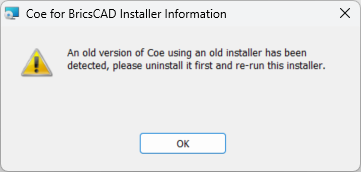
To resolve this issue, please download and run this .reg file to clear the registry of any artifacts left by the uninstallation. Administrator privileges are required.
Graphics Card Compatibility in BricsCAD
Some laptop computers with both integrated and dedicated graphics cards might experience an issue when connecting to RCS. Users can set BricsCAD program preferences to use the integrated graphics GPU to resolve the issue.
navisworks
Point Cloud Clipping When Using Navisworks’ Native Transform Tools
Point clouds imported by CloudWorx for Navisworks are not compatible with Navisworks' native transform tools. Using the Move, Rotate, or Scale commands will cause the point cloud to be clipped when orbiting and zooming.
Licensing
All users with currently valid CCP (Customer Care Package), or with CCP valid as late as 1-October 2025, can run this new version with no new license required.
CloudWorx Ultimate
A current CloudWorx Ultimate license will activate the following products and versions:
-
CloudWorx for AutoCAD
-
CloudWorx for Revit
-
CloudWorx for Navisworks
-
CloudWorx for BricsCAD
-
CloudWorx for Bentley