
revit
Clipping | Section Box 3Point
This tool is used to create a 3D limit box which is tailored to the Revit Section Box functionality. It’s helpful when working with complex point clouds to isolate the selected part of a point cloud, including both CloudWorx and Revit geometry.
Using the Tool
To create a section box using 3 points, follow the steps below:
-
Click the SectionBox 3Point icon in the Clipping panel.
-
Following prompts, sequentially enter three points to define a section box.
-
Pick the first point representing the first corner of the 3D section box.
-
Pick the second point representing the opposite corner of the desired section box and click it twice to apply.
-
Pick the third point representing the height of the box and click it twice to apply.
-
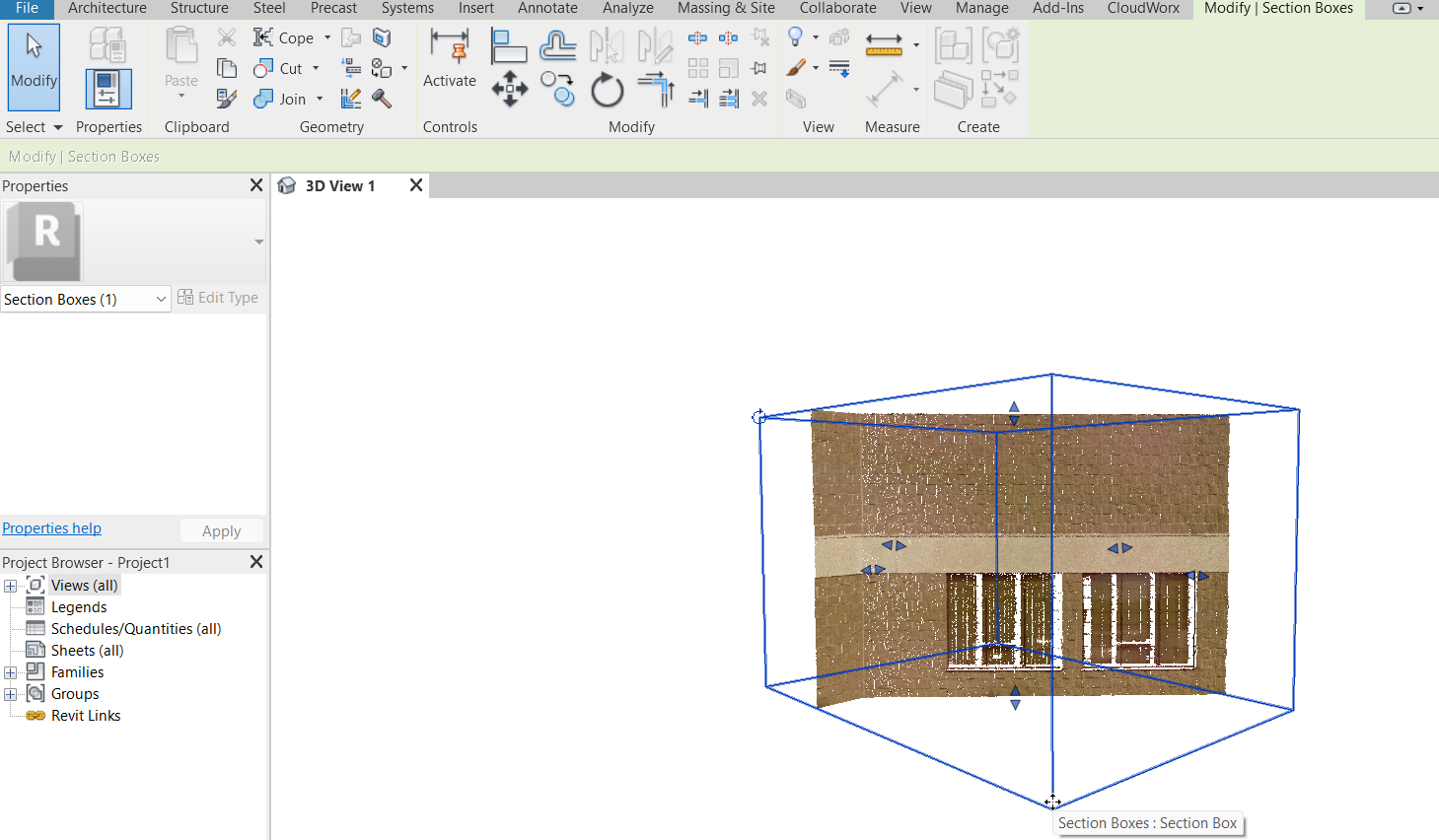
A section box is created, isolating the points outside the defined area. It can be modified using Revit’s native toolset for modifying section boxes.
To disable a section box, navigate to the Clipping Manager and deselect the active clipping record.