
AUTOCAD PRO bentley REVIT bricscad pro ULTIMATE
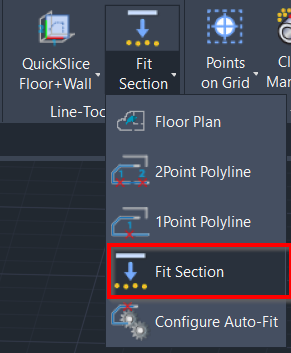
Line-Tools | Fit Section
Command Line
-
AutoCAD / BricsCAD: CWFITSECTION
-
MicroStation: CloudWorx Fit Bsection
This tool allows adjusting CAD objects, such as polyline, line, arc, or circle, to accurately fit a point cloud.
Using the Tool
Note: Before using this tool, it’s necessary to create a slice and draw an outline of the necessary CAD object. Refer to the QuickSlice page for more details.
To fit CAD objects to a point cloud slice, follow the steps below:
-
Click the Fit Section button in the Line-Tools panel or type a command line prompt specific to the preferred CAD system and press ENTER.
-
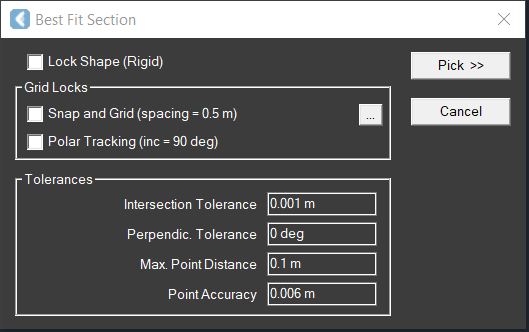
The Best Fit Section dialog appears.
-
-
If necessary, modify the preconfigured settings in the Best Fit Section dialog. Refer to the Configure Auto-Fit page for detailed descriptions of each setting.
-
Then, click Pick in the upper-right corner of the Best Fit Section dialog.
-
When prompted to select the object to adjust, zoom in to the section of a polyline that currently doesn't fit a point cloud well and select it. Then, press ENTER.
-
If the fit quality does not meet the Point Accuracy, the fit is rejected.
-
Objects that can be selected are line, arc, circle, 2D polyline, 3D polyline and light-weight polyline. Inserted blocks and 2D polylines representing meshes or fit curve objects are not supported.
-
For best results, work in a viewpoint aligned to the plane of the slice.
-
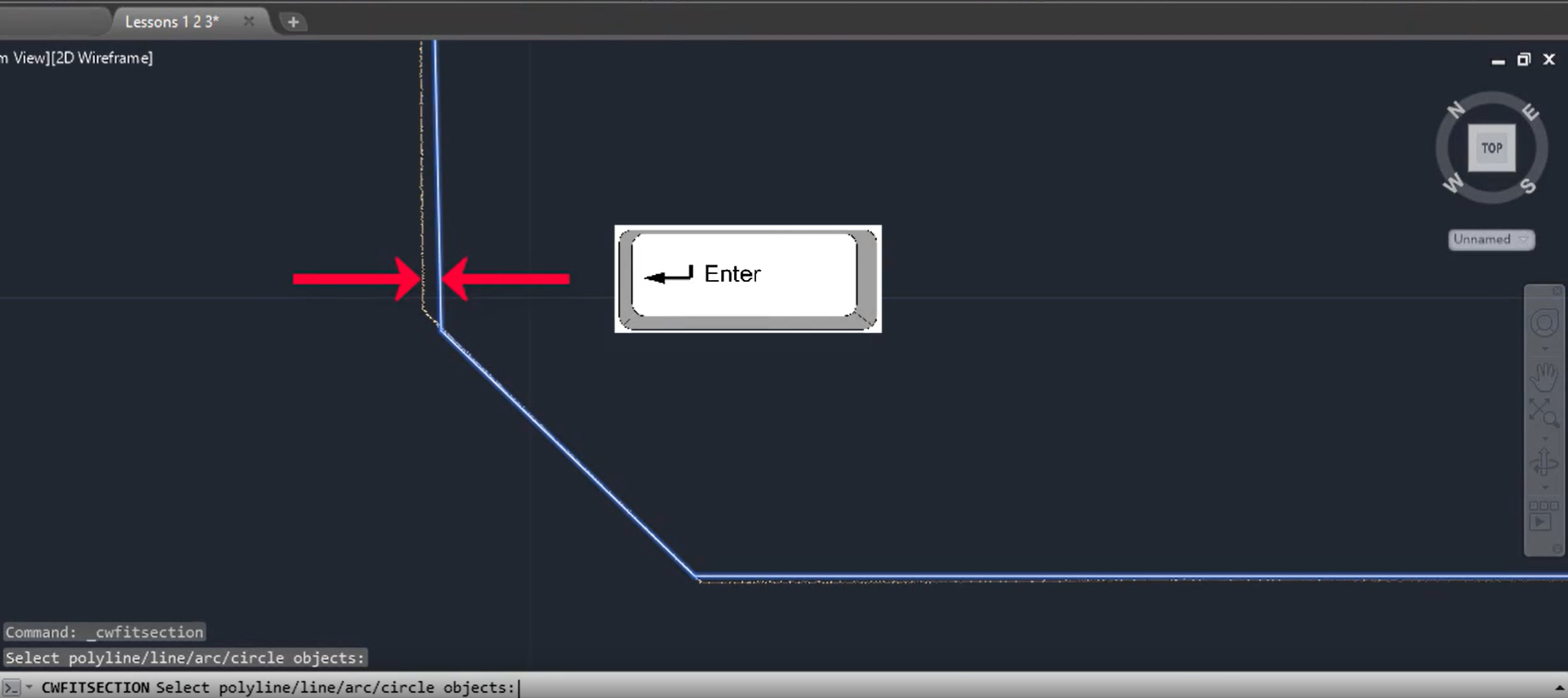
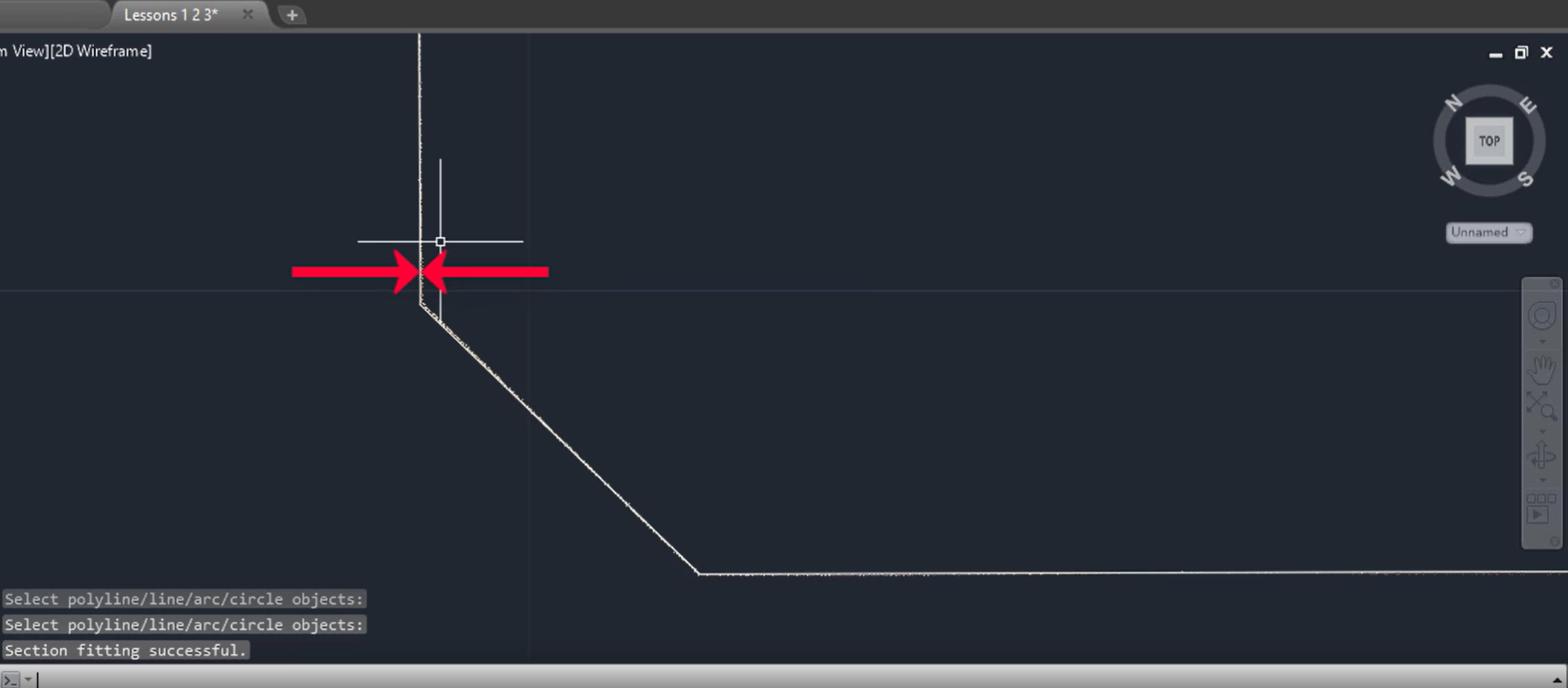
d. The least squares algorithm will calculate the best-fit polyline to the cloud points.
-
Continue picking points for each section or object you want to fit, then press ENTER.
The section is aligned to the center of the point cloud slice.