
SSO user management
Initial SSO Login and Admin Setup
The following steps apply to all accounts, whether new or existing, when setting up SSO for the first time.
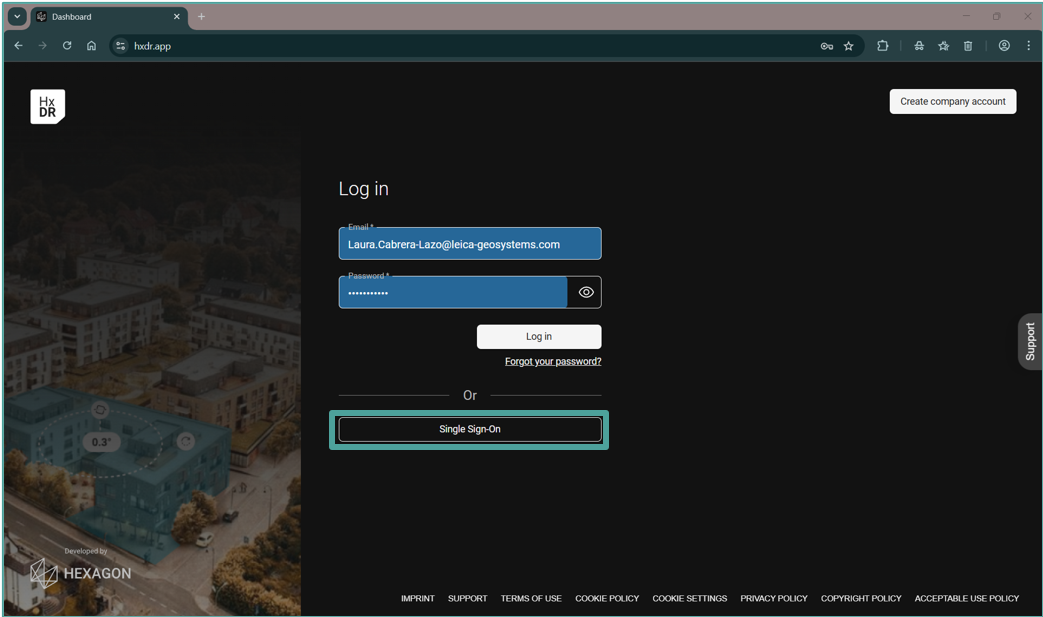
On the login page, select “Single Sign-On”
Go to https://hxdr.app/ and log in using Single Sign-On (SSO).
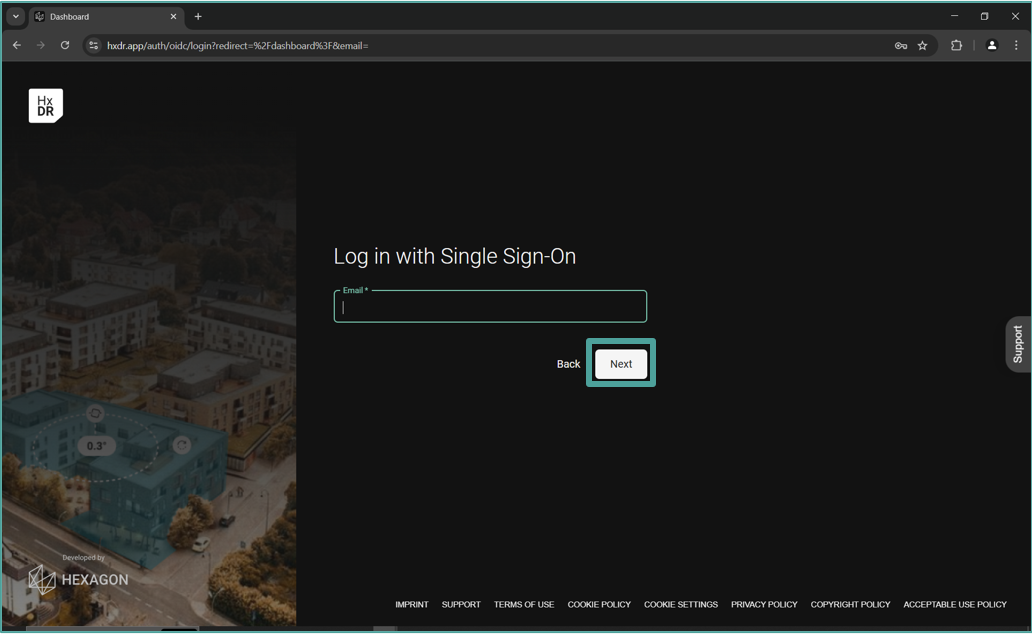
Enter your email
Use your company email address.
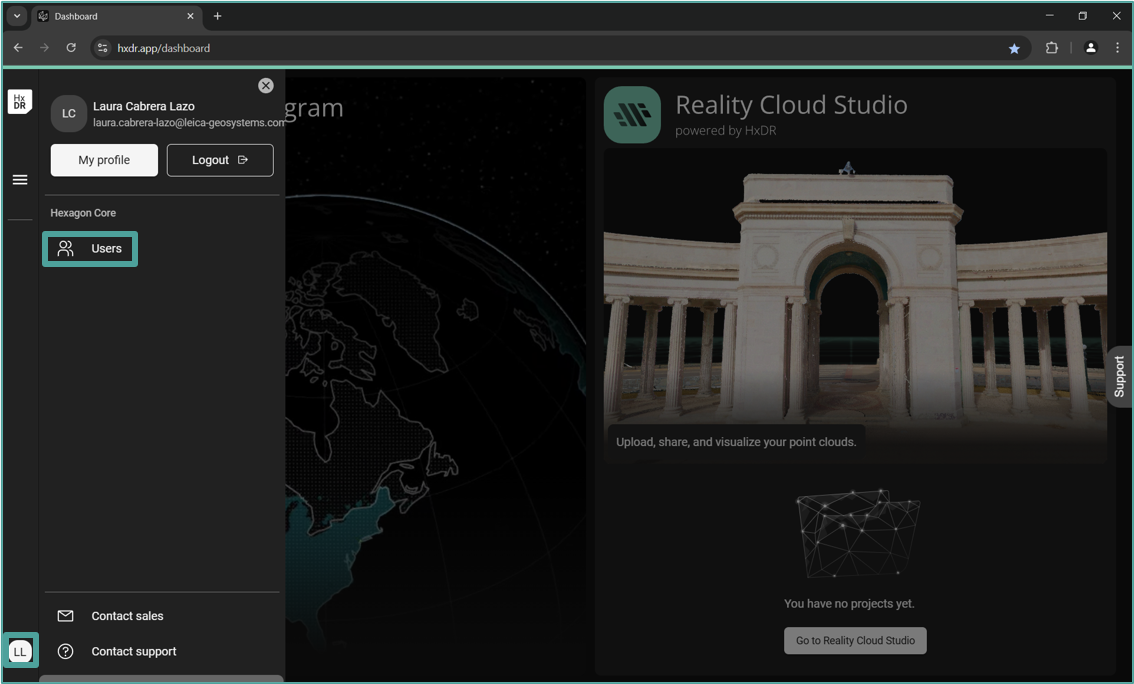
Access the user menu
Once logged in, click on the icon with your initials located on the lower left-hand side to access the user menu.
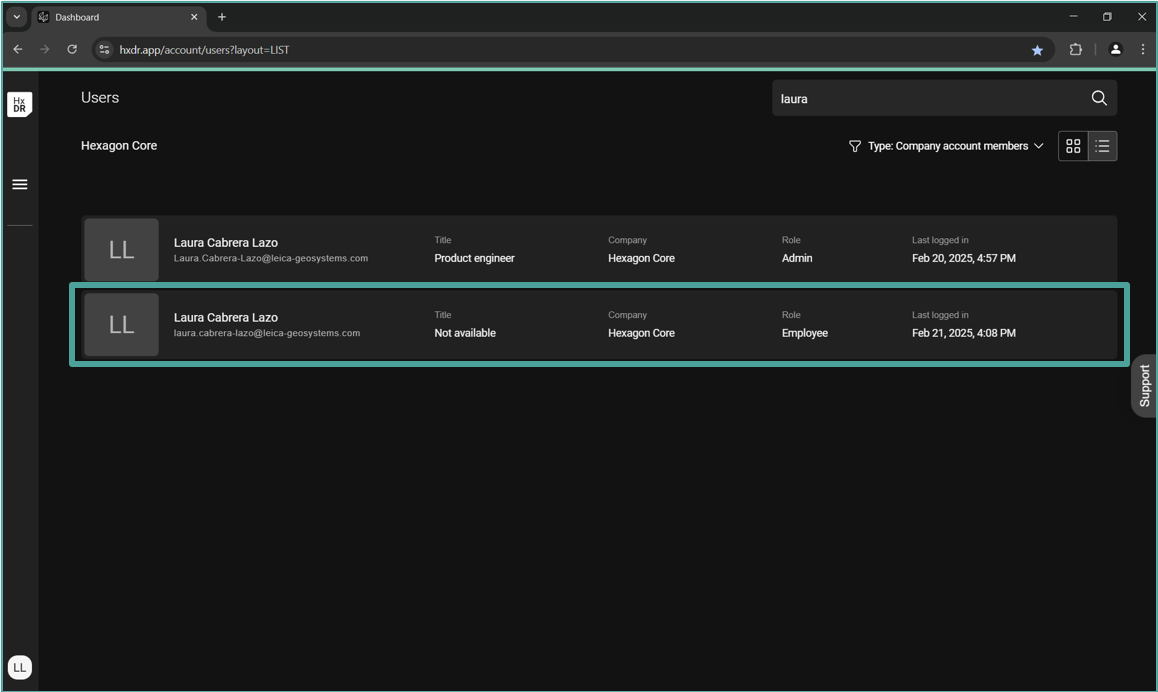
Identify your SSO user
In the "User" menu, you will see two users: the one created without SSO and one with SSO login. The user with the role "Employee" and title "Not Available" is the SSO user.
Make your SSO user an admin
To manage the account and users, you need to make your SSO user an admin:
Log out and log in again using your non-SSO user credentials.
Go to the user menu and change the role of your SSO user to "Admin".
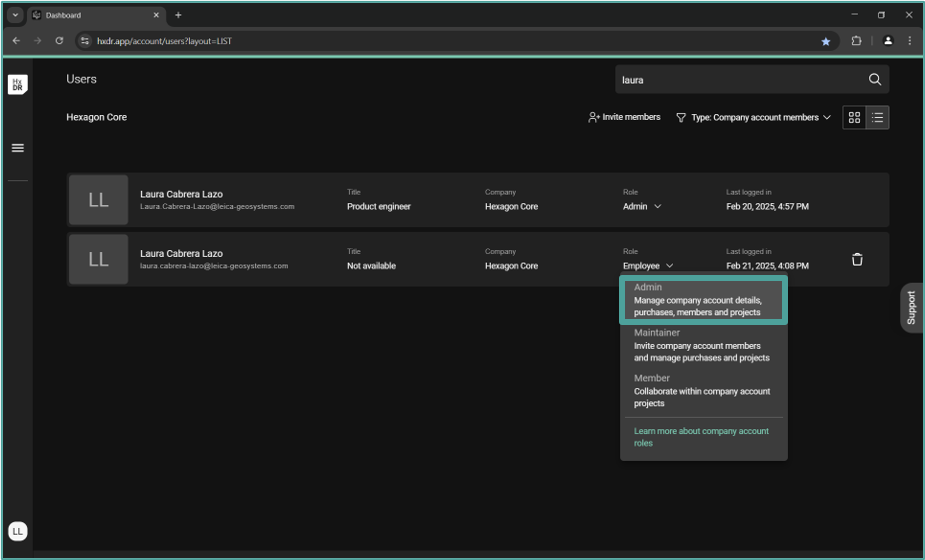
Log in as admin
Log in again with your SSO user. Once logged in, clicking on the icon with your initials will now show the full Admin menu, including company, users, and subscription information.
If your account already has projects, transfer project ownership to your SSO user before deleting the legacy user. See Moving project ownership to SSO user. Skipping this step will set the admin as the default owner of all affected projects.
Go to the user menu and delete your non-SSO user (the one with a title). Note: You can't delete your own user (the one that is currently logged in).
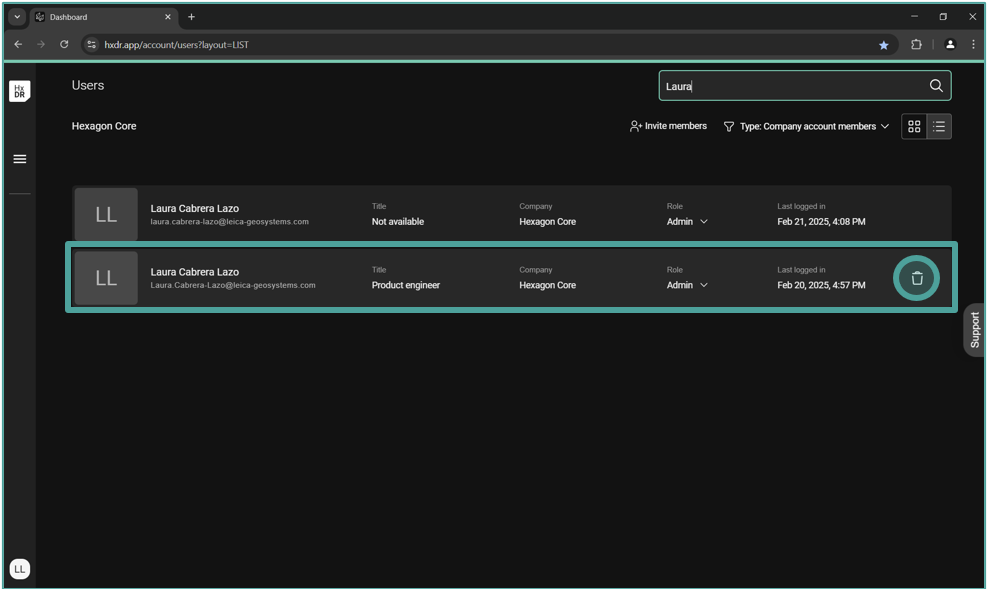

Adding new users
New accounts
Once SSO is configured, colleagues join by logging in to hxdr.app with their company credentials — no invitation email is needed. Their account is created automatically on first login and appears in the Users menu for the admin to assign a role. For full details see Add users to your account → Onboard using SSO.
Existing accounts (with prior non-SSO users)
As the account was initially created without SSO and users have already been invited, those users will need to create a new user by logging in to https://hxdr.app/ with their SSO credentials. This process will create a second user for each individual within the same account (without any projects assigned). The new user will appear in the "User" menu, allowing the admin to manage their role, which is initially assigned as "Employee" by default.
Once the new SSO user is created, they can be added to the corresponding projects, and the non-SSO user can be deleted from the account.
Best Practices:
Delete Existing Users Before SSO Login
As there is no specific identifier for each user, it is recommended to delete all existing users from the account before they log in with their SSO credentials and create the new user.
After creating the new user, the admin should add them to their projects using the standard workflow for inviting new members.
Activate subscription (new accounts only)
To start using Reality Cloud Studio, a subscription must be activated. Please follow the steps of Activating your subscription for subscription activation.