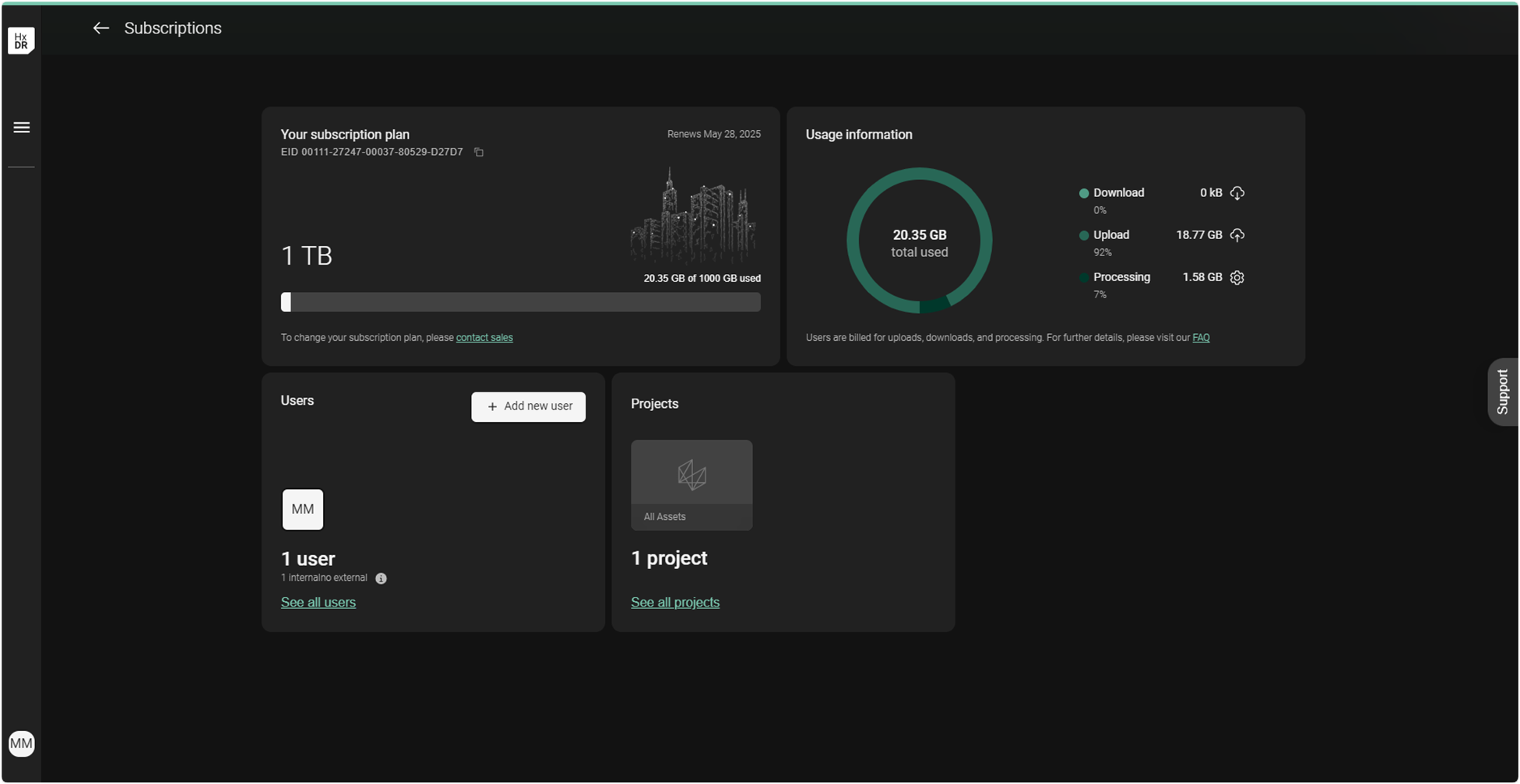
Account sign up and subscription activation
This step-by-step guide explains how to create an account and register a Reality Cloud Studio subscription on the HxDR platform.
Please contact your sales representative to request a quote for Reality Cloud Studio.
Creating a Reality Cloud Studio Account

If you have already created an account, please skip to Activation.
1. Navigate to https://realitycloudstudio.hxdr.app to begin the account creation process.
2. Click Create company account in the upper right corner.
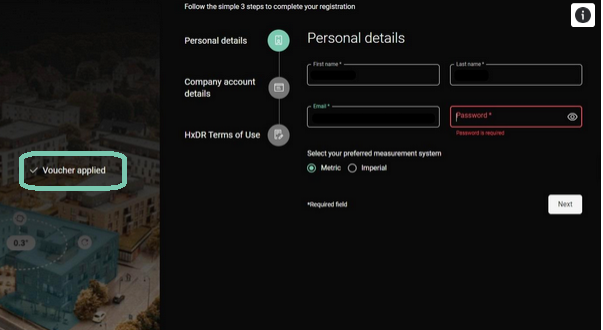
3. Enter your Personal details.
The email address used for account creation will be for an admin user. Once another admin user has been created, the original account can be switched from admin to any other user type or deleted entirely without affecting access for the company account as a whole.
Please ensure you see “Voucher applied” on the left side of the screen before proceeding.
4. Click Next.
5. Enter the company information, including the company name, address and phone number, and, if applicable, VAT number.
These details can be changed later by any company account admin.

6. Click Next.
7. Read and accept the HxDR Terms of Use (check the box).

8. Click Sign up.

9. Navigate to your email and follow the Verify email link.

Activating a Reality Cloud Studio Subscription
It is not required to activate a subscription after logging in during the email verification process. Some reasons to not activate a subscription at this stage:
The Entitlement Certificate with the Entitlement ID (EID) has not yet been delivered
An account to enable collaboration with other Company Accounts as an External User
10. Login using an Admin account.
The email used in the Personal Details section of the account creation process will be the default Admin account.
11. Click your account badge.

12. Click Subscriptions.

13. As a new account, you will be prompted to add a previously purchased subscription or contact sales.
Click Enter EID.

14. Locate your Entitlement Certificate (delivered by email) and copy the Entitlement ID (EID).

Ensure the Product on the Entitlement Certificate is Reality Cloud Studio Subscription. If it is not, it is the incorrect EID and should not be entered here. Contact your sales rep if you do not have this product name on the Entitlement Certificate.

15. Enter the EID.

16. Click Submit.

17. Reality Cloud Studio will activate your subscription and notify you with the message "Your subscription has been activated successfully!" in the lower right-hand corner of the screen.

18. The subscription dashboard will automatically load. Please confirm that the subscription listed here matches the subscription listed in your Entitlement Certificate (see step 14).
Please use the Contact Sales or Contact Support buttons if anything is incorrect.