
Inviting external users to a project
Invite external users to a project
HxDR Reality Cloud Studio allows you to share a project with users from a different company account. This is useful when different organisations are collaborating on a larger project (for example, sub-contractors who can individually benefit from the geo data stored in HxDR Reality Cloud Studio).
When a user from a different company account is invited to a project, they become an External Member to the project’s parent company account.

To invite an External Member to a project, the user must have an existing user registered in a different organisation’s company account. The intended External Member’s own organisation does not need to have an active subscription (only an account).
To invite an External Member to a project:
Open the project.
Go to the Members tab.

Add members to the project
Click Add members in the upper right corner.
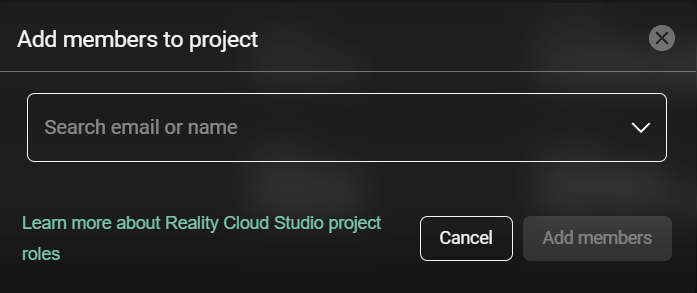
Enter the email address(es) of the user(s).
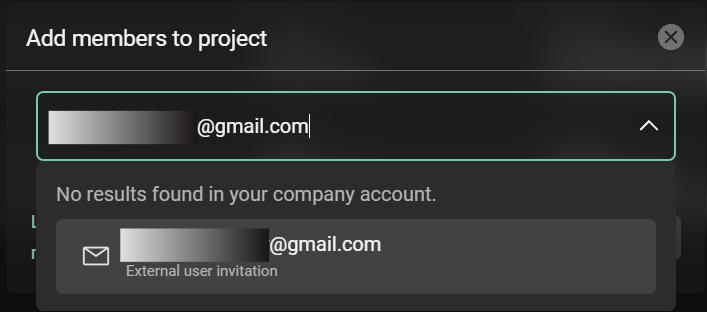

The initial project role set for External Members is always Viewer. This can be changed later (but not during the initial invite) by going into the Project’s Members tab and changing the invited External Member’s role.
Click Add members.
If the user is not registered with any company account in HxDR, an error message appears indicating that the e-mail address was not found.
Please note that the email address entered is case sensitive and must match the capitalisation of the email address as registered in HxDR. For example, a user registered with the email address Info@hxdr.com can not be invited by entering the email address info@hxdr.com. This will result in the above-mentioned ‘email not found’ error.
For ease of access, the invited members will receive a confirmation email with a direct link to the project they’ve been invited to for easier access.
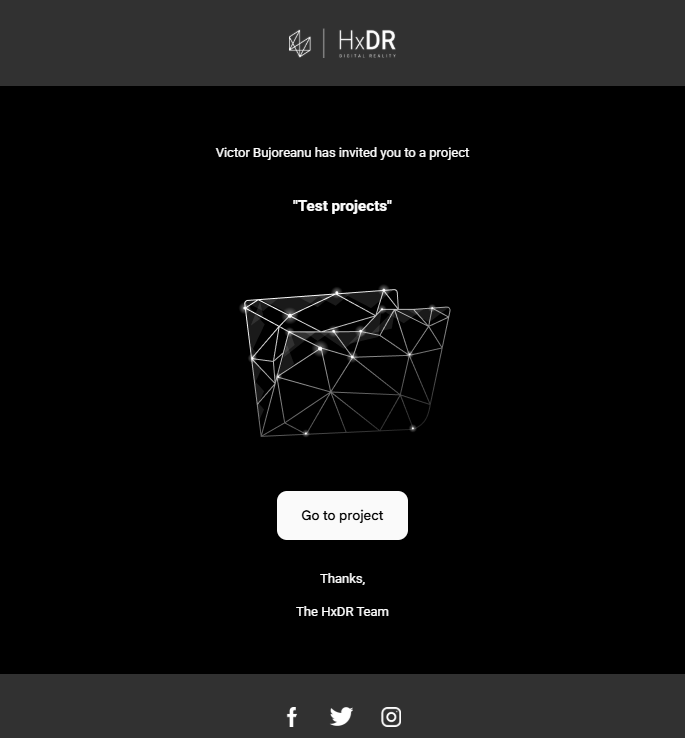
Project invitation confirmation
Invited external users will have access only to the project they’ve been added to as a member, and will not have access to other company projects.