
What’s New
This is a supplemental weekly release including a new scenes feature supporting the visual comparison of point clouds and models.
Visual Comparison Scenes
Visual Comparison of a point cloud and IFC model
Scenes are a new type of object in Reality Cloud Studio which allow for analysis of individual Assets. For their initial launch, Scenes can be used to manually align and combine multiple Assets of any format for the purposes of:
Design vs. As-built Verification: Load design models and as-built scans into the same scene to ensure construction aligns with project specifications.
Design in Context: Visualize new builds or equipment installations in situ by loading design models into scans of active construction sites or sites receiving additions.
Progress Monitoring and Quality Control: Coordinate between subcontractors and trades by loading construction progress scans alongside design models, ensuring compliance and reducing rework.
Rapid Remediation: Conduct visual analysis in the field to quickly remediate errors and keep projects on track.
A guided workflow is available for the use of scenes which can be found here:
Navigate to the Assets you wish to combine in a scene and select them by activating the check box. The assets must be in the same project.
We recommend creating a folder for the Assets within the project to make location of the matching assets as simple as possible.
Click Tools then Visual comparison scene.
Alternatively, you may click the quick access Visual comparison button that appears at the bottom right of the screen.
.jpg)
Ensure that the appropriate number of Assets are selected and click Next.
At this time, only two Assets at a time can be compared.
.jpg)
Name the Scene and click Create scene.
.jpg)
You will be placed into a side-by-side view of the two assets.
At the top of the screen, your progress within the workflow will be displayed.
At the bottom of the screen, the instructions for the current step will be displayed.
.jpg)
Identify distinct, matching points in both the model and the point cloud. You may pan, rotate and zoom in each asset independently to orientate to the desired points.
A magnification window will display a close-up view of the cursor to aid in precise picking.
.jpg)
Begin by selecting a common point on each Asset. Precise point picking is important to ensure an accurate alignment.
After a point is selected, a marker will be placed. The point on either Asset can be adjusted.
Select Next.
.jpg)
Identify a horizontally distant point and repeat the point selection process in each node.
Select Next.
.jpg)
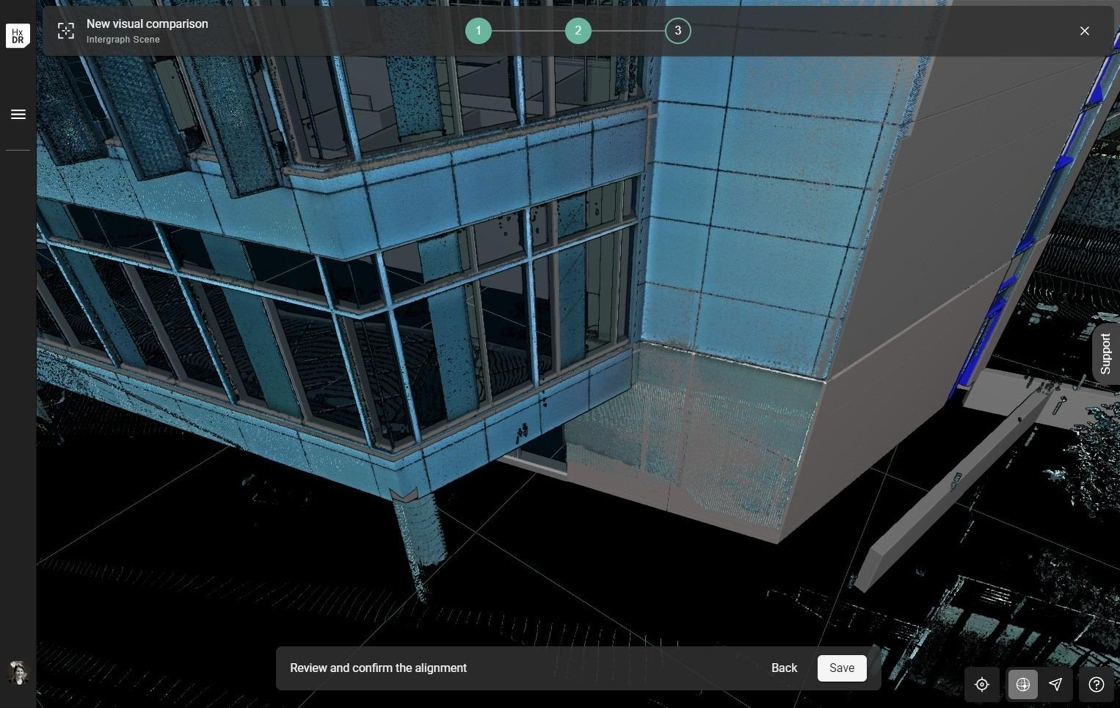
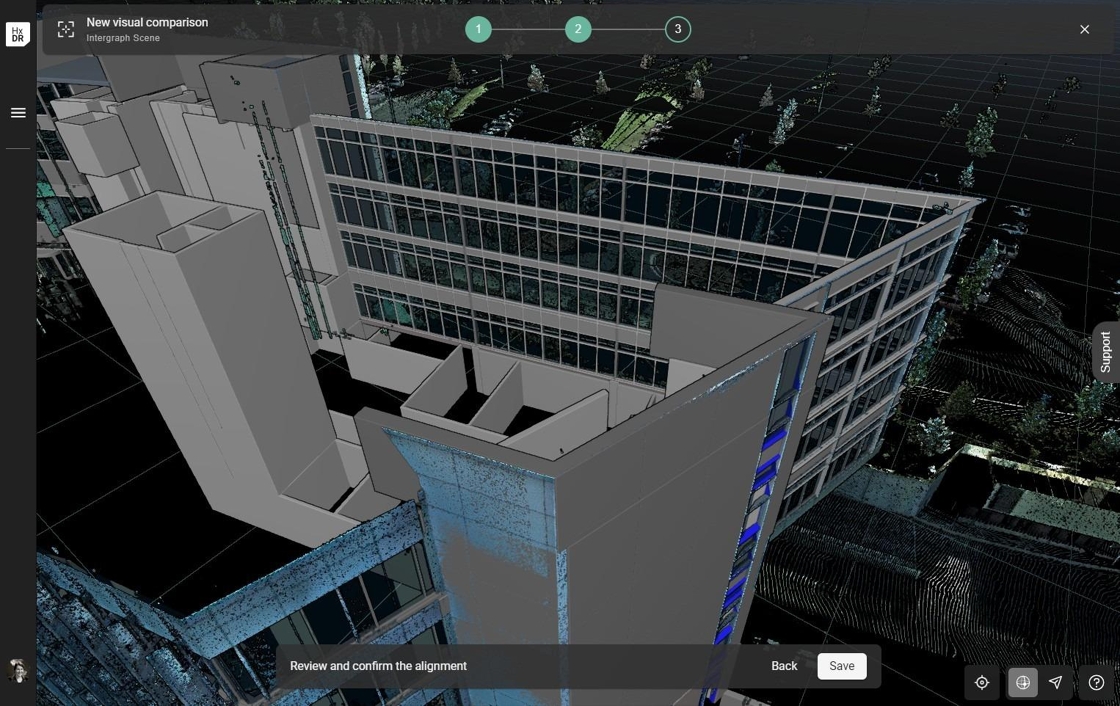
Review the alignment by visually inspecting the two nodes at various places within the alignment. You will want to see areas of intermingled points and model.
You may use the adjustment arrows to further refine the alignment or re-run the alignment from the beginning if you are not satisfied with the results.
.jpg)
After you are done with your manual alignment steps, you can press the Auto-align button to fully align your reality capture scan with your BIM model to the highest accuracy.
Launching Auto-Align after a manual alignment has been completed
Select Save to complete the alignment.
.jpg)
Once aligned, you may also adjust the visualization of the model or point cloud to better see the alignment.
We recommend switching from the standard grey model color to a more high-contrast color to inspect the alignment thoroughly.
Select the Asset.
Select Effects.
Unselect the Inherit from parent node box.
Select Color.
Select the desired color.
.jpg)
Future improvements will be aimed at automating the alignment process and adding more detailed analysis such as deviation reporting.
Visual Scenes are included with a Reality Cloud Studio subscription and will not consume against an account’s quota.
Format Compatibility
Scan vs. BIM is compatible with all currently supported model formats:
IFC
RVT
GLB
Visual Comparison Scenes are not compatible with georeferenced date.
Bug Fixes
no significant bug fixes
Known Issues
Due to a bug in the current version of Firefox (132.0, released October 29, 2024), it is recommended to use a chromium-based browser (Edge, Chrome).