Activate your Hexagon GeoCloud subscription by entering the Entitlement ID (EID) from your Entitlement Certificate. Do this if you skipped activation when you signed up for a company account, or when you receive a new Entitlement Certificate.
Who can do this: company account Admins.
Activating an EID
Navigate to geocloud.hxdr.app and log in with an Admin account. See Login and authorisation if you need help with this step.
The email used in the Personal Details section of the account creation process will be the default Admin account.
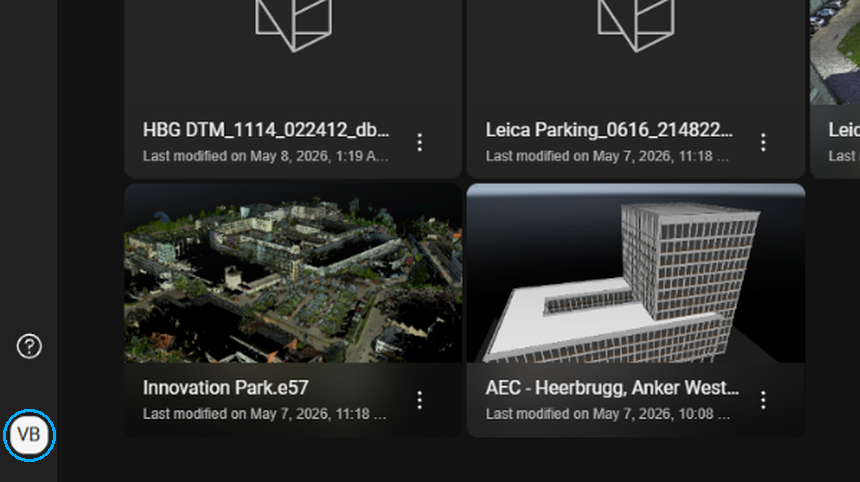
Click your account badge (bottom-left corner).
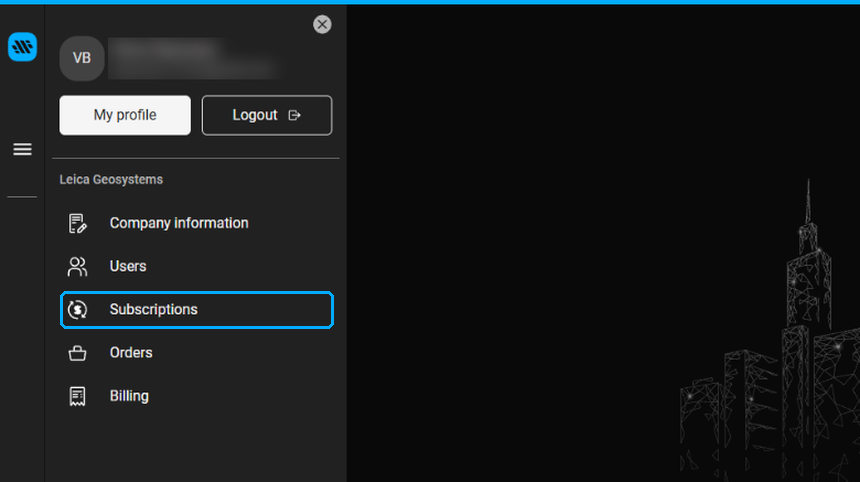
Click Subscriptions.
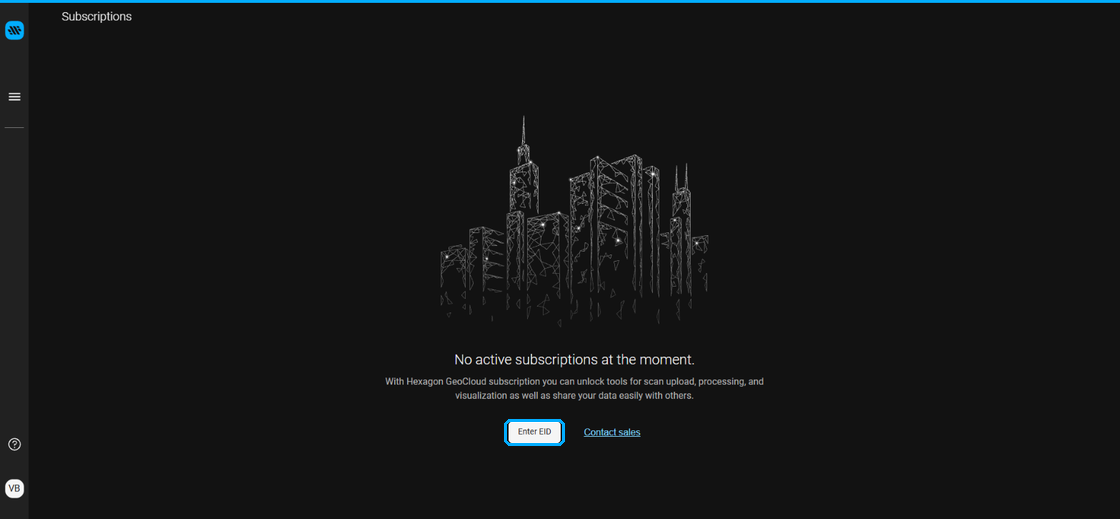
A "No active subscriptions at the moment" message will appear.
For a new account, you will be prompted to add a previously purchased subscription or contact sales.
Click Enter EID.
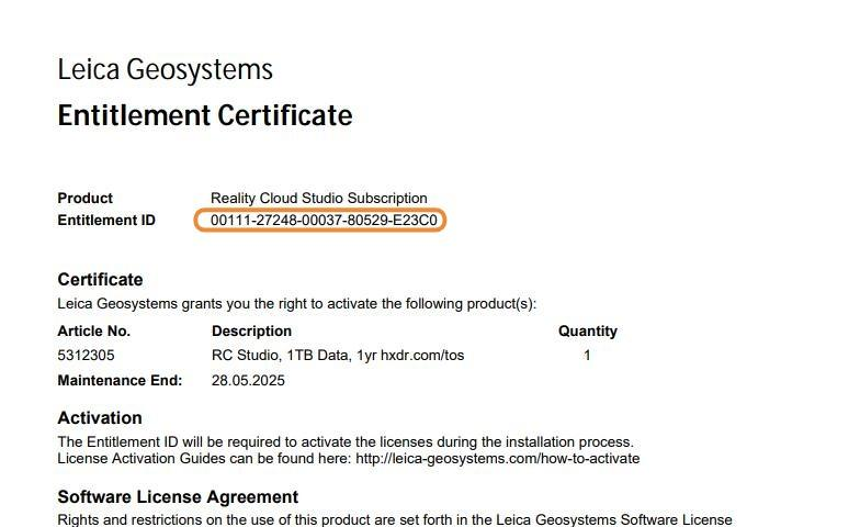
Locate your Entitlement ID (EID). It is delivered by email, in one of two places:
In the attached Entitlement Certificate.
Ensure the Product on the Entitlement Certificate is GeoCloud Subscription. If it is not, it is the incorrect EID and should not be entered here. Contact your Customer Success Manager if you do not have this product name on the Entitlement Certificate.
In the email body, next to a unique activation link.
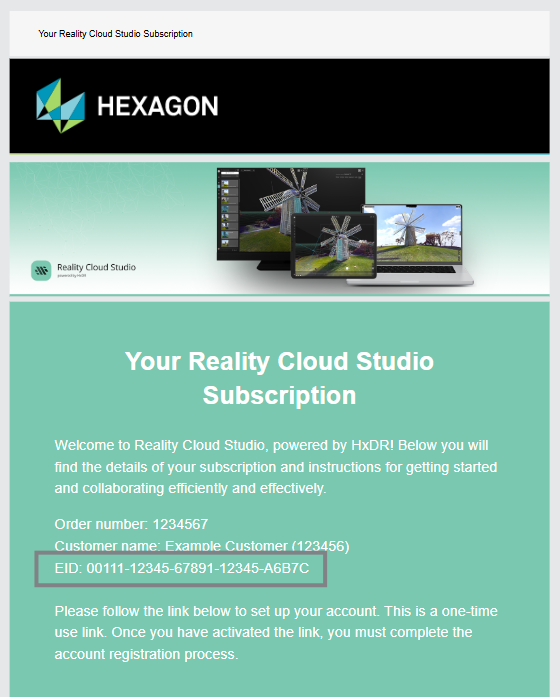
Invitation email with EID and unique URL (URL not shown)
Enter the EID.
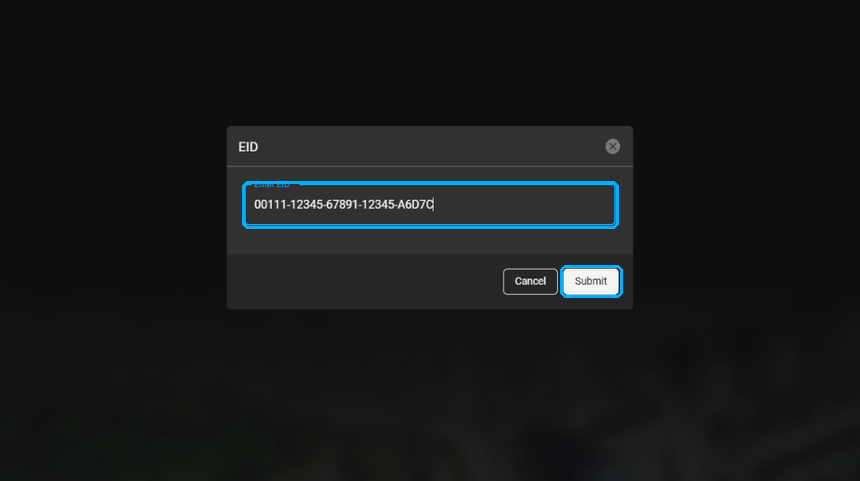
Click Submit.
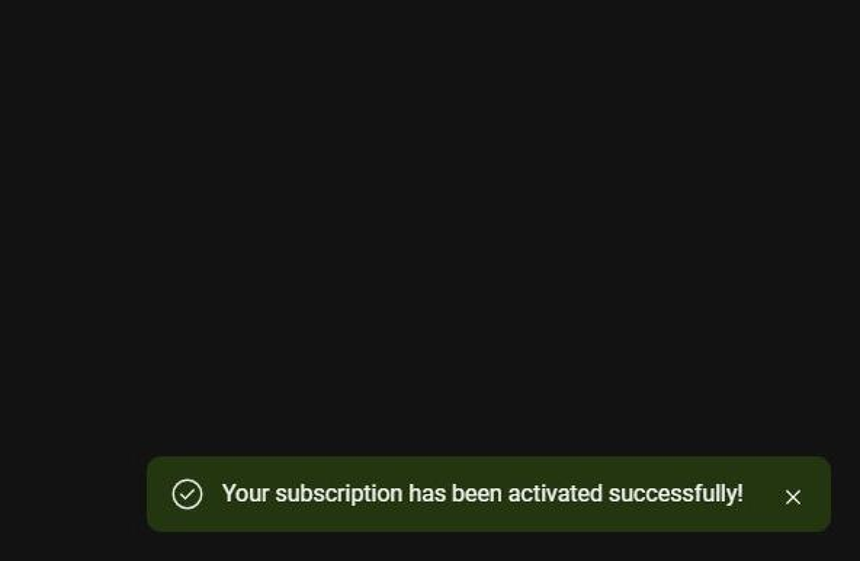
GeoCloud will activate the subscription and notify you with a message stating "Your subscription has been activated successfully!" in the lower right-hand corner of the screen.
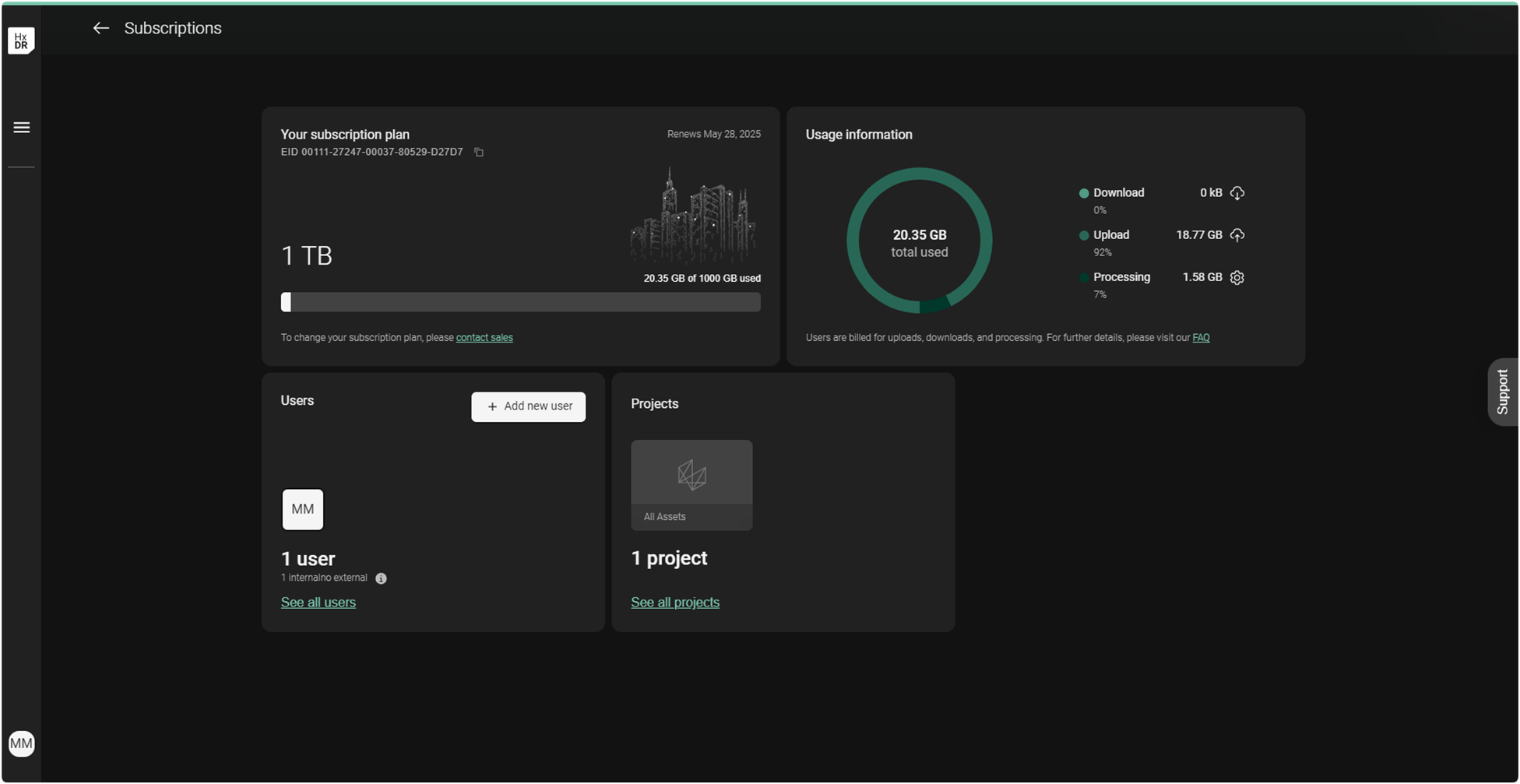
You will be redirected to your subscription dashboard. Please confirm that the subscription listed here matches the expected data quota.
Please use the Contact Sales or Contact Support buttons if anything is incorrect.
Troubleshooting
Problem | What to do |
|---|---|
The Product on the Entitlement Certificate is not GeoCloud Subscription. | It is the wrong EID. Don't enter it. Contact your Customer Success Manager. |
You can't find the email with your EID. | Contact your Customer Success Manager. |
After activation, the quota on the Subscriptions page doesn't match what you purchased. | Click Contact Sales or Contact Support on the Subscriptions page, or contact your Customer Success Manager with your EID. |
Renewing your subscription
Renewal is not self-service. Contact your region's Customer Success Team at least 30 days before your subscription expires.
Region | Contact e-mail |
|---|---|
EMEA | |
APJ | |
Americas |
Customer Success will email a new Entitlement Certificate. Apply the new EID using the steps in Activating an EID above.
Renewals issued before expiry take effect on the existing expiry date, so no remaining quota is lost when you renew early.