This page describes the Hexagon GeoCloud desktop app interface, its synchronisation behaviour, and how files are managed on your local drive. For installation and first-time setup, see Connecting Hexagon GeoCloud desktop app.
GeoCloud user interface
The GeoCloud desktop app consists of two parts: the app window (for operating the app and configuring settings) and a folder structure on the local drive (for accessing synchronised data).
App window
The application window is dedicated to notifications. Here you will find notifications about file uploads and new version announcements.
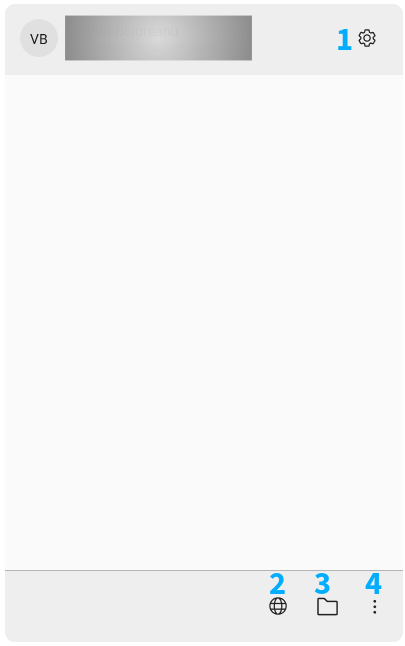
App window
1 - Settings
The settings panel is accessible from the app window and allows you to configure the following options:
Enable or disable automatic start-up with Windows.
Change the language of the interface.
Change the local storage location for synchronised files.
View account information and sign out.
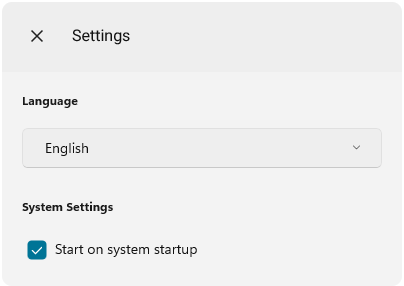
Settings
2 - GeoCloud web button
This button will redirect you to the project list on GeoCloud.
3 - Local synchronisation directory button
This button will open the synchronisation folder on your local machine.
4 - Context menu
The context menu provides access to About information, a link to the Help | Hexagon GeoCloud, and options to log out or close the application.
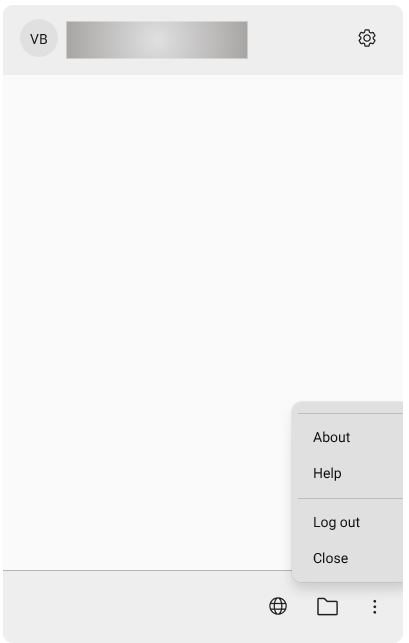
Context menu
Synchronisation behaviour
The GeoCloud desktop app synchronises data between GeoCloud on the web and your local file storage. Every change made to the content of a project - whether from the web application, the desktop app, or the field - is reflected through synchronisation.
On-demand file downloads
Files are not downloaded to your local drive automatically. Instead, they are downloaded on demand, for example, when you open a file or when you choose to make it available offline. A file that has been downloaded is indicated by the locally available icon in the File Explorer. This keeps disk usage low whilst still providing full access to the project structure.
Files that have been downloaded to your local drive will remain available even when you are not connected to the internet. These files are indicated by the locally available icon in the File Explorer.
Subscription quota consumption
Some File Explorer actions download or upload files in the background and use your subscription quota, for example opening a file, or copying a file that is not on your device. For the full list, see What consumes your subscription quota.
Local folder structure
Once signed in, the directory structure of all projects to which you have access is visible in the Windows File Explorer at:
C:\Users\<username>\Hexagon GeoCloudIf you previously used GeoCloud Drive, your local synchronisation folder will remain under the original path
C:\Users\<username>\GeoCloud Drive. The desktop app cannot rename folders on the local file system, so the old folder name is retained. This does not affect functionality.
The folder hierarchy mirrors the project structure in GeoCloud. Each project you have access to appears as a top-level folder, with its sub-folders and files nested underneath. You can browse, open, copy, and delete files using standard File Explorer operations.
Moving folders within a project using File Explorer is not currently supported. For a workaround, refer to the Hexagon GeoCloud desktop app FAQ.