Autocad basic AutoCad pro revit bricscad basic bricscad pro navisworks ultimate
Project | Connect To… | Hexagon GeoCloud
Command Line
AutoCAD/BricsCAD: CWIMPORTGEOCLOUD
This command allows accessing GeoCloud to open GeoCloud project files directly in the preferred CAD system.
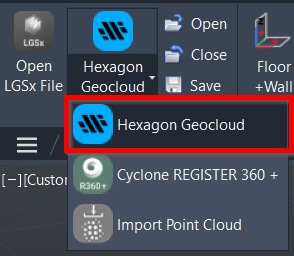
Using the Tool
To open the GeoCloud project from CloudWorx, follow the steps below:
Select HexagonGeocloud from the Connect To menu in the Project panel or type a command line prompt specific to the preferred CAD system and press ENTER.
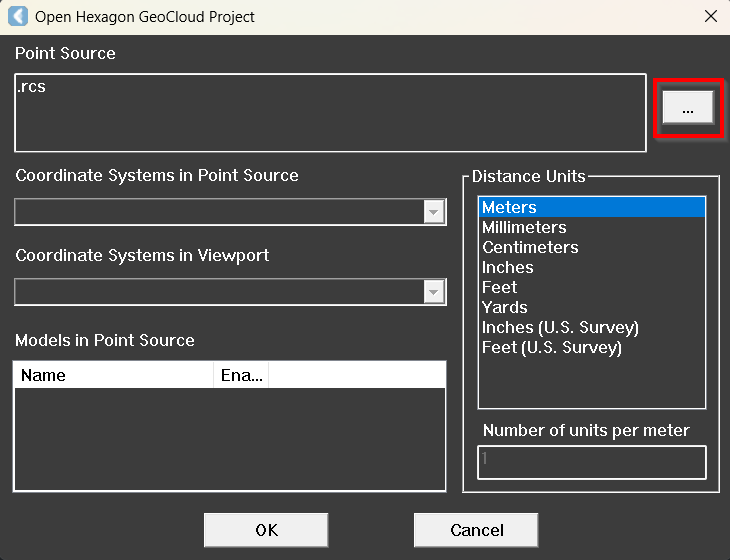
In the Open Hexagon GeoCloud Project dialog that appears, select the desired GeoCloud project file.
Click the ellipsis button to browse the project file.
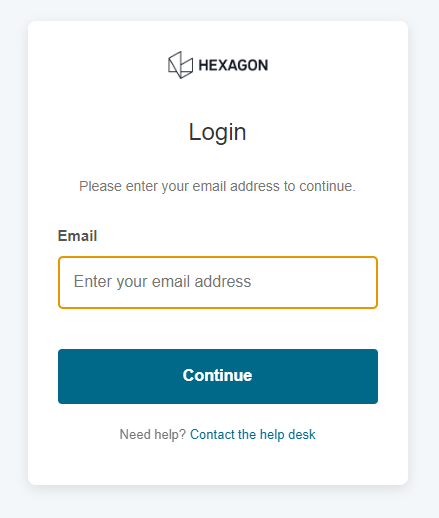
b. Sign in with your HxDR email and password.
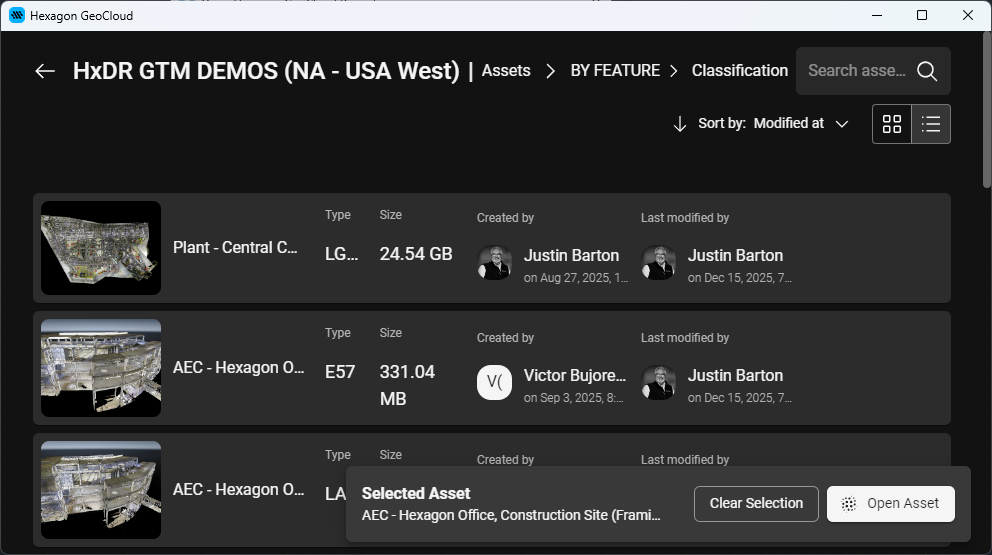
Once the desired file is selected, click the Open Asset button next to it.
After the point cloud is completely rendered in CloudWorx, you may start working with it using any of the available CloudWorxtoolsets.
To close an active project in your current workspace, click the Close Project icon
 in the Project panel.
To log out of GeoCloud, navigate to Manage Connections.
Graphics card compatibility in BricsCAD
Some laptop computers with both integrated and dedicated graphics cards may experience issues when connecting to GeoCloud. Users can set BricsCAD program preferences to integrated graphics to resolve the issue.